Lights (by SedatedH) - Beginner Android Homescreen Tutorial
Автор: mycolorscreen
Загружено: 2013-05-24
Просмотров: 43647
Описание:
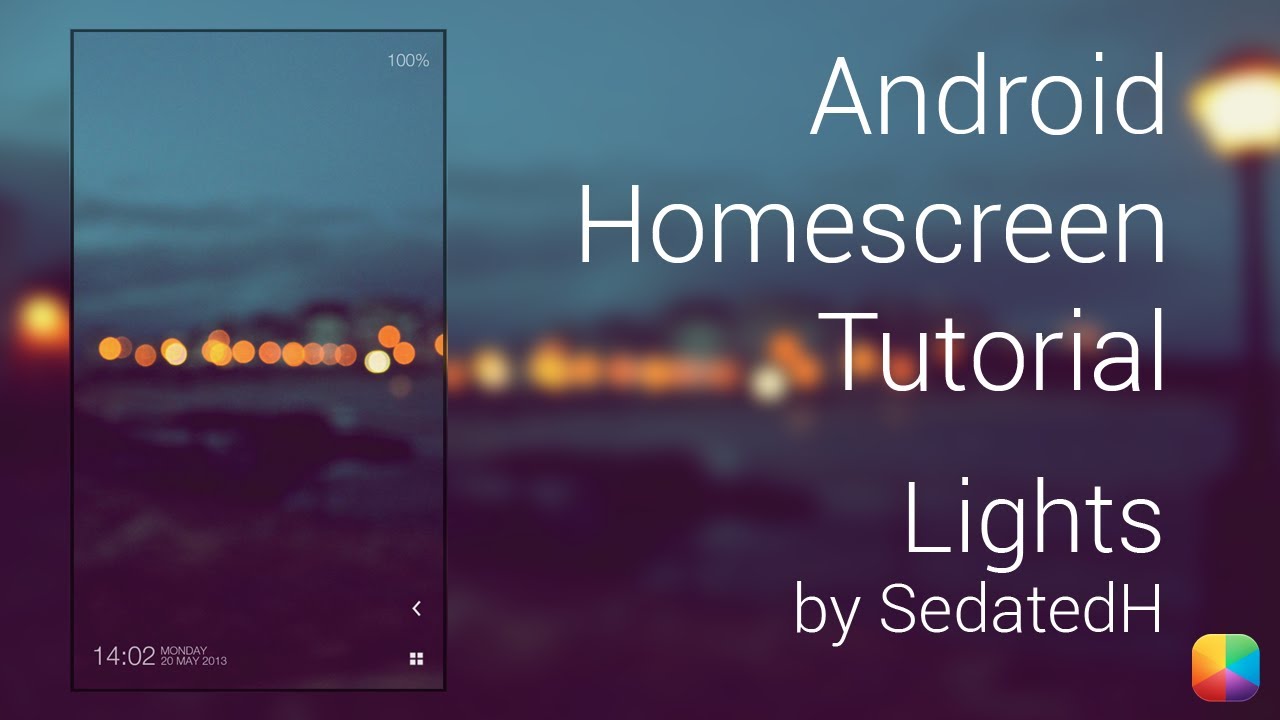
Lights by SedatedH is perfect for all the minimal lovers and beginners out there. This is a very easy to setup screen, and looks fantastic. With only battery info at the top, date & time info at the bottom, as well as minimal icon folders, this screen is ideal for someone who wants a calm and peaceful homescreen.
Lights on MyColorScreen: http://mycolorscreen.com/2013/05/20/l...
===========================
Part 1: Before you begin
These are the apps you will need:
UCCW: http://bit.ly/10BIOnI
Nova Launcher (Apex and ssLauncher can also be used): http://bit.ly/WlA6U1
SmallWhites Icons: http://bit.ly/10phxDa
The files that you must copy to your phone:
UCCW Skins: http://www.mediafire.com/?d10szv6fhlx...
Wallpaper: http://bit.ly/11ifLVI
-----------------------------------------
Part 2: Nova Settings:
Desktop:
Desktop Grid: 12x8 (or whatever suits you best, as shown in the video)
Width Margin: None
Height Margin: None
Disable: Shadows, Label Icons
Homesceens: 1
Advanced: Enable: Widget Overlap
Dock:
Enable Dock: Disabled
Look and Feel:
Show notification bar: Disabled
Gestures and Buttons:
Apply any if needed.
-------------------------------------
Part 3: Wallpaper Setup
Hold down on your homescreen - Wallpapers - Gallery - Find the Wallpaper and select it. The wallpaper should fit any screen as it doesn't matter if some parts are cropped off.
----------------------------
Part 4: Shortcut Setup
To create a folder, simply hold down on the homescreen - apps. Now tap 'Select Multiple', now select all the apps you want and select create folder. Next hold down on this folder - edit - select the image - change it to a SmallWhites icon.
----------------------------
Part 5: UCCW
To add the skins:
Hold down on the homescreen - Widget - UCCW - any size.
In the main menu after tapping the widget, select "Open uzip", now just find where you pasted the .uzip and select it.
After it appears on your homesreen, resize it to the way it looks in the video.
You can now edit the hotspots (allows you to open apps when tapping a certain area) in this skin, by tapping the skin to open it.
Then select 'Hotspots' in 'Select Object', followed by editing your needed hotspots.
If you would like to know more about hotspots, see the link below.
Finally tap any UCCW skin, Menu - Hotspots Mode - On.
UCCW Tutorials: http://bit.ly/Sq9Euf
Remember: Turn Hotspots mode ON to prevent opening the editor each time.
**If you get a white box, remove it, then re add the skin from the UCCW gallery, then it should work**
----------------------------
Part 6: Missed It! Setup (Intermediate Users)
Missed It! - The Complete Guide: • Missed It! - The Complete Guide
=================
Thanks very much for watching this tutorial, please don't forget to subscribe, as well as like/comment on/share this video!
Facebook: http://on.fb.me/UkYSFe
Twitter: http://bit.ly/UkYWVy
The Artist: http://bit.ly/11RtQcv
Boom!
=================
Music Info:
Name of the track: Feel it
Artist of the track: Unknown
Direct URL of the track: http://bit.ly/XGxAZj
Link to online license terms: http://bit.ly/11BM6GG
Повторяем попытку...
Доступные форматы для скачивания:
Скачать видео
-
Информация по загрузке:



![Почему взрываются батарейки и аккумуляторы? [Veritasium]](https://imager.clipsaver.ru/a3-3R9zwyGY/max.jpg)