ycliper

Популярное

Музыка Кино и Анимация Автомобили Животные Спорт Путешествия Игры Юмор

Интересные видео

2025 Сериалы Трейлеры Новости Как сделать Видеоуроки Diy своими руками

Топ запросов

смотреть а4 schoolboy runaway турецкий сериал смотреть мультфильмы эдисон
Скачать

Pulover's Macro Creator Tutorial: Image and Pixel search

Auto Keyboard

AutoHotkey

Automate Hot Key

Automate Tasks

Automation Utility

Free Macro Recorder

Keyboard Macro

Macro Builder

Macro Editor

Macro Generator

Macro Maker

Macro Program

Mouse Macro

Mouse Recorder

Автор: Pulover's Macro Creator

Загружено: 2013-10-25

Просмотров: 95033

Описание: Watch the tutorials for PMC version 5:    • Pulover's Macro Creator v5 Tutorial 1  

Transcription:
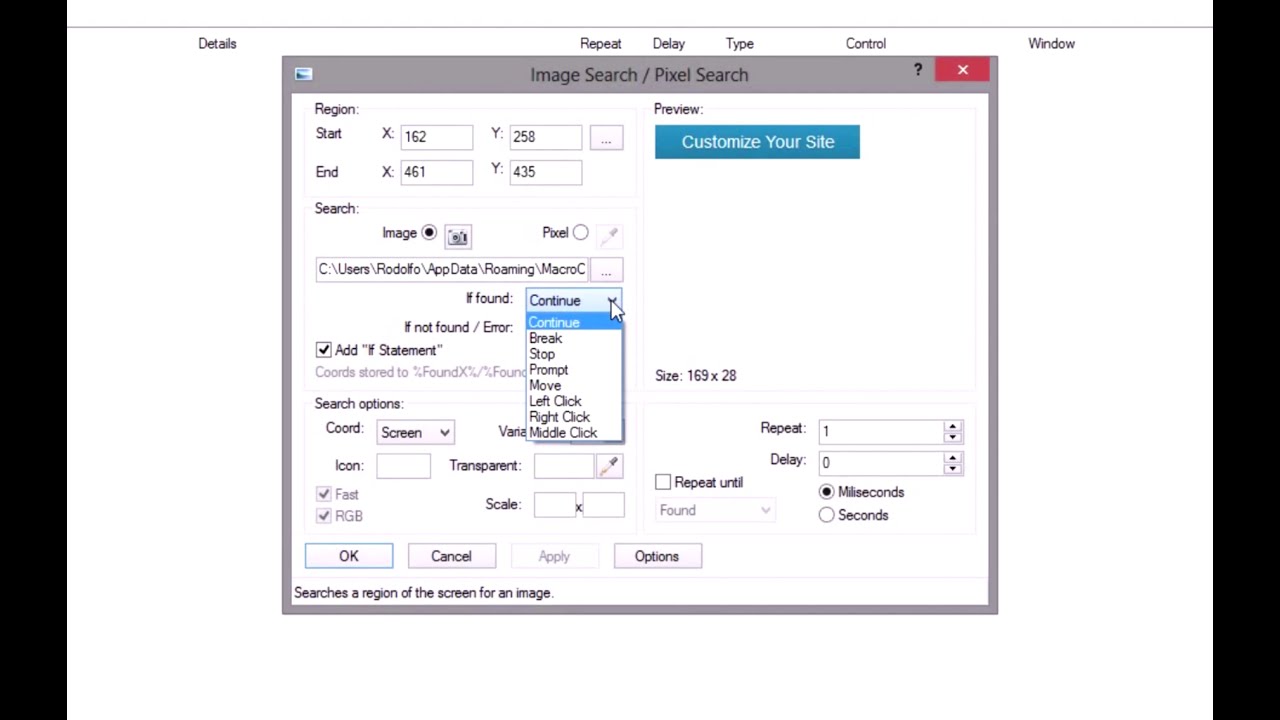
With Pulover's Macro Creator you can take screenshots of part of the screen and create a command to search for that image.
You can also search for a determined pixel color.
To mark a region press and hold the right button on the mouse and drag it to create a rectangle.
Release to get the position.
Click on the button with the camera to take a screenshot.
Use the same method to mark the area.
To create more precise screenshots go to the Options window and select "Press Enter to capture".
You can also change the line width.
Now after releasing the mouse button you can move and resize the rectangle using the keyboard pressing Ctrl+Arrow keys and Shift+Arrow keys.
You can also mark the region of a control by clicking and releasing over a control area without moving the mouse,
and mark the area of the window by doing the same in an area without a control.
You can also load an image file from your computer.
The "If found" and "If not found" options determine the action taken by the program on each situation.
The Repeat until option creates a loop that will repeat the search until the image or pixel is found or not found.
You can set the delay between searches.
If you want to execute different or more commands after a result you need to add an If Statement.
Mark this option to create one automatically.
When the image or pixel is found the coordinates are saved to the variables FoundX and FoundY.
You can use those variables inside other commands such as Mouse actions by enclosing them in percent signs
Notice that the coordinates returned for an image search will point to the upper-right corner, not the center.
To fix that you can increment the values before using them.
For that use the Variables window with the Add or Subtract operators or check the Expression option and use the Assign operator.
The commands added between the If Statement and the EndIf line will only be executed if the result of the search matches the criteria,
which can be "If image/pixel found" or "If image/pixel not found".
An Else Statement can also be used inside the block.
Pixel search is basically the same.
You can pick a color from your desktop or from the Color Pick dialogue.

Не удается загрузить Youtube-плеер. Проверьте блокировку Youtube в вашей сети.
Повторяем попытку...
Pulover's Macro Creator Tutorial: Image and Pixel search

Поделиться в:

Доступные форматы для скачивания:

Скачать видео

  • Информация по загрузке:

Скачать аудио

Похожие видео

Создатель макросов AutoHotkey Pulover — поиск изображений / поиск пикселей / распознавание текста

Создатель макросов AutoHotkey Pulover — поиск изображений / поиск пикселей / распознавание текста

Учебное пособие по Jitbit Macro Recorder — Детектор изображений

Учебное пособие по Jitbit Macro Recorder — Детектор изображений

Pulover's Macro Creator v5 Tutorial 1

Pulover's Macro Creator v5 Tutorial 1

Pulover's Macro Creator v5 Tutorial 2

Pulover's Macro Creator v5 Tutorial 2

Найдите изображение на экране рабочего стола для автоматизации рабочего стола с помощью Macro Rec...

Найдите изображение на экране рабочего стола для автоматизации рабочего стола с помощью Macro Rec...

5 Produktów, Które Niszczą Nerki — To Nie  Sól Ani Białko

5 Produktów, Które Niszczą Nerki — To Nie Sól Ani Białko

Как легко находить и кликать по изображениям с помощью FindText v2

Как легко находить и кликать по изображениям с помощью FindText v2

Создатель макросов AutoHotkey Pulover: автоматизируйте свою игру!

Создатель макросов AutoHotkey Pulover: автоматизируйте свою игру!

Pixel Predator v1.2 - Free Open Source Pixel Search Program (For PC)

Pixel Predator v1.2 - Free Open Source Pixel Search Program (For PC)

AutoHotkey Commands Tutorial #5 - Image Search (2)

AutoHotkey Commands Tutorial #5 - Image Search (2)

Creador de macros de AHK Pulover: automatice su codificación Automatizándola. Grabador de macros

Creador de macros de AHK Pulover: automatice su codificación Automatizándola. Grabador de macros

AutoHotKey - Fast image/Pixel scanning class

AutoHotKey - Fast image/Pixel scanning class

Macro recorder ve Pulover's Macro Creator Kullanmı

Macro recorder ve Pulover's Macro Creator Kullanmı

AutoHotKey / Tutorial 16 - ImageSearch

AutoHotKey / Tutorial 16 - ImageSearch

autohotkey imageSearch

autohotkey imageSearch

Jitbit Macro Recorder: Automate Your Tasks with Just a Few Clicks

Jitbit Macro Recorder: Automate Your Tasks with Just a Few Clicks

Simple Macro Recording

Simple Macro Recording

Pulover's Macro Loop Tutorial

Pulover's Macro Loop Tutorial

AutoHotKey / Tutorial 17 - PixelSearch

AutoHotKey / Tutorial 17 - PixelSearch

Main Features of Macro Recorder Pro - Computer Macro Program Guide

Main Features of Macro Recorder Pro - Computer Macro Program Guide

© 2025 ycliper. Все права защищены.


  • Контакты
  • О нас
  • Политика конфиденциальности


Контакты для правообладателей: [email protected]