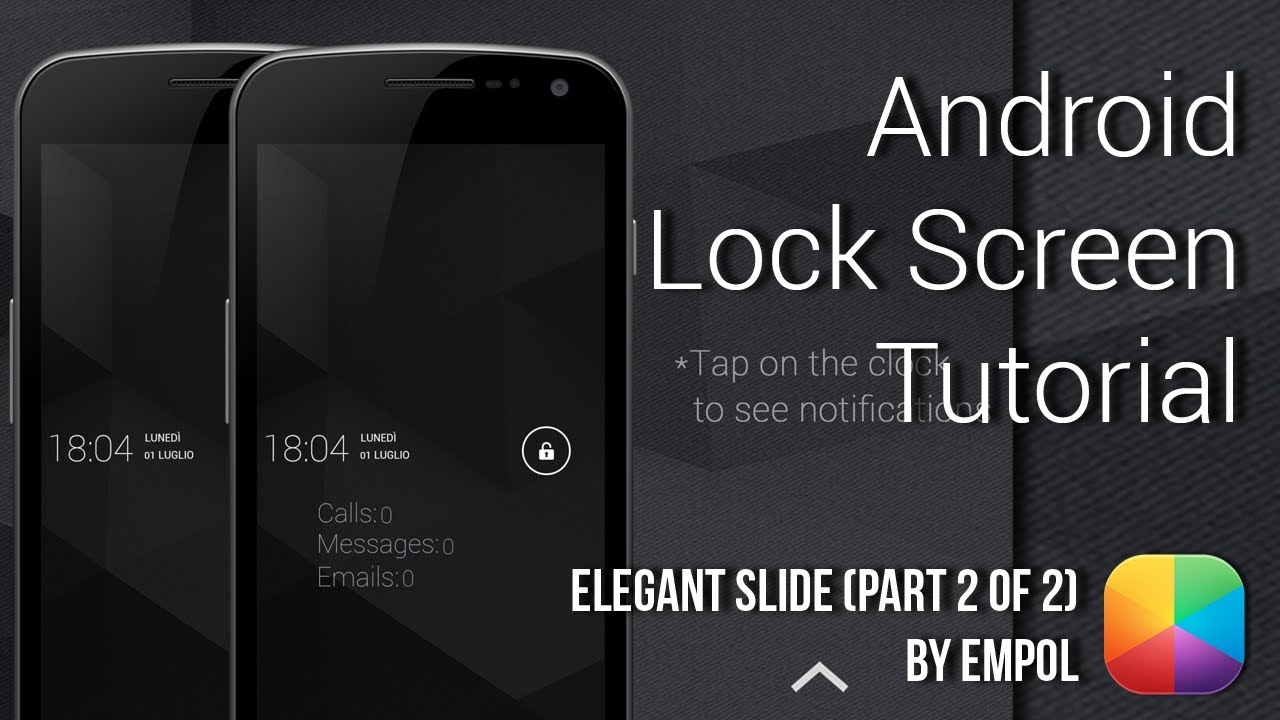
Elegant Slide (Part 2 of 2) (by Empol) - Android Lock Screen Tutorial
Автор: mycolorscreen
Загружено: 2013-07-06
Просмотров: 19583
Описание:
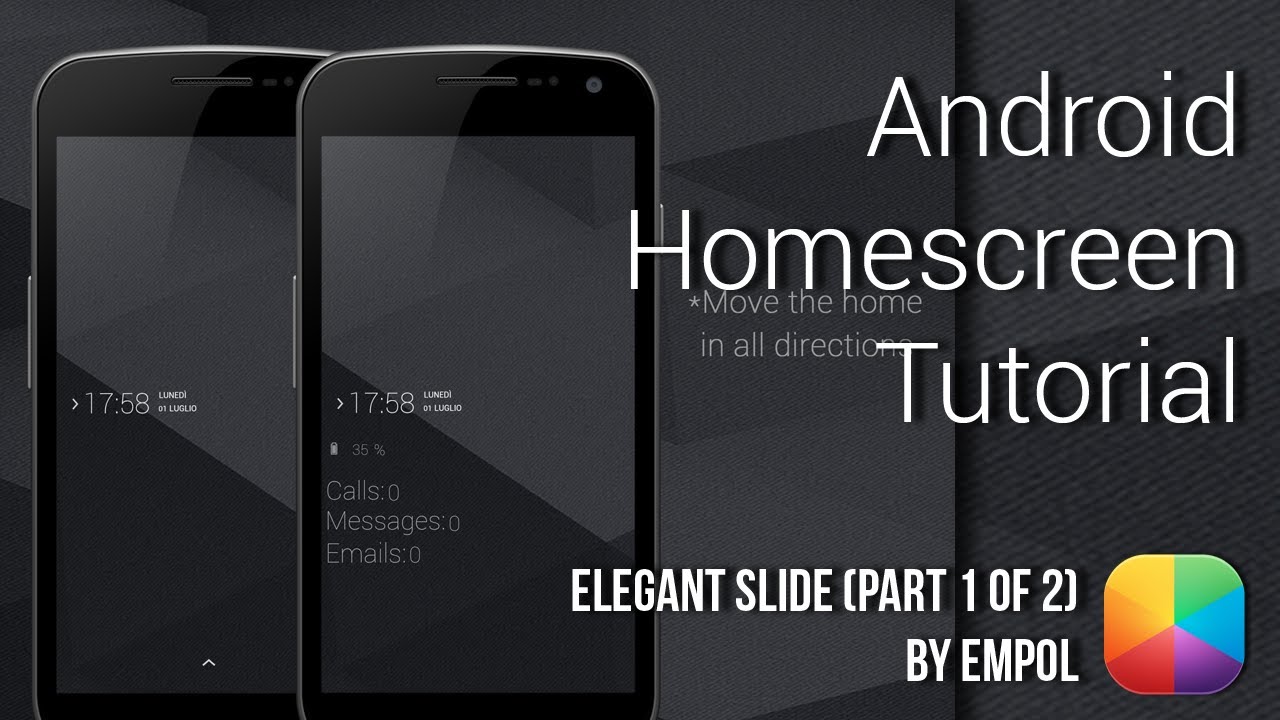
This amazing lock screen by Empol titled Elegant Slide is truly one of my personal best. It's simple minimal design, with it's dark angled background, and the slide-out notifications when tapping the clock all help create a unique and fantastic lock screen. This is the second part of the Elegant Slide setup, as part 1 is the homescreen setup.
To see Part 1 of this setup (the homescreen), click here: • Elegant Slide (Part 1 of 2) (by Empol) - A...
Elegant Slide on MyColorScreen: http://mycolorscreen.com/2013/07/01/e...
Widgetlocker - The Complete Guide: • Widgetlocker - The Complete Guide & Retro ...
========================
Part 1: Before you begin
Here are the apps you will need:
UCCW: http://bit.ly/138wb0D
Popup Widget (Free): http://bit.ly/14TL7jk
Popup Widget (Paid): http://bit.ly/13noBE9
Widgetlocker: http://bit.ly/ZlD8eB
Any File Explorer
Desktop VisualizeR: http://bit.ly/XyZQ4D
Here are the resources you will need:
Resources (comes in .rar format, so use ES File Explorer to extract or WinRar on your PC): http://bit.ly/129BpaS
Icons (.zip): http://bit.ly/11qvByx
Icons (Play Store): http://bit.ly/16eO65s
--------------------------------------
Part 2: Widgetlocker Setup
First remove any icons or widgets, then:
1. Tap the white icon at the top to open up the settings.
2. Look & Feel - Select Alternative Wallpaper.
3. 'Select Wallpaper' - find the black icons you copied onto your phone.
4. As long as it doesn't show the icon you will have a black wallpaper.
5. Layout - Drag the Anchor all the way to the bottom & Deselect Auto grid size.
6. Change the grid size to 12x12
7. Hide Notification Bar.
----------------------------
Part 3: Custom Slider
1. Hold down on the lock screen - Custom Slider
2. Slide the green lock icon to the right - Under Actions select Disable.
3. Slide the grey sound icon to the left - Under Actions select Disable.
4. Tap the middle area - Under Actions select Widgetlocker Actions - Unlock.
5. Select the Icon tab - Gallery - Select a suitable lock icon from the icons above.
6. Select Done - Resize if desired.
----------------------------
Part 4: UCCW
To add the skins:
1. Hold down on the homescreen - Widget - UCCW - any size.
2. In the main menu after tapping the widget, select "Uzip", now just find where you pasted the Slide Locked 1.uzip and select it.
3. After it appears on your homesreen, resize it to the way it looks in the video.
UCCW Tutorials: http://bit.ly/Sq9Euf
Remember: Turn Hotspots mode ON to prevent opening the editor each time.
**If you get a white box, remove it, then re add the skin from the UCCW gallery, then it should work**
----------------------------
Part 5: Desktop Visualizer and Popup Widget
1. Hold down on the lock screen - Widget - Desktop Visualizer - Any Size.
2. Resize it so it covers the clock and tap it to open its settings.
3. Icon - Other - None. Action - Shortcut - Popup Widget.
4. Select "Enable Full Screen" (Requires Paid Version) then Select Create a New Widget - UCCW - 4x3 size.
5. Change Transition to Slide from Left.
6. Enable Custom Position (requires Paid version) - Set it to x:10 - y:500 (or similar)
7. Go Back - Select the newly created widget
8. In Desktop Visualizer - Clear Label and no color when tapping it - Done.
***To edit the Popup Widget - Go into PW from your App Drawer***
Popup Widget - The Complete Guide: • Popup Widget - The Complete Guide
=================
Thanks very much for watching this tutorial, please don't forget to subscribe, as well as like/comment on/share this video!
Facebook: http://on.fb.me/UkYSFe
Twitter: http://bit.ly/UkYWVy
The Artist: http://bit.ly/11RtQcv
Google+: http://bit.ly/15GLXkt
Twitter (Marco): / marcojhb
Boom!
===============================
Intro info:
Original Intro by Velosofy: / velosofy
Music Info:
Name of the track: We Were Young
Artist of the track: Unknown
Direct URL of the track: http://bit.ly/14KF3dg
Link to online license terms: http://bit.ly/11BM6GG
Повторяем попытку...
Доступные форматы для скачивания:
Скачать видео
-
Информация по загрузке:




![Почему реактивный двигатель не плавится? [Veritasium]](https://imager.clipsaver.ru/F6UB0V2Fct4/max.jpg)