Detailed View in AutoCAD
Автор: DAVE BALINO
Загружено: 2024-05-19
Просмотров: 6255
Описание:
Previous Videos:
Hex Bold 3D in AutoCAD
• Hex Bold 3D in AutoCAD
Hex Bolt in AutoCAD
• Hex Bolt in AutoCAD
AutoCAD file (.dwg) Download link:
https://www.mediafire.com/file/4fnkx1...
Timestamp:
00:26 Adding Viewport and Hidden Layers
01:33 Layer Setup
02:04 Custom Scale of the Selected Viewport
03:03 Object Layout Viewport
04:06 Match Properties Command
05:17 CHSPACE
Script:
In the previous videos, I've shown how to draw a Hex Bolt and its 3D.
You can get the links to those videos in the description.
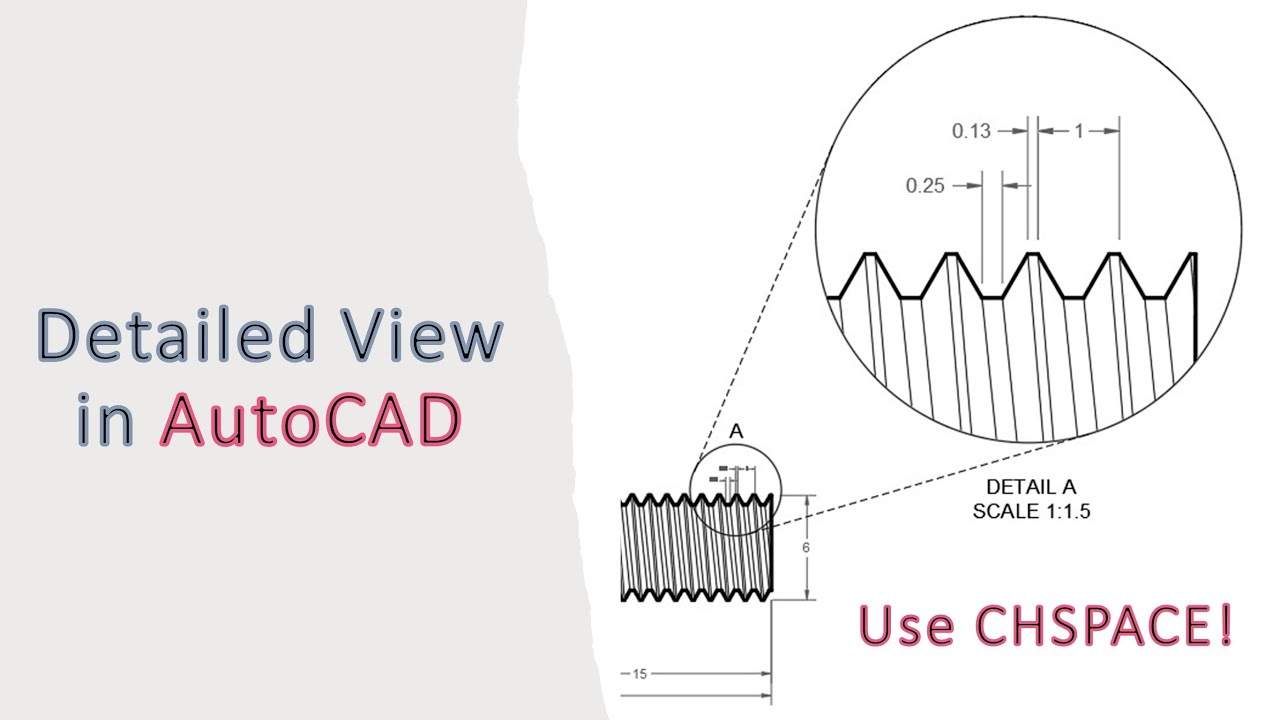
In this video, we will draw its thread detailed view.
Let's open the drawing.
Let's setup the layer. You can pause the video and check the layer setup.
Ensure that your visual style is set to 2D Wireframe for enhanced performance.
I will set the thick lines to 0.6 millimeters.
Add a viewport layer and disable printing for this layer. I will set its color to red for easy recognition.
Add a Hidden layer; we will use this later in the detailed view of our drawing. I will enable printing for this layer and change its color to white.
I will set its thickness to 0.13 millimeters, similar to thin lines.
The linetype should be HIDDEN.
The layer setup is complete.
Now, go to the Paperspace. Then, go to the Layout tab and select Rectangular Viewport.
Create a viewport that is just large enough to view the hex bolt.
Importantly, make sure to adjust the scale accordingly. I will try 1:8.
If you can't find a suitable scale, you can create a custom scale.
Find "Custom," click on "Add," and name it "1:7 Custom."
Don't forget to set the drawing units, then click "OK."
After that, you can select the custom scale to fit the viewport.
Let's adjust the viewport size accordingly.
Center the drawing in the viewport.
Switch back to Paper.
Next, create a circle. Set its center to (8.5, 6) with a diameter of 3.5.
n the Layout viewport tab, select object command and choose the circle to transform it into a viewport.
Select the circle viewport and switch to Model.
Zoom in on the part of the geometric figure you want to have a detailed view of.
Adjust the scale accordingly. I will try 1 is to 2.
I'll switch to Model space and add dimensions in the detailed view.
I will select the dimension, go to Properties, and change its Dim Scale Overall to 1.
I will add additional dimensions for the root and crest, use the Match Properties to match it to the pitch dimension.
Let's go back to Paperspace and adjust its zoom to 1 is to 2.
1 is to 2 is a bit small, to increase the figure size, I will create a custom scale named "1 is to 1.5 Custom".
The drawing unit is set to 1.5.
Then, click "OK" and select the new custom scale.
I will make a few adjustments to make it look more professional.
If you haven't yet subscribed to my channel, you may subscribe to help me grow my channel.
I will select the circle viewport, switch its layer to Thin Line, and lock it.
I will create another circle with the same diameter and location as the circle viewport.
I will then select this circle and, using the Change Space command, transfer it to Model space.
Let's go to Model space and change its layer to Thin Layer.
Going back to paper space, let's switch the current layer to hidden.
I will add two lines tangent to these circles.
I will copy the text and add scale label to the detailed view and geometric figure.
Finally, I will change the dim color to 252.
Let's see the preview. That's perfect.
Thanks for watching!
Don't forget to like and subscribe.
See you on my next video.
Повторяем попытку...
Доступные форматы для скачивания:
Скачать видео
-
Информация по загрузке: