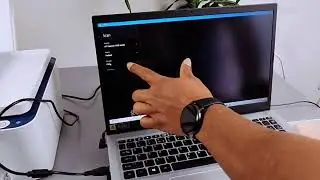
How To Scan with HP Deskjet 4130e To Computer (Save as PDF) and Print Two-Sided
Автор: Creative Tool School
Загружено: 2026-01-12
Просмотров: 40
Описание:
These instructions assume your printer is already connected to Wi-Fi and set up on your computer via the HP Smart app.
To Scan and Save as a PDF:
Place your document face-down on the scanner glass.
Open the HP Smart app on your computer.
Click on your printer's tile, then select "Scan".
Choose your scan settings (e.g., Color, Document).
Click "Scan". A preview will appear.
Click "Save" and select "PDF" as the file format. Choose a location on your computer and rename the file.
To Print on Both Sides (Manual Duplex):
In your document (e.g., Word, PDF), select File - Print.
Choose your "HP Deskjet 4130e" printer, then click "Printer Properties," "Preferences," or "More Settings".
Look for the "Two-Sided Printing" or "Duplex" section.
Select "Manual Duplex" or "Print on Both Sides (Manual)".
Print as usual. The printer will prompt you to reinsert the pages to print on the second side. Follow the on-screen instructions.
Повторяем попытку...

Доступные форматы для скачивания:
Скачать видео
-
Информация по загрузке:


![Как сжимаются изображения? [46 МБ ↘↘ 4,07 МБ] JPEG в деталях](https://image.4k-video.ru/id-video/Kv1Hiv3ox8I)