How To Connect HP Deskjet 4130e with a USB Cable, Print, Save PDF and Scan
Автор: Creative Tool School
Загружено: 2026-01-12
Просмотров: 32
Описание:
This guide explains how to use your HP Deskjet 4130e via a direct USB connection.
1. Connect with USB Cable
Turn on the printer and computer.
Plug the square end of the USB cable into the printer's port and the standard end into your computer's USB port.
Your computer will typically install drivers automatically, or you can download them from 123.hp.com.
2. Print a Document
Open your file and select Print from the File menu.
Choose "HP Deskjet 4130e" as the printer and click Print.
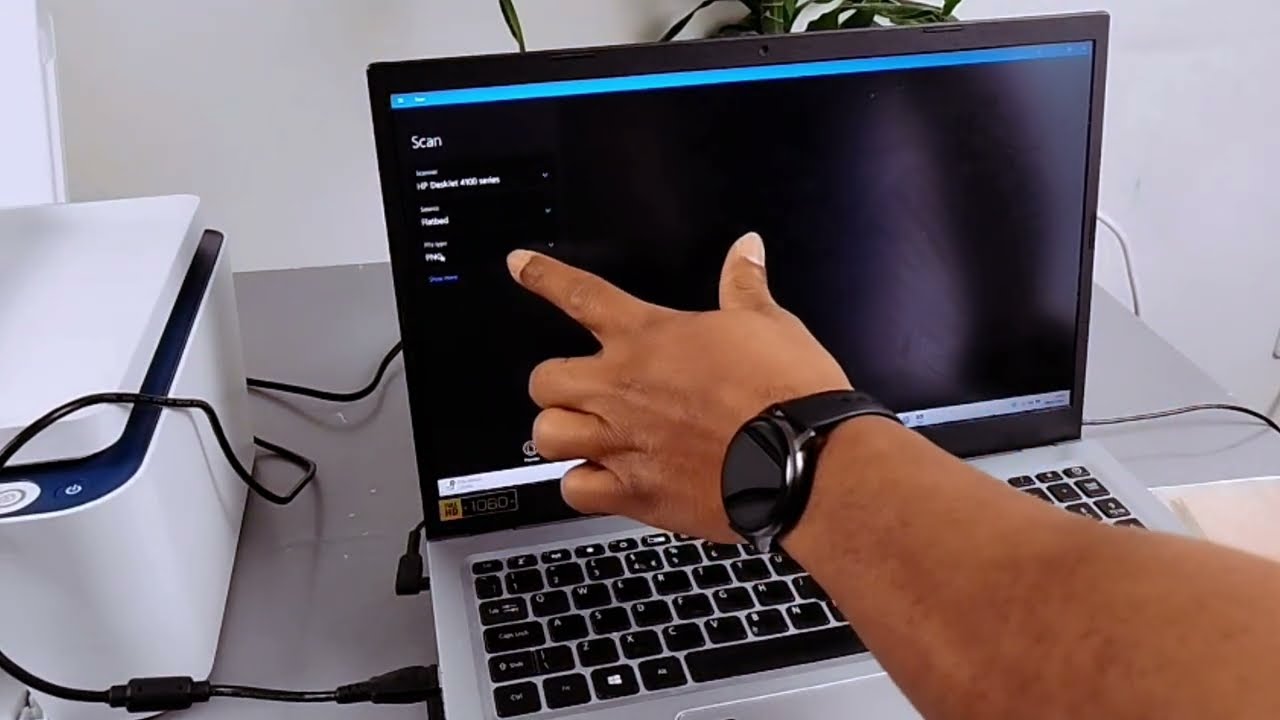
3. Scan and Save as a PDF
Place your document face-down on the scanner glass.
Open the HP Smart app or your computer's scanning software (search for "Scan").
Select your printer, set Scan Type to Document, and Output to PDF.
Click Scan, then Save the file to your computer.
4. Scan a Photo
Place the photo face-down on the scanner glass.
In your scanning software, set Scan Type to Photo and Output to Image (JPG) or PDF.
Click Scan and choose a location to save the file.
Key Note: A USB connection provides a reliable setup for printing and scanning without needing Wi-Fi.
Повторяем попытку...
Доступные форматы для скачивания:
Скачать видео
-
Информация по загрузке: