2012 NISSAN Rogue - Navigation Button
Автор: Nissan Owner Channel
Загружено: 2015-04-18
Просмотров: 2850
Описание:
Navigation Button
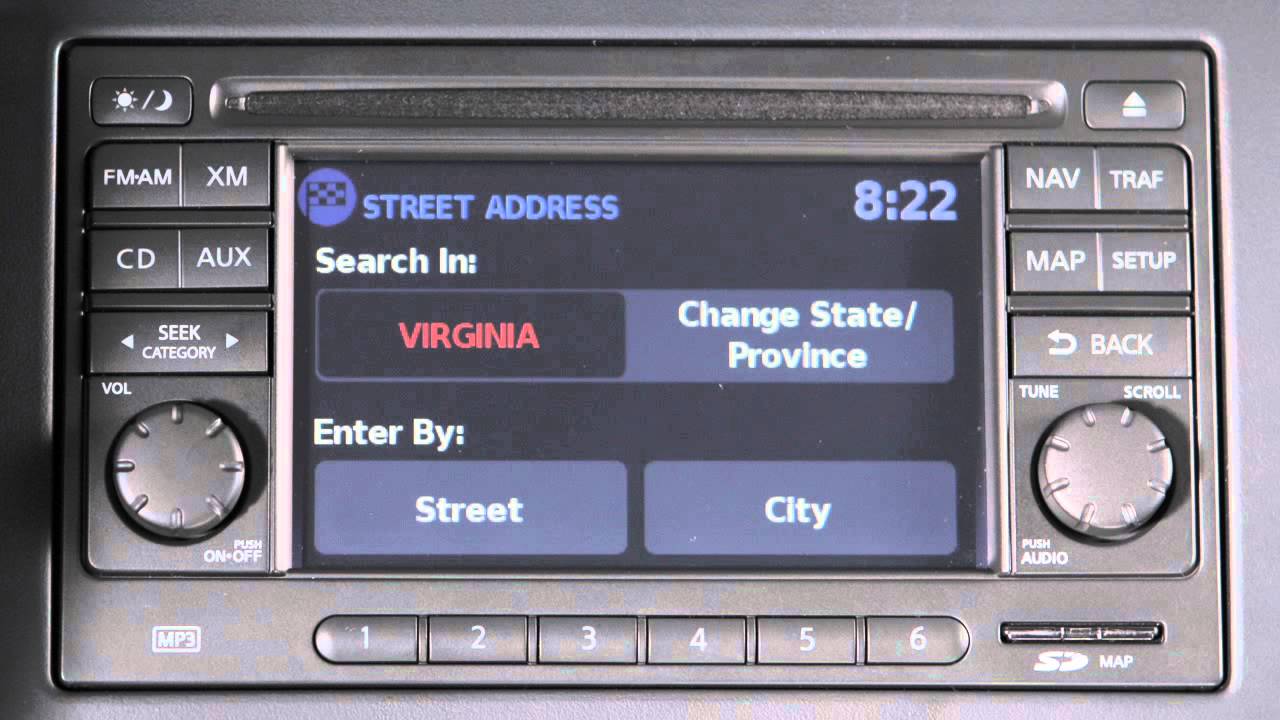
Press the NAV button to display the "Navigation" screen.
The "Destination" key provides several methods for setting and/or saving a destination.
The "Home" key allows you to enter and save your home address as a destination.
"Route" shows your current destination's route list. Press the "Route" key to display this screen.
"Previous Destinations" searches for a previously mapped destination in the destination's memory.
"Options" allows you to set route calculation settings.
"Cancel Route" allows you to cancel the current route.
Select the "Destination" key to view the "Destination" menu.
To set a destination from a street address, select the "Street Address" key. Select the state then select the "Street" key. Enter the house number and select "OK." Enter the street name then select "List" and choose the correct street name. If the street name is found in multiple cities, choose the correct city name. You may be asked to spell the city name to narrow down the matches. Your selected destination is displayed at the center of the map. Select the "Start" key to calculate the route and begin Route Guidance.
The "Places" key searches for a destination by name, from various categories of businesses, or by location.
"Map" allows you to search for a destination by scrolling around on the map, the system then calculates a route or stores the position in the Address book.
"Address Book" calls up a destination you have previously stored.
"My Places" searches for a destination from data stored on a USB storage device.
"Intersection" allows you to set an intersection of two streets as a destination.
Повторяем попытку...
Доступные форматы для скачивания:
Скачать видео
-
Информация по загрузке: