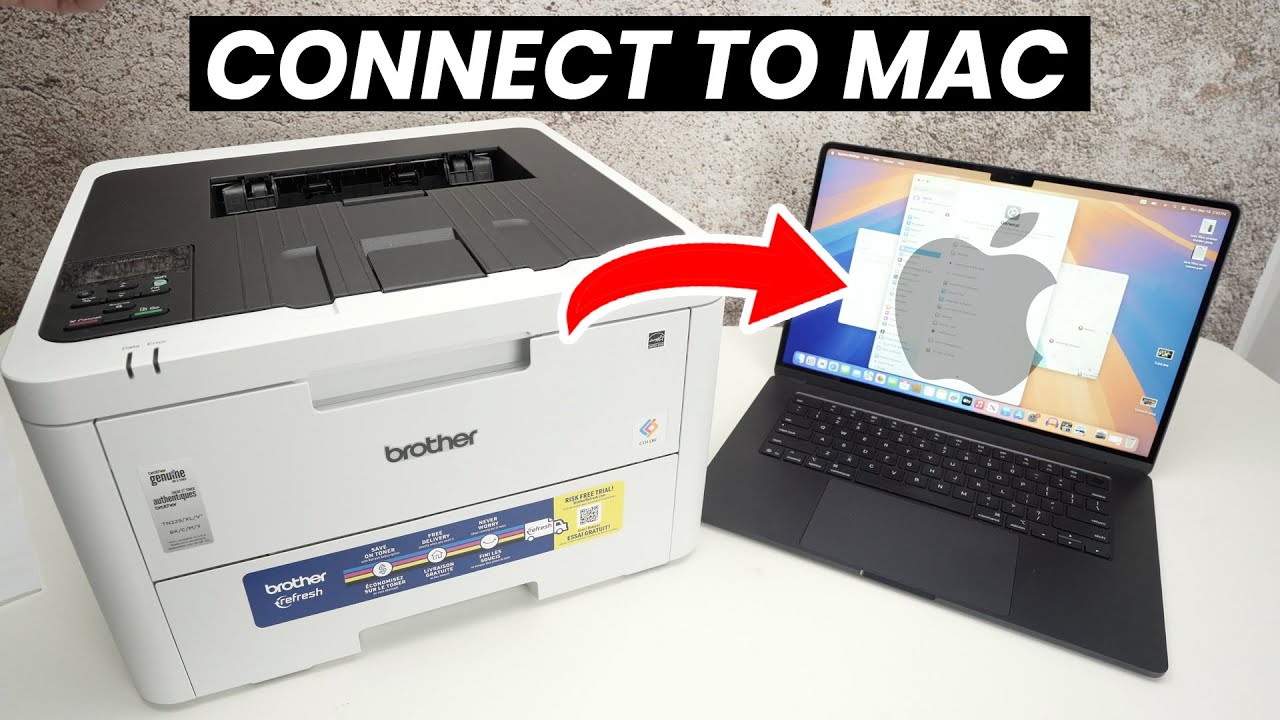
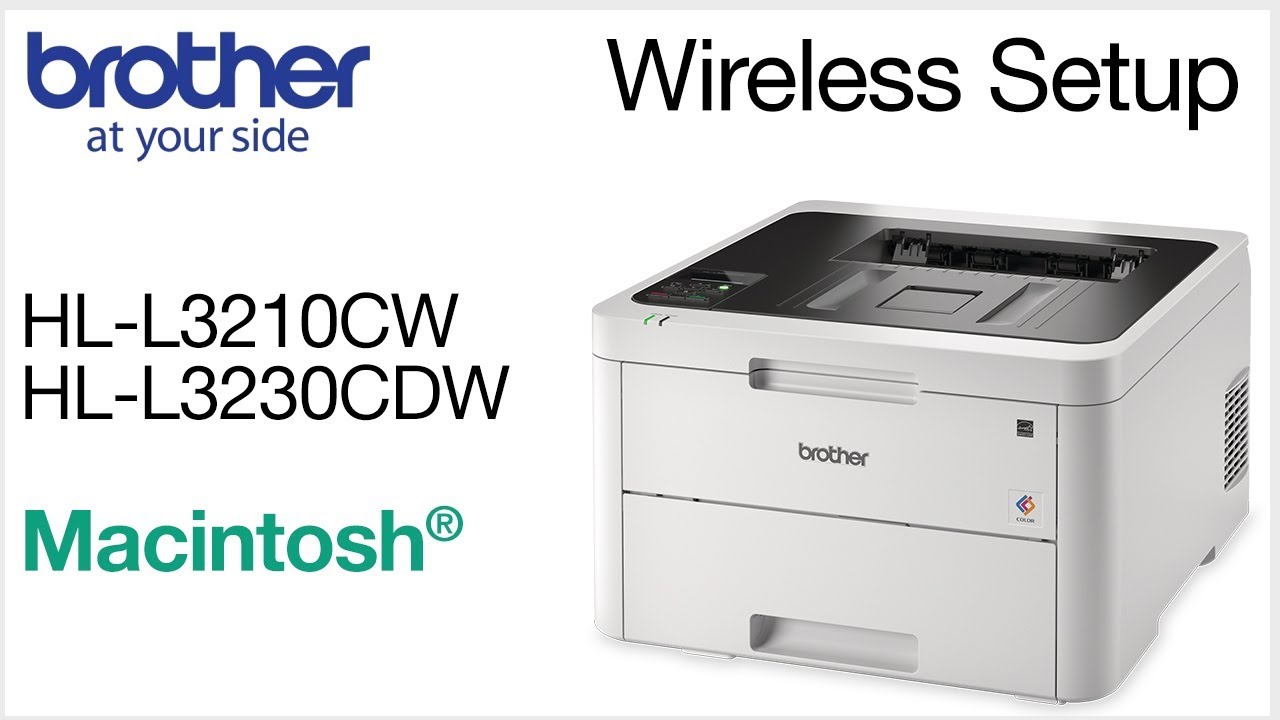
Connect HLL3230CDW to a wireless computer - Macintosh
Автор: Brother Office USA
Загружено: 2018-09-20
Просмотров: 16168
Описание:
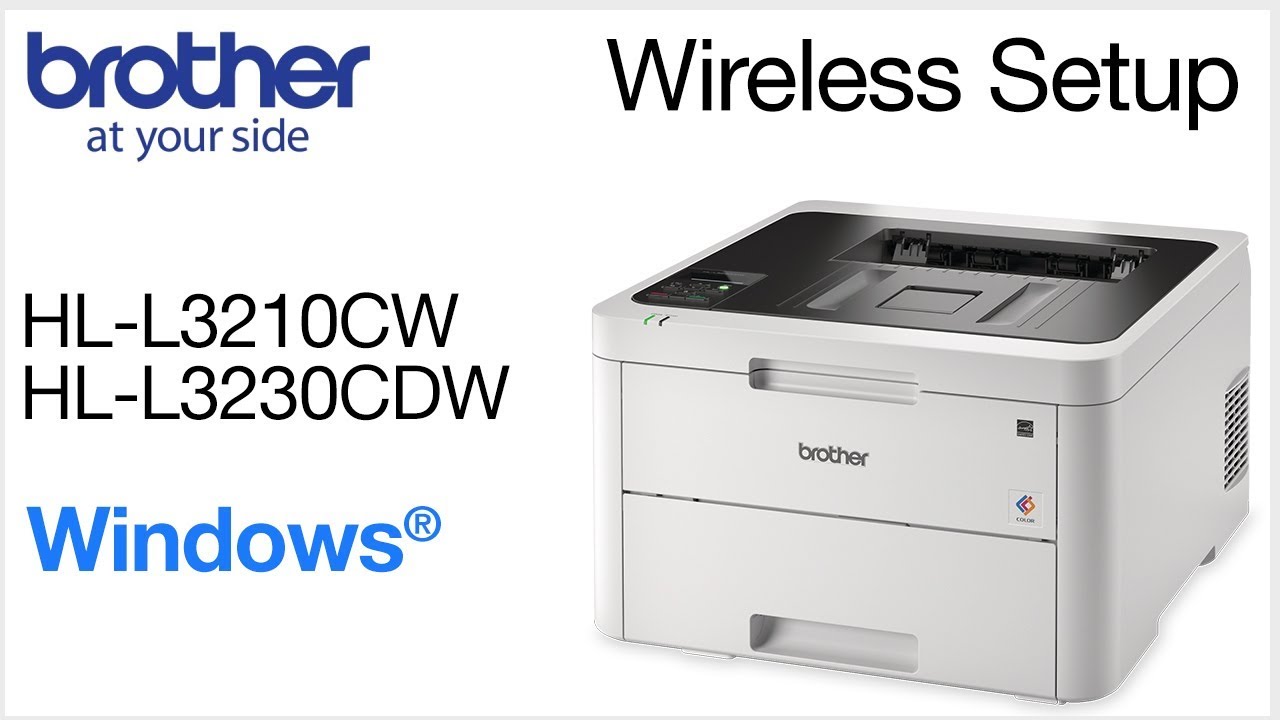
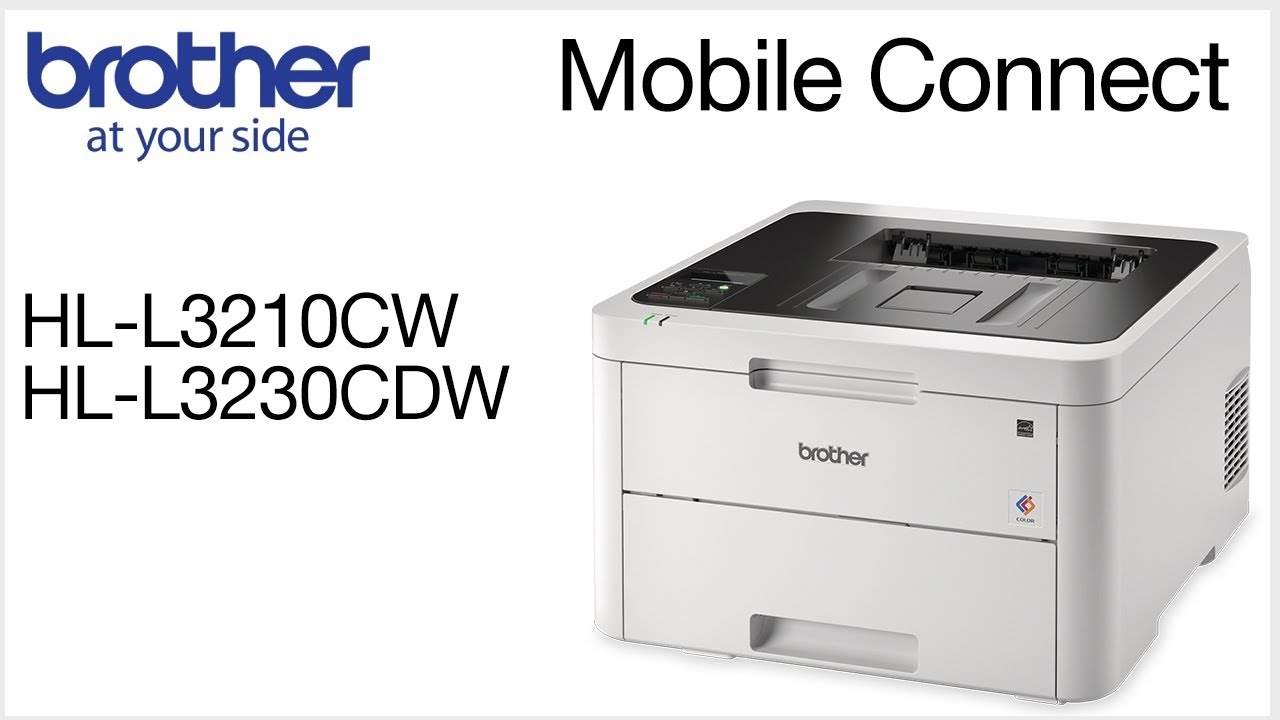
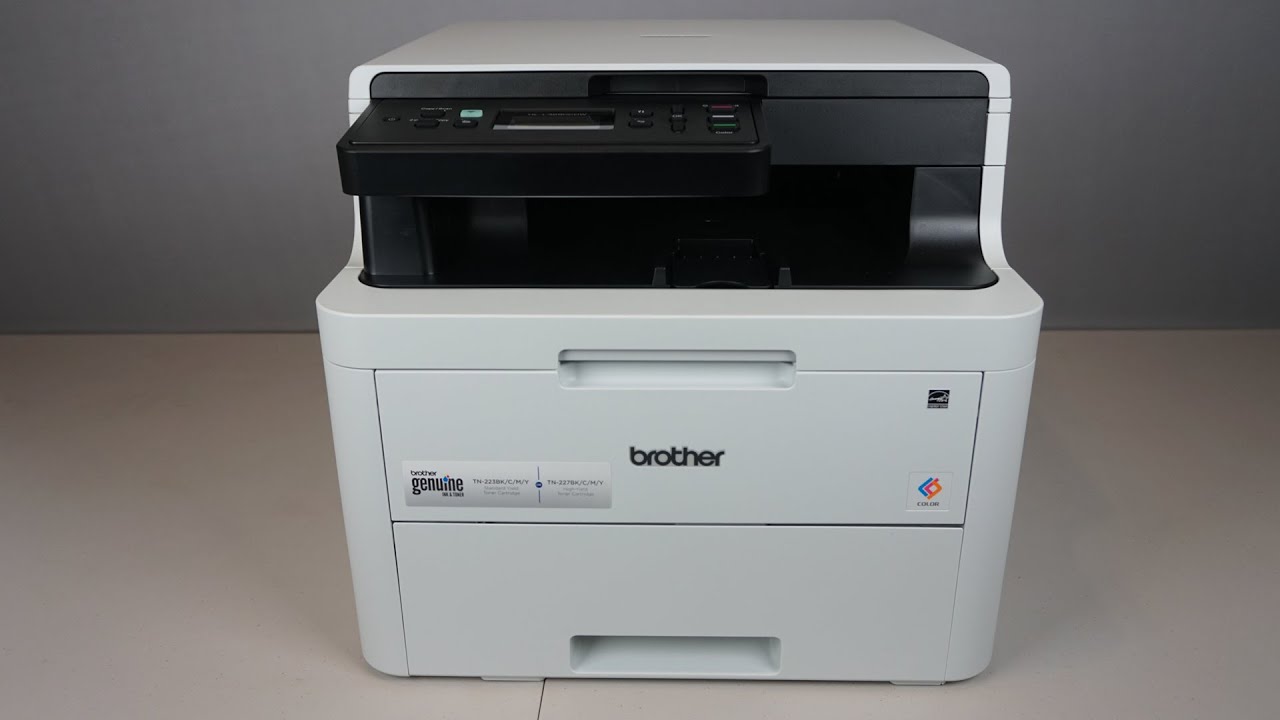
Learn how to connect your Brother HL-L3230CW or HL-L3210CW color laser printer to a wireless computer using Macintosh OS X in this video tutorial.
Models covered:
Brother HLL3210CW
Brother HLL3230CDW
This video is for Macintosh users, for Windows the version click:
• Connect HLL3230CDW to a wireless computer ...
For more videos, tutorials, and FAQs visit our support site at: http://www.brother-usa.com/support
Quick Links / Table of Contents:
Models Covered 00:09
Insert or Download the software 00:19
Running the Installer software 00:32
Alternate connection methods 01:00
Enable Wireless window 01:18
Failed to Connect window 01:36
Locate SSID and Network Key 01:52
Machine control panel 02:00
Continue setup with the Installer 4:10
Enter password 04:40
CUPS driver 04:51
iPrint&Scan install 5:08
Transcript:
Welcome. Today we're going to connect your Brother HL-L3230CDW laser printer to a wireless computer using the setup wizard
This video will cover multiple models and operating systems even though your machine may not match the model on the screen the overall process will be the same. (Video covers HL-L3210CW a wifi setup too)
Download the full driver and software package from www.brother-usa.com. Navigate to your installation file and double click to begin installation.
Double click on the Driver Download or Start Here icon
Click on “Open”
Click “Next”.
Select Wireless Network Connection and then click “Next”
When the “Detecting existing wireless network settings” window appears verify your Network Name and click “Next”
In most cases the setup wizard will be able to automatically apply your wireless settings and connect your machine to the network.
If for some reason the setup wizard was unable to automatically connect your machine, you will be prompted to try alternate methods of connection. The next section of this video will cover those alternate methods.
If the Enable Wireless window opens you will need to go to the control panel of your Brother machine
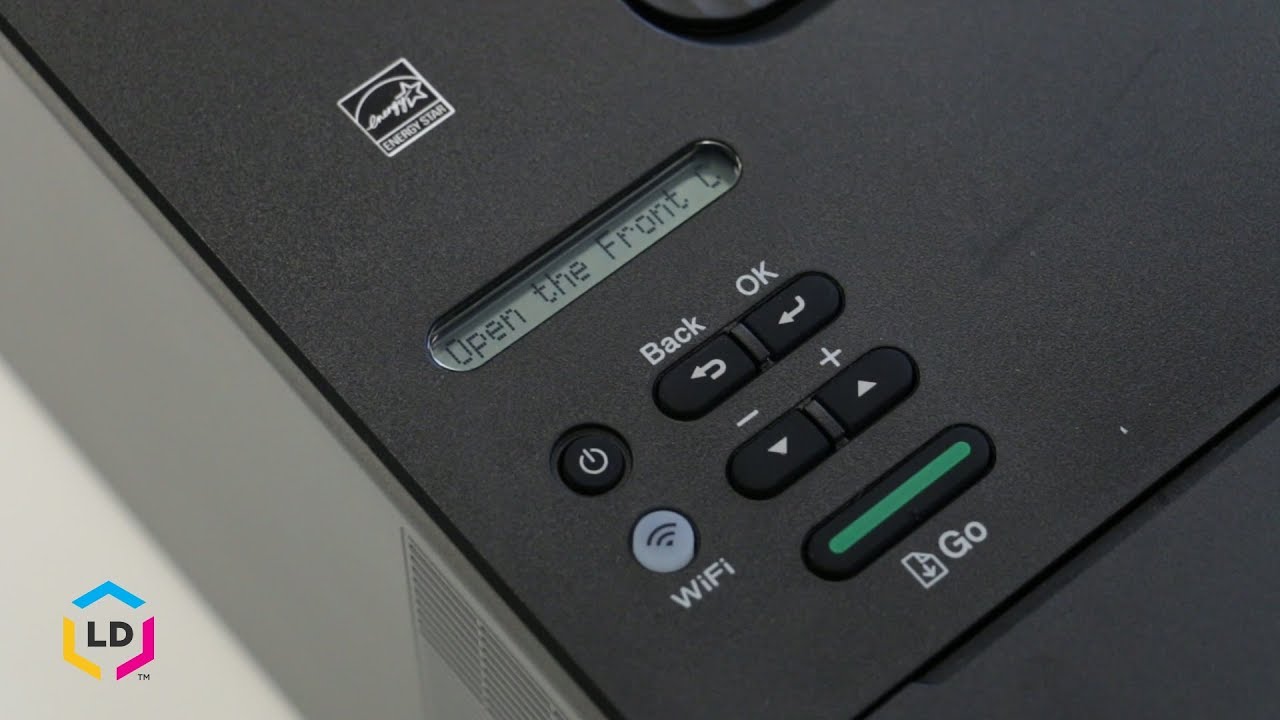
Press the Wi FI button on the control panel. When prompted to confirm, press the up arrow
Your Brother machine will now retrieve the network settings from your computer
If you receive a Failed to Connect message click “Next.”
When prompted for a USB cable select “No” and then click next
Click on “Checked and confirmed and then click “Next”
Locate your SSID or Network name and your Network Key. These can typically be found on the bottom of your router.
Now go to the control panel of your Brother machine
Press the menu key on the control panel.
Press the down arrow on the control panel repeatedly until the “Network” option is displayed. Then press “OK.”
Arrow down again until “WLAN” appears on the LCD window. Then press “OK
Arrow down until “Setup Wizard” appears then press “OK”
Use the up and down arrows to select your SSID or Network Name and press “OK” Please note that if your network is set to hide the network name you will have to manually add your network name.
Enter your Network Key, using the keypad. Repeated presses on the keys will cycle through the available characters.
Confirm that your Network Key is correct and press “OK”
When prompted to apply settings, press the up arrow
Once “Connected” appears on the LCD, press “OK”
On your computer click “Next”
Now click “Checked and confirmed” and then Click “Next”
Once your machine is connected to your wireless network, you can continue with the setup process
Select your Brother machine from the list and click “Next”
When the driver installer window opens, click “Continue”
Familiarize yourself with the environmental impacts of your Brother machine and click “Continue”
Click “Continue”
Click “Agree” to accept the license agreement
Click “Install”
If prompted, enter your password and click “Install Software”
Click on “Close”
Click “Add Printer.”
Choose your machine from the list. From the "Use" dropdown, choose the Brother CUPS driver for full printing capabilities.
Click “Add.”
Click “Next.”
When prompted, download the iPrint&Scan application from the App Store. You will need this app for advanced printing, scanning, and workflow functions.
Once installation ends click “Next”
Click “Next.”
Now click “Close”
Your installation is now complete
For more Tutorials, FAQ's and Videos, visit us at brother-usa.com/support
Thank you for choosing Brother
Customers also searched:
Brother HL L3210CW Macintosh wireless
Brother HL L3210CW Macintosh setup wizard
Brother HL L3230CDW Macintosh wireless
Brother HL L3230CDW Macintosh setup wizard
An official Brother printer support resource
Повторяем попытку...
Доступные форматы для скачивания:
Скачать видео
-
Информация по загрузке: