How to use the Nest Cam | Howcast Tech
Автор: Howcast
Загружено: 2016-02-29
Просмотров: 220042
Описание:
Full Playlist: • Howcast Tech
-
-
Get your own Nest Cam: http://amzn.to/1QF7AgK
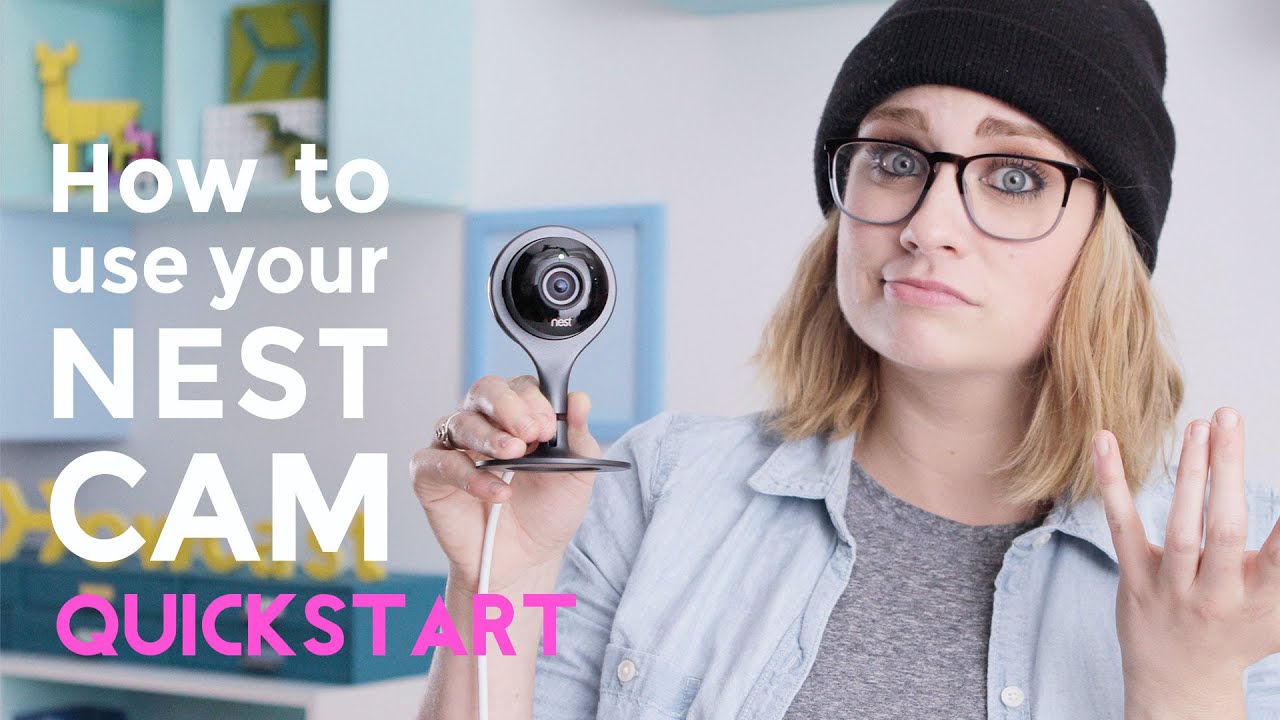
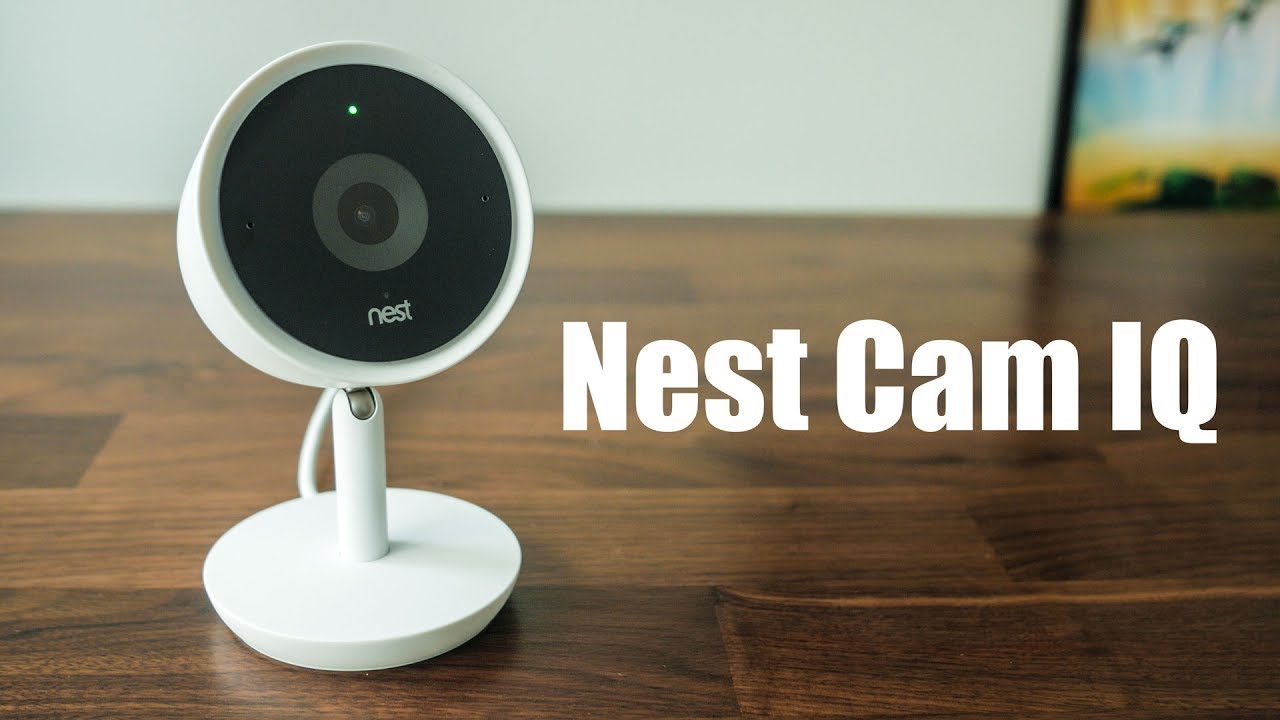
Introducing the Nest Cam. In this comprehensive guide we show you how to quickly set up your Nest Cam and review all its features so you can get started immediately.
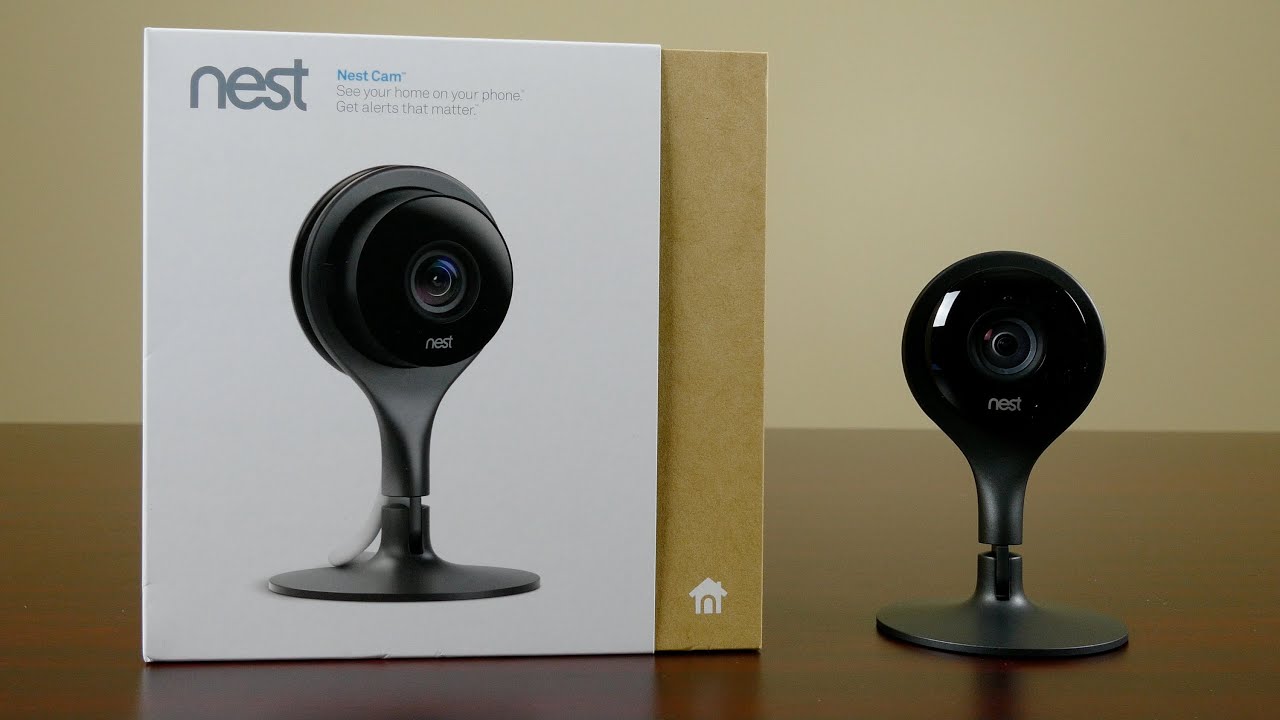
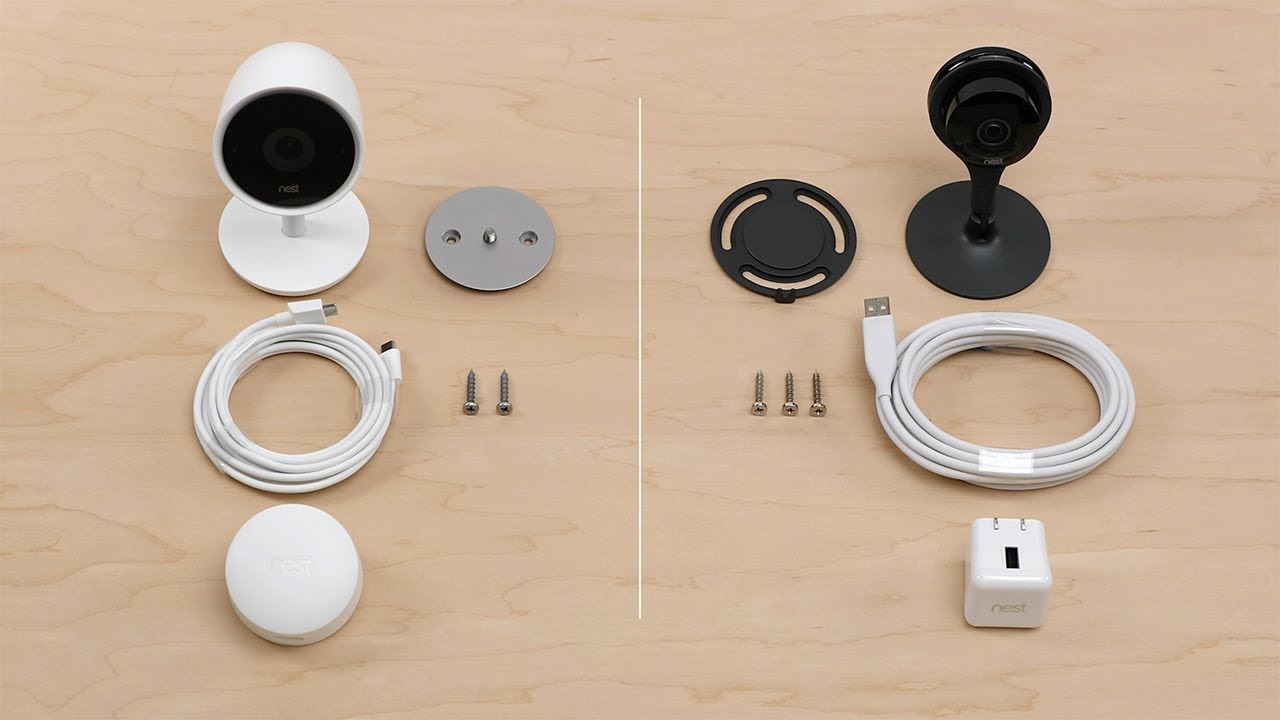
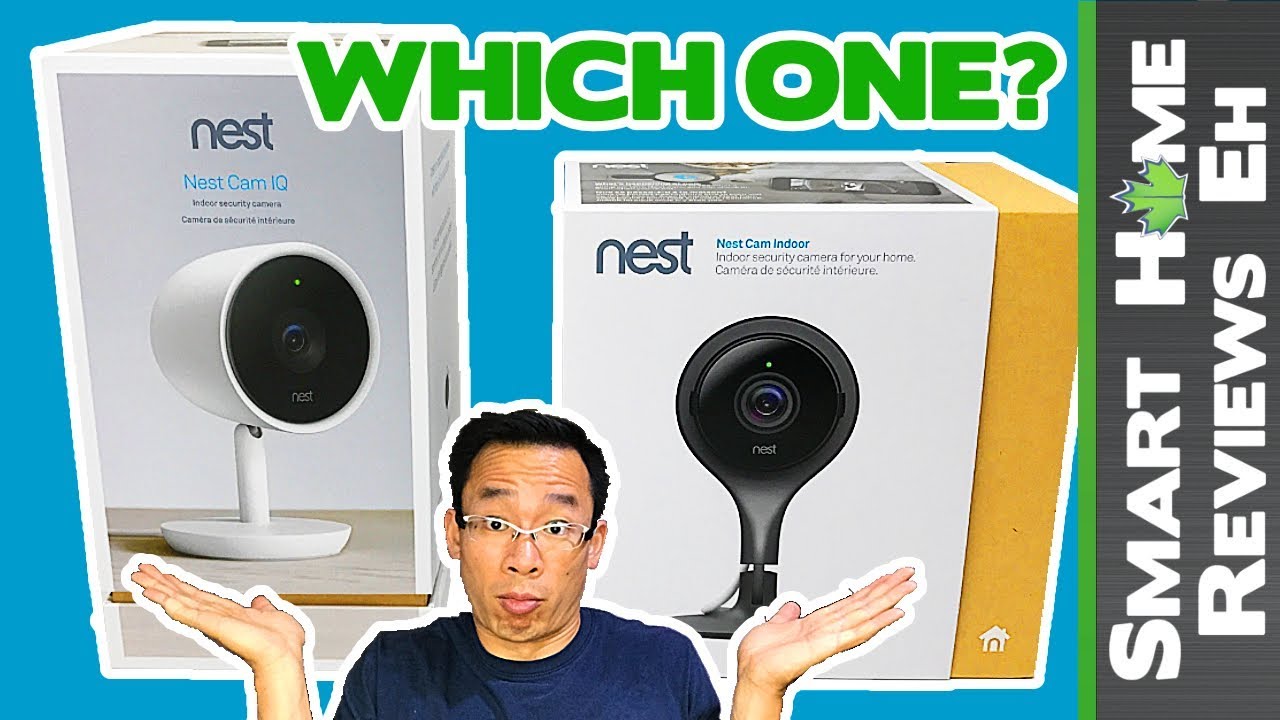
So Today, we got the Nest Cam—It’s a smart-home security camera with a streaming feed right to your mobile device. It’s got motion sensors, night-vision, notifications, two-way communication, and a versatile mounting base.
Now the Cam itself is only a live monitor. If you wanted to record the feed so you could see what happened, say— the night before, you’d have to subscribe to its companion service, called Nest Aware. This offers cloud-based storage along with a few other features allowing you to use the Cam like a security camera. Nest Aware comes with both 10-day and 30-day History plans, letting you review as far back as thirty days into your feed.
The Cam actually starts with a Nest Aware thirty-day trial. This gives you access to ALL the features right outta the box, BUT if at the end of them thirty days you don’t subscribe— all that Nest Aware stuff, including your History, gets deleted.
So the Cam sports a hundred-thirty degree super-wide-angle lens. On top is the indicator light and on bottom, the microphone. In back, you’ll find the speaker and underneath that— the Micro USB Port.
Alright, to get this thing going, open your browser and head to Home.Nest.Com. You’ll be prompted to sign into your Nest account, where you’ll add your Cam to the profile.
Opening your Cam, brings you to the Live Feed. Tap anywhere to access its controls. From here, you can adjust the picture and sound in Settings, using that little gear icon in the upper right. The higher the resolution, the better the image, but also the more bandwidth the Cam requires. It also supports night vision, Set to auto by default, it’ll turn on AW-TOE-matically in low light. Of course, you can turn this on or off permanently— whatever your pleasure.
In the bottom left is the Talk button. Let’s you talk here— and it comes out here. When the mic’s activated, the Cam chimes and its LED turns blue. If you wanna draw less attention to the Cam, you can turn the Chime off in Settings, In fact, here you can also turn off the Cam’s LED altogether making it even more incognito.
Next to the Talk button is Enhance. So, like with most touch screens,you can pinch to zoom your Cam’s Feed. You can then set this as your capture frame by tapping Enhance. Hit Ok to confirm and it’ll up the res of that digital zoom. And check it, the Enhance button now becomes a Zoom Out button that’ll return you to the original frame.
Your History’s organized into days by Activity Alerts. These are created when your Cam senses either Motion or Sound. Now back in landscape mode, Anyway you got those Media Controls at the bottom, which you can also use to review your History.The Skip buttons move to the next Activity Alert. And those Forward / Rewind buttons move thirty seconds up and down the timeline. Tap Skip To End, to return to your Live Feed.
When your Cam picks up Motion or Sound, it can send you Notifications. If you want it to ignore one or the other, you can change this in Settings.Of course, you can always turn Notifications off completely through your iPhone’s Settings.
Back in Nest’s Settings, Back in the App, you can also link your Cam to Nest’s Home / Away feature. This’ll turn your Cam on when set to Away, and you guessed it— turns it off when set to Home. You can also put your Cam on a Schedule in Settings.
The big one’s the Timeline. Those little circles are your Activity Alerts And you can toggle the scale between hours, minutes, and seconds in the bottom left, where you can also change what day’s History you’re viewing.
Now the Computer App has a few features not found in the Mobile App, like making your Live Feed Public. From Settings, click Video Access, then “Make your camera public.” Click it again to confirm the switch. NOW, you can either embed it or create a URL to your Live Feed, which anyone can access. Be sure to throw in a dope description of the Feed in the text box.
By default, you’ll get a square in the middle of your feed. You can move this shape around by clicking anywhere on it and you can manipulate it by clicking on the circular tabs. You can also change the Zone’s color and name down in the bottom left. Then when you’re set, click Done.
Повторяем попытку...

Доступные форматы для скачивания:
Скачать видео
-
Информация по загрузке: