Quarterly MTD income tax updates using Accounting mode
Автор: My Tax Digital
Загружено: 2026-02-17
Просмотров: 266
Описание:
This video demonstrates how to use the accounting mode in My Tax Digital for making a quarterly income tax update with HMRC. Visit us at: https://mytaxdigital.co.uk
The steps are as follows:
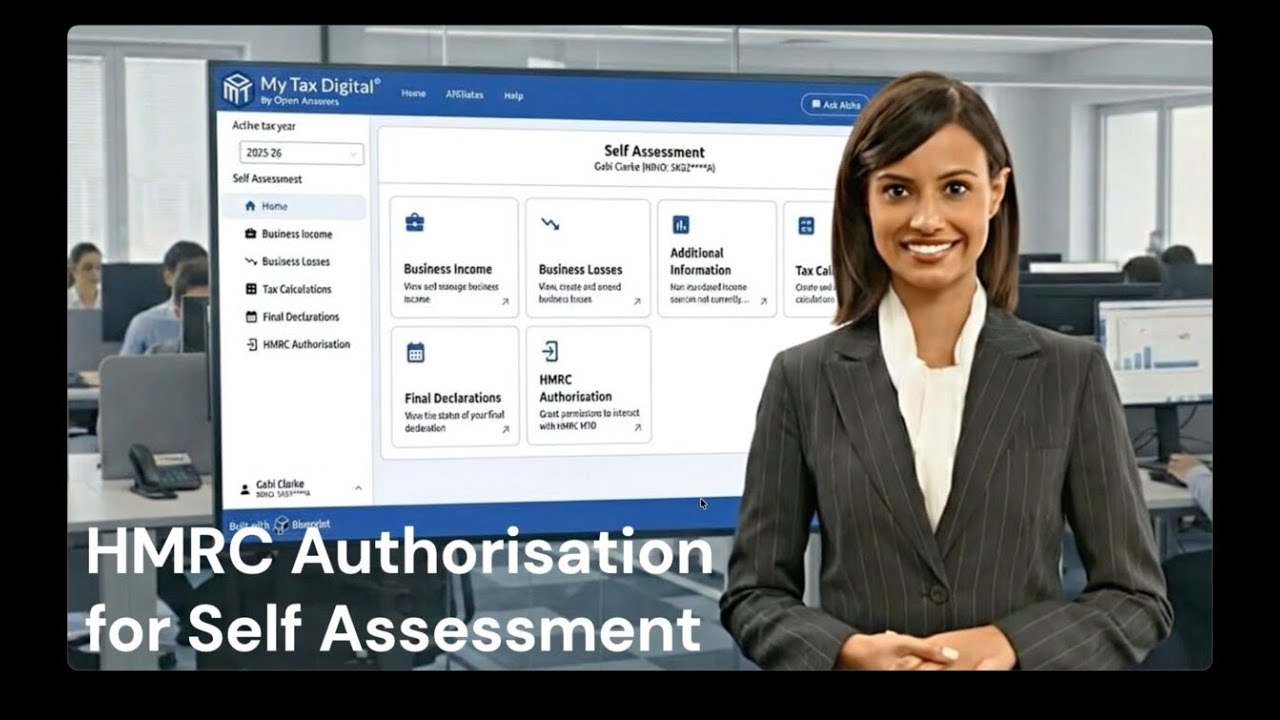
1. On the self-assessment homepage, select the relevant tax year. Choose the "business income" tile, and then select an income source, such as "UK property". The process is the same for self-employment and foreign property.
2. Click on "Accounting" to use accounting mode, which records income and expenses and automatically calculates the quarterly income tax summary.
3. Set the percentage of income attributable to you (e.g., 50% for jointly owned property). Choose whether to report income and expenses including or excluding VAT.
4. Because accounting mode was chosen, you will be prompted to add a linked business to record income and expenses.
Complete the required fields, noting that some are pre-filled with HMRC information.
For VAT-registered businesses, enter the VRN and VAT scheme.
Complete the remaining business details and submit.
5. Confirm your accounting period and click submit.
6. The submission mode will now be set to "Accounting" with the linked business set. To add income and expenses, click on the linked business button on the business income screen, or click on the individual at the bottom left and select the linked business.
7. Record Transactions (Manually):
From the business home screen, click the "transactions" tile.
Click the "Add" button.
Select the date, input a transaction description, and optionally assign a contact or business.
Choose a category (which are UK property specific in the example) and transaction type.
Enter a VAT rate (if applicable) and the gross amount; the net amount will be calculated.
Indicate if it is a refund, and then click submit.
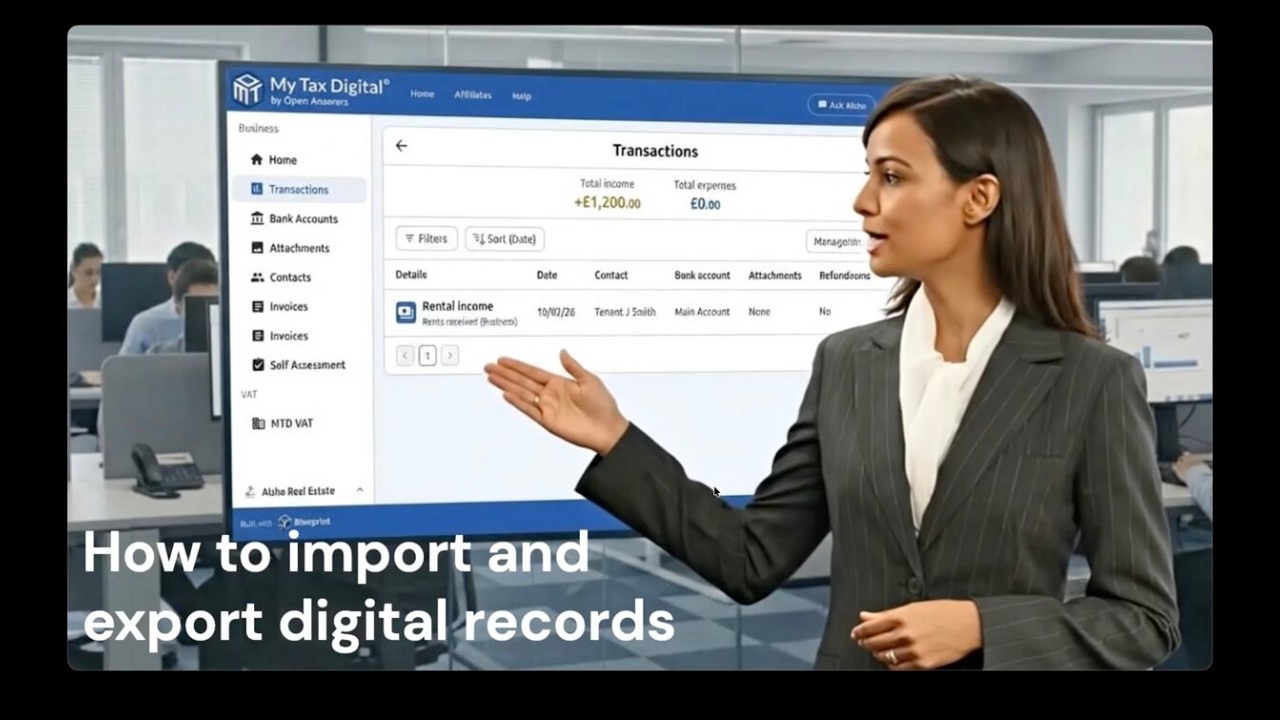
8. Import Transactions (Bulk):
From the transaction screen, click "Manage," then "Import".
On the import screen, select "File import," and then "Select a file" to open the file chooser.
Select a spreadsheet or CSV (e.g., bank transactions or financial records from other software) and click "Upload".
The system will attempt to map the file's data, but date, description, and amount are required at a minimum.
Check the preview and click "Submit". You can delete the import and start again if needed.
9. Submit Update to HMRC:
Click on "Home," then choose "Self-Assessment," and click "Go to MTD Self Assessment".
On the self-assessment screen for your business, click on "Income and expenses".
Click on "Prepare update".
Because you are in accounting mode, the boxes will be pre-filled with cumulative totals from your transactions for the selected update period.
Check your figures and click "Submit".
You can make as many updates as you like, but you must make a minimum of four updates, one after each quarter has ended, to fulfill your obligations.
Further My Tax Digital documentation can be found here: https://mytaxdigital.co.uk/docs/
MyTax Digital is a free UK tax portal that allows businesses, sole traders and landlords to meet HMRC's Making Tax Digital requirements for both VAT and Income Tax Self Assessment (ITSA).
Since 2019, MyTax Digital has successfully supported tens of thousands of businesses in submitting billions in MTD VAT returns, however it now also supports Making Tax Digital for Income Tax Self Assessment, allowing UK sole traders and landlords to submit quarterly cumulative income and expenses, correct previously submitted figures, make annual adjustments, claim allowances and manage both brought forward losses and loss claims.
MyTax Digital is truly free to use for both MTD for VAT and income tax compliance. There are no hidden charges, subscriptions, or fees for using the core features needed to submit your required returns to HMRC.
Our commitment is to provide a free, secure, Making Tax Digital service while strictly adhering to UK tax law and GDPR data protection legislation.
Visit us at: https://mytaxdigital.co.uk
Повторяем попытку...

Доступные форматы для скачивания:
Скачать видео
-
Информация по загрузке: