InfoGraphic Tutorial in Photoshop #27 – Colorful Circle Infographic
Автор: Tutorial Web Design
Загружено: 2016-05-26
Просмотров: 11609
Описание:
Welcome to InfoGraphic Tutorial in Photoshop by TutorialWebDesign.
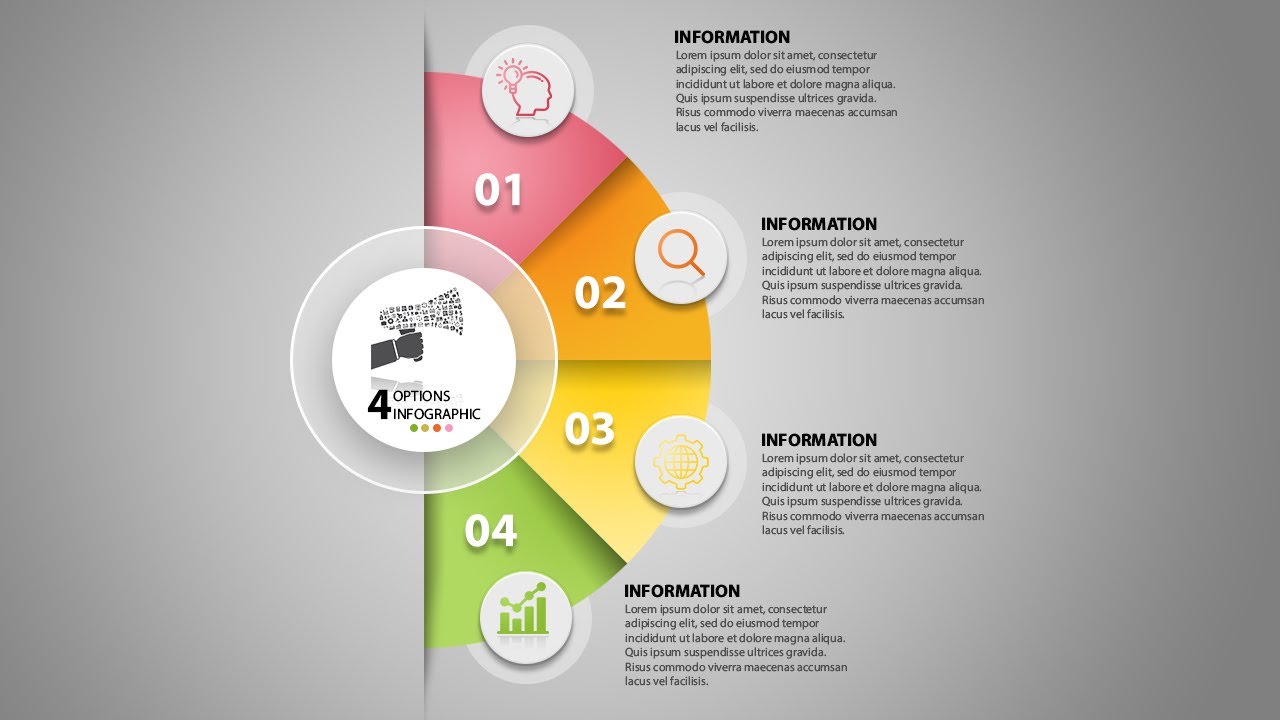
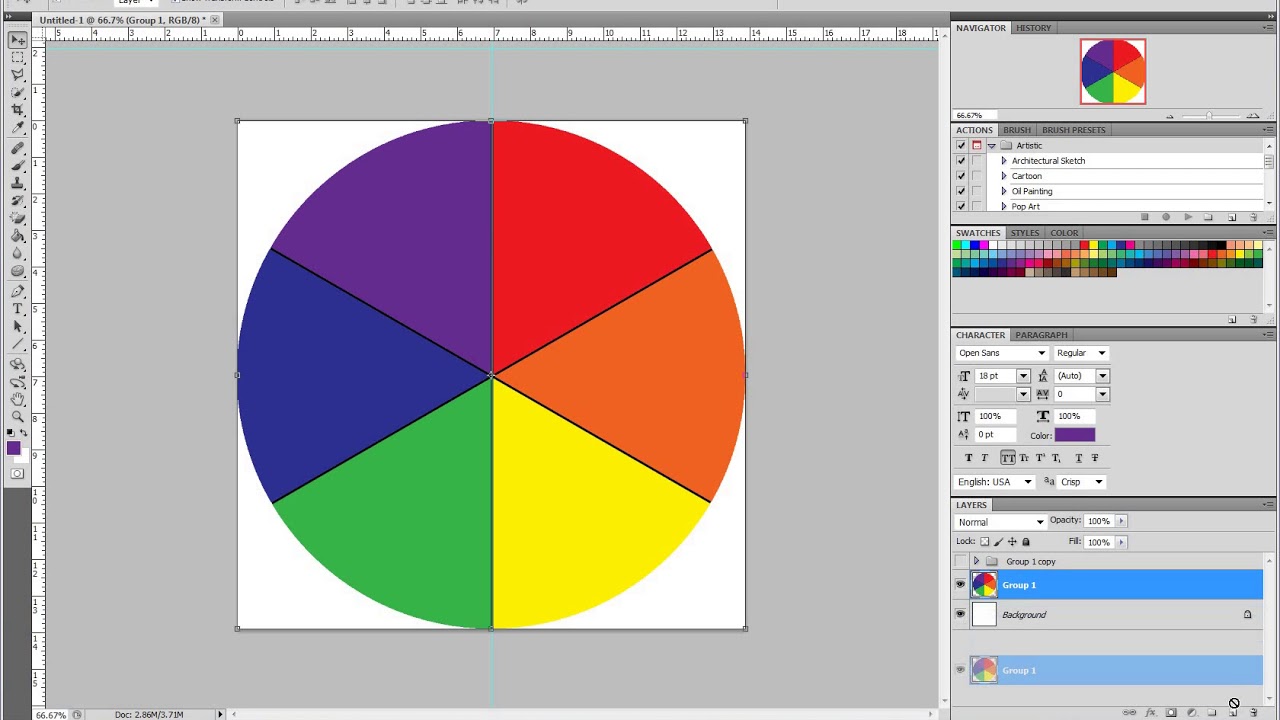
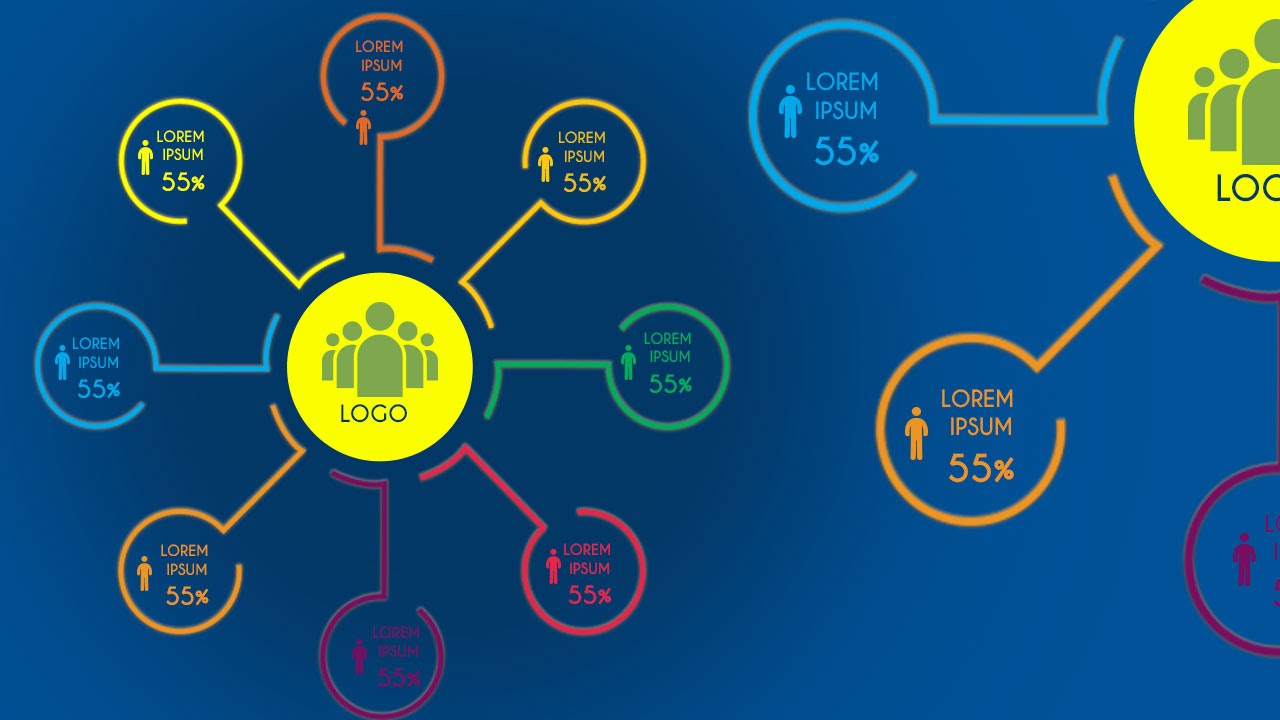
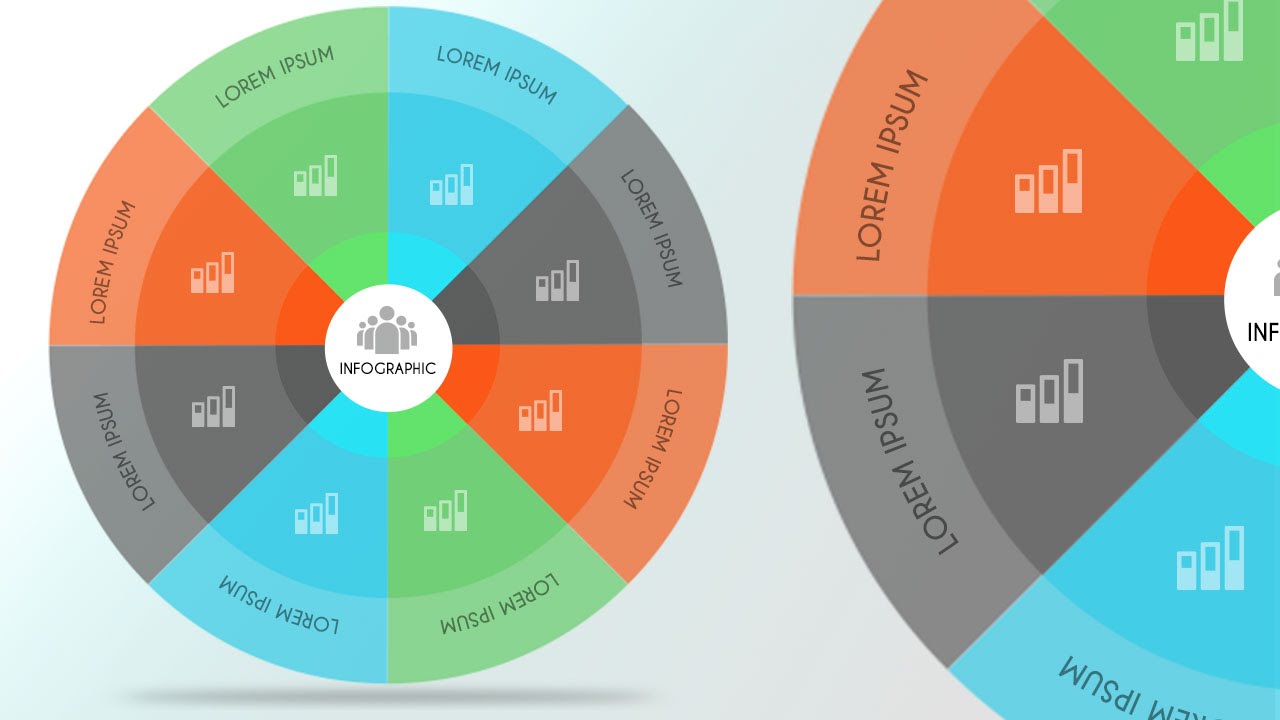
Here at Tutorial Web Design, You will Learn to create a Multi Color circle Infographic with 8 different colors with the help of ellipse and polygon tool in Photoshop.
Category: Photoshop Graphic Design & Infographic Tutorials
Version : Photoshop CC, Photoshop CS6
Level : Beginner, Intermediate
Subject : How to design Multicolor Circle infographic in Photoshop? | Learn to design InfoGraphic Tutorial in Photoshop CC or Photoshop CS6.
Connect with us :
Web site: http://tutorialwebdesign.com/
Twitter : / tutorialweb
Facebook: / tutorialswebdesign
Google Plus : https://plus.google.com/+Tutorialwebd...
Subscribe our Youtube Channel : / tutorialwebdesign
Credits
Icons Designed by Freepik : http://www.freepik.com/free-vector/mu...
Steps to follow.
1. Welcome to our channel TutorialWebDesign | Easy way to learn web design
2Learn to design Circle Infographic in Photoshop
3. Take a new file and apply gradient in background.
S. elect Ellipse tool and design circle.
Place guides in center horizontal and vertical.
Select line tool and create vertical line in center of circle.
Select circle and line layer press align to center from top.
Make duplicate of this line layer.
Select line and rotate it at angel = 45 (360/8=45).
Place circle on top and reduce the alpha.
With the help of anchor points. Extract the shape from circle.
To test it .Press Ctrl+T and change center point and rotate it anticlockwise minus 45 degree.
Make duplicate copy. Press Ctrl+T and change center point and rotate it at 45 degree.
press and hold Alt+Ctrl+Shif and Press T 6 more times.
Select all shapes and set the border to none.
Change the color of each shape.
Select all shapes and convert in to smart object.
Create copy of smart object and decrease the size.
Create copy of smart object again and decrease the size again.
Select white circle in center.
Select Elliptical marque tool and create small circle. Fill black color.
Filter- blur-Gaussian blur.
Now, your Infographic shape is ready. Add Icons and text.
Please subscribe our channel.
~-~~-~~~-~~-~
Please watch: "How to Design Cool Website Header in Photoshop | Web Design Tutorials"
• How to Design Cool Website Header in Photo...
~-~~-~~~-~~-~
Повторяем попытку...
Доступные форматы для скачивания:
Скачать видео
-
Информация по загрузке: