Surveys are ideal when you need to run more than one poll in sequence as a multi-step campaign.
Автор: AIPolls Net
Загружено: 2025-12-02
Просмотров: 9
Описание:
Hope your journey with AIPolls.Net has been smooth so far. If you have already created polls, you’re now ready to take advantage of Surveys—a powerful feature that lets you combine multiple polls into a single, unified experience. Surveys are ideal when you need to run more than one poll in sequence as part of a multi-step campaign.
Before we begin, it’s important to note that these Surveys support single-answer selection for each question. If your use case requires multiple-answer selection—for example, selecting all applicable choices—you can use our Custom Insights feature, available in the left menu.
Now, let’s walk through how to create a survey, add polls to it, and start a campaign.
To begin, select your desired poll type from the left menu: Market Research, Consumer Pulse, or Product Trivia. Within each category, you’ll find an option labeled New Survey. Click this to create a new survey.
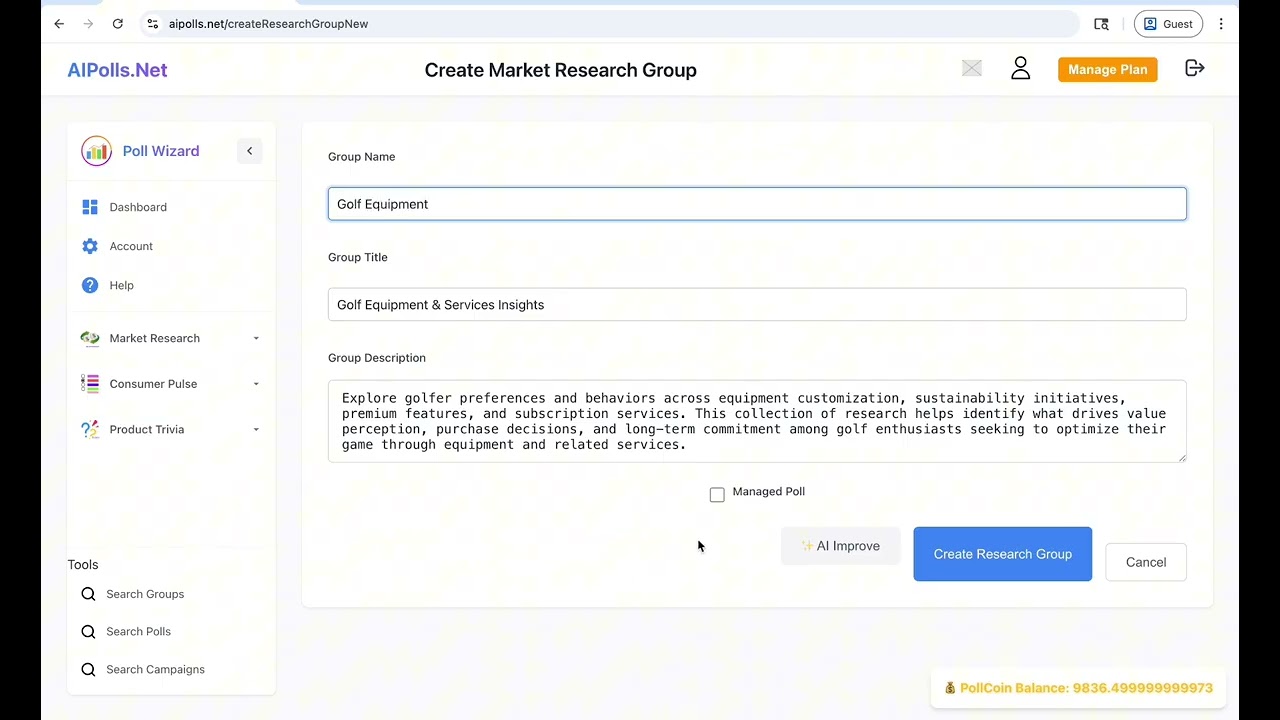
Here, you have two options. You can fill in the survey details manually, or you can let AIPolls.Net assist you by using the AI Improve button. Our intelligent assistant analyzes your recent poll activity and suggests a logically structured survey tailored to your context. You can always edit or refine anything the system generates.
You’ll also see an important setting called Managed Survey. Let’s take a moment to understand what this does.
If you leave the Managed Survey option unchecked, the survey runs in an unmanaged mode. This is ideal for remote participation—such as email-based surveys or general web campaigns—where respondents move through each poll at their own pace. After completing a poll, refreshing the screen automatically advances the respondent to the next question in the survey.
If you check the Managed Survey option, the survey switches into managed mode. This setup is perfect for live, synchronized environments such as all-hands meetings, training sessions, or presentations. In this mode, you—the presenter—control when the audience moves forward. By clicking Advance Poll, you release the next question to all participants simultaneously, ensuring the entire group stays aligned during the campaign.
Once you’ve chosen your settings, click Create Survey. This creates the survey container, but at this point, it does not yet contain any polls.
To add polls, click Manage. This brings you to the Manage screen, where you can select the survey you just created. You’ll see a list of all your existing polls, each with a checkbox. Simply select the polls you want to include, finalize your choices, and within moments, your survey is assembled and ready to launch.
You now have a multi-question survey structure that can be deployed in either managed or unmanaged mode, depending on your needs.
We hope this guide helps you understand how to create, configure, and administer surveys effectively. Thank you for your continued interest in AIPolls.Net.
Повторяем попытку...
Доступные форматы для скачивания:
Скачать видео
-
Информация по загрузке: