Mitel 6940 Phone Training - Part 2 - Basic Features - Partners Technology
Автор: Partners Technology
Загружено: 2020-05-20
Просмотров: 5268
Описание:
#Mitel6940 #Mitel6940Training #Mitel6940Features
Basic Features of the Mitel 6940 explained by Jen Ofstein of Partners Technology.
0:25 - Call an Extension
0:42 - Make an Outgoing Call
1:14 - Place a Call On Hold
2:57 - Transfer a Call
4:01 - Cancel Transfer
4:36 - Screen Call and Transfer
5:45 - Transfer a Call to Voicemail
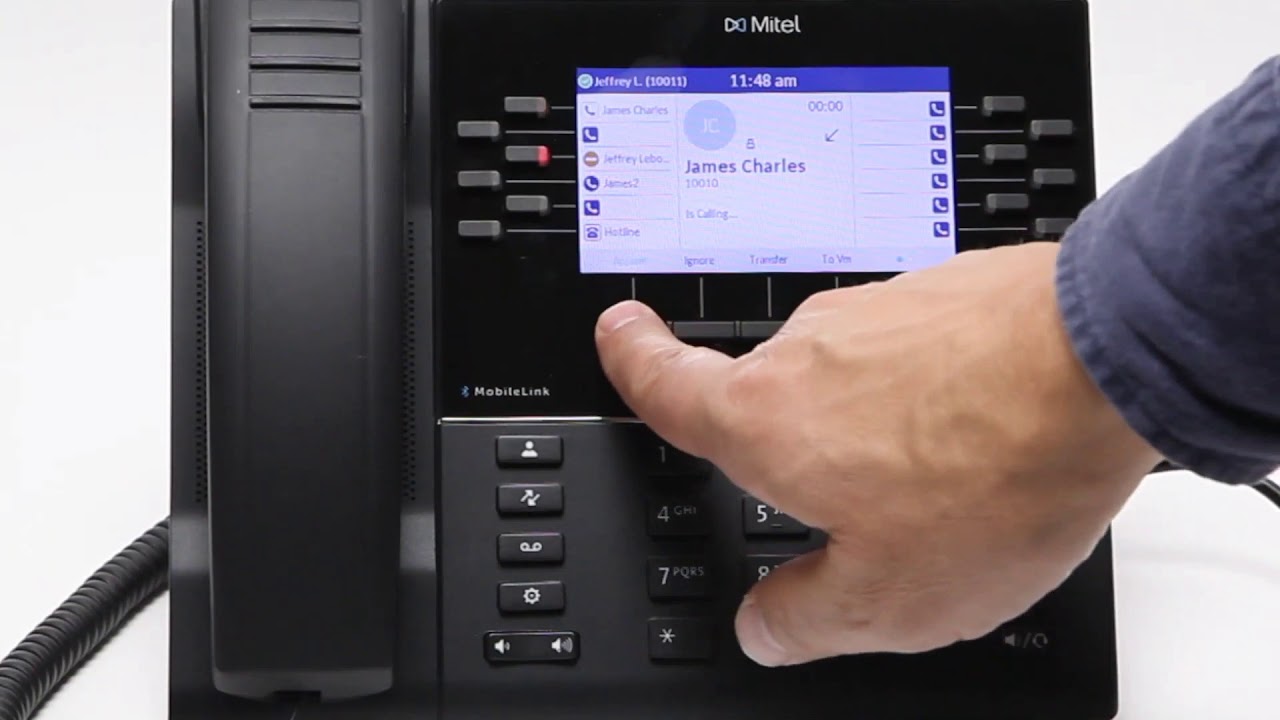
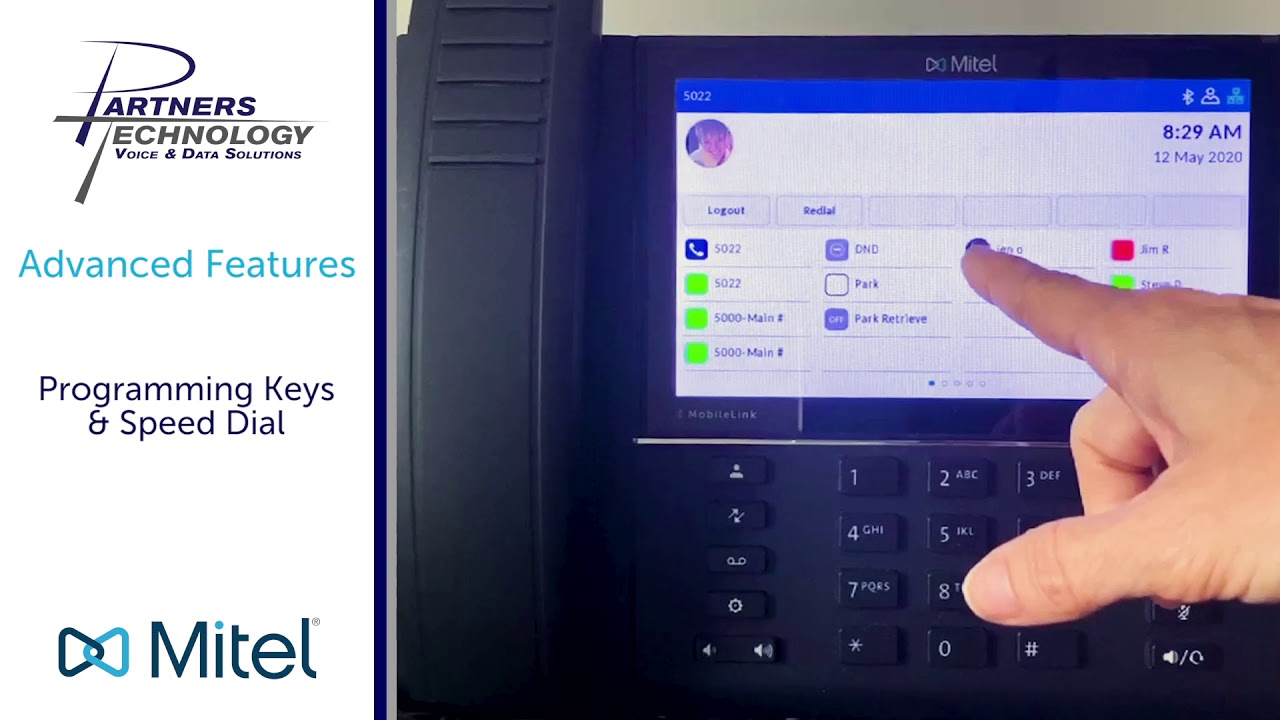
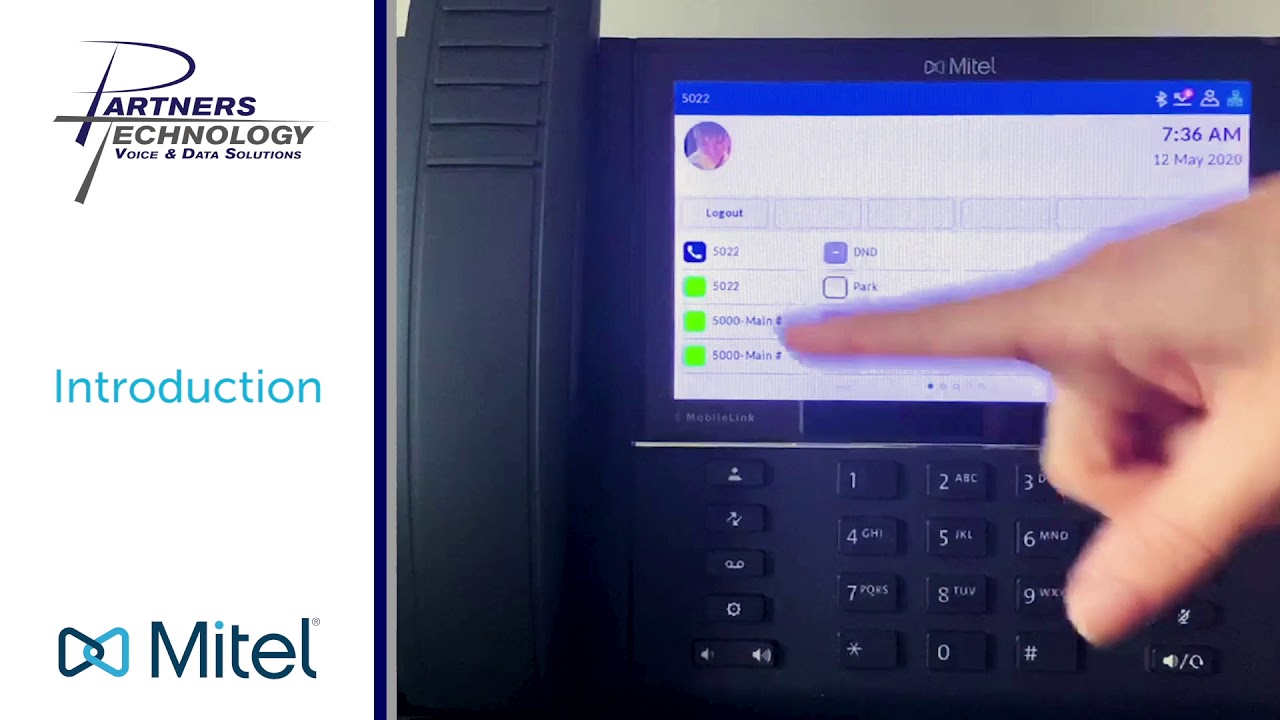
To go over some of the basic features of this phone, those features would be things such as to call an extension, to make an outside call, how to place a call on hold, how to answer a second call, to transfer a call, and to transfer a call directly to voicemail. To make a call to another extension, just simply pick up your handset, and what you can do is dial the extension of who it is you want to call. And when you're calling that person, it will show you the name and the extension of the person that you're calling. I'm going to hang up. If you want to make an outside call, what you will do is, again, you could pick up your handset, and you'll dial nine first and then you'll dial the outside phone number. Once you make the call, you should hear ringing on your handset, and it will also show you the time elapsed when the call's connected on the right side, right underneath the time and date. So that's how you can make a call. If you are on a call. I'm going to call that person back to show you what it looks like when you put somebody on hold. When you call in and you put the person on hold, press the pause key, which is on the right side. And it shows you they're holding, and it's flashing yellow. When you want to reconnect your call to them, just press that key, and it will reestablish your call. Once it reestablishes your call, you'll see that the line is blue again, and it shows you the person who you're talking to, that you called out to. All right? If a second call comes in, what it's going to look like and sound like is this. Second call comes in, and it shows you that's ringing in. You can put the first person on hold and answer the second call that comes in. And if you wanted to jump back to the first person, put them on hold and go back to your first line on your phone. And you can keep going back and forth between the two people if you wanted to. Okay. So I'm going to hang up from both people. Just to get them off the phone. So again, when a call comes in, you can just simply put the first person on hold and go to the second line. And then you can put each person back in hold selectively, depending upon who it is you want to go back and forth between. And when the second call comes in, you'll get a quick alert on your speaker, letting you know you have another call coming through, and you can determine whether or not you want to take it. If for some reason, you're unable to get to that second call after a few rings to the outside person, it will eventually go into your voicemail box. And for you, you'll only get those two soft, quick rings letting you know that another person's come, ringing through to your line over the speakerphone here. When you are on a call, so let's say a person calls you, so we're going to show you what it looks like when a caller is coming in. Call comes in. It shows you on the top of the display. If you have caller ID, it'll show you that information. Says is calling me and it's an incoming call. Shows you on your first line the person's calling in. I'm going to pick up the phone, and now our call is connected. If I want to take this person and transfer it to somebody else, all I have to do is there's a soft key on my display that says transfer call. So right there shows you transfer. Once I want to transfer a person, I will hit transfer. I will then punch in the extension of who it is I want to transfer the call to. And then once I do that, I can simply hang up my phone, and the call is now transferred to our conference room, as an example. Now, let's say we have another call that comes through. I answer this, and let's say I wanted to, again, transfer the call, so I'm going to hit transfer 5003. And let's say, oh, no, I transferred it to the wrong person. I need to pull it back to cancel the transfer. Where it says back to held, you will hit that key, and it will put you back on the line with the person you were originally talking to that you were trying to transfer. So that, when you go back to held, that cancels your transfer and puts you back on the line with the person, so you can redo your transfer again if you needed too.
Partners Technology
Voice & Data Solutions
www.partnerstechnology.com
471 E. Page Street, Unit 6
Stoughton, MA 02072
Visit our website to learn more: https://partnerstechnology.com/
Facebook: / partnerstechnology
Twitter: / partnerstech
LinkedIn: https: / partners-technology-llc
• Mitel 6940 Phone Training - Part 2 - Basic...
Повторяем попытку...

Доступные форматы для скачивания:
Скачать видео
-
Информация по загрузке:






![Как сжимаются изображения? [46 МБ ↘↘ 4,07 МБ] JPEG в деталях](https://imager.clipsaver.ru/Kv1Hiv3ox8I/max.jpg)