Restoring from a Payroll Backup in Cloud Based Payroll Software
Автор: CanPay Payroll Services
Загружено: 2016-07-29
Просмотров: 566
Описание:
Today's lesson will show you how to restore your payroll from a backup file. The payroll restore procedure can be useful in cases where you need to completely revert your payroll to a previous state. For example, a restore may be necessary in a case where you have realized a number of data entry errors and it is too time consuming to review and correct each one individually. Another reason for a restore may be if a different payroll administrator has made changes to the payroll and you are unsure of its current status. In either case, restoring from the most recent backup is a sure way of returning to a safe, defined state.
For detailed On-line Help about this feature, visit:
• http://www.enetemployer.com/help/calc...
Restore vs. Unclose
eNETEmployer users occasionally ask if the payroll Un-Close function is preferential to a payroll Restore procedure. Our suggestion is that if you have finalized a payroll, and need to correct a minor error immediately after you have closed the payroll, then an Unclose function may be more suitable because of its speed and simplicity. If you wish to learn more about the payroll Unclose feature please view our How To video entitled "Unclosing a Payroll".
As mentioned earlier, the payroll Restore procedure is much more thorough than simply unclosing a payroll. A payroll Restore completely erases all changes that occurred after the backup file was generated.
Although the procedure can be carried out at any time using any prior successful backup file, it is typically recommended that you do not restore a payroll any farther back than from the most previous closed pay run.
For example, if you are on pay sequence #4 and restore a backup from pay sequence #2 (thus skipping back over pay sequence #3 completely), you will end up erasing all of the data from pay sequence #3 as well.
From an administrative standpoint, many payroll practitioners choose to make regular backups at various times during the payroll cycle. Perhaps after they've entered numerous employee hours, or after they have made some other significant changes.
And in the case of eNETEmployer, the program actually mandates that you create the backup file just prior to closing your payroll at the end of each cycle. This requirement ensures that you will possess at least one full backup that represents the completed state of your most recent pay sequence.
Section - Step by Step
The Payroll Restore procedure can be initiated via the Restore button that is found in three program locations:
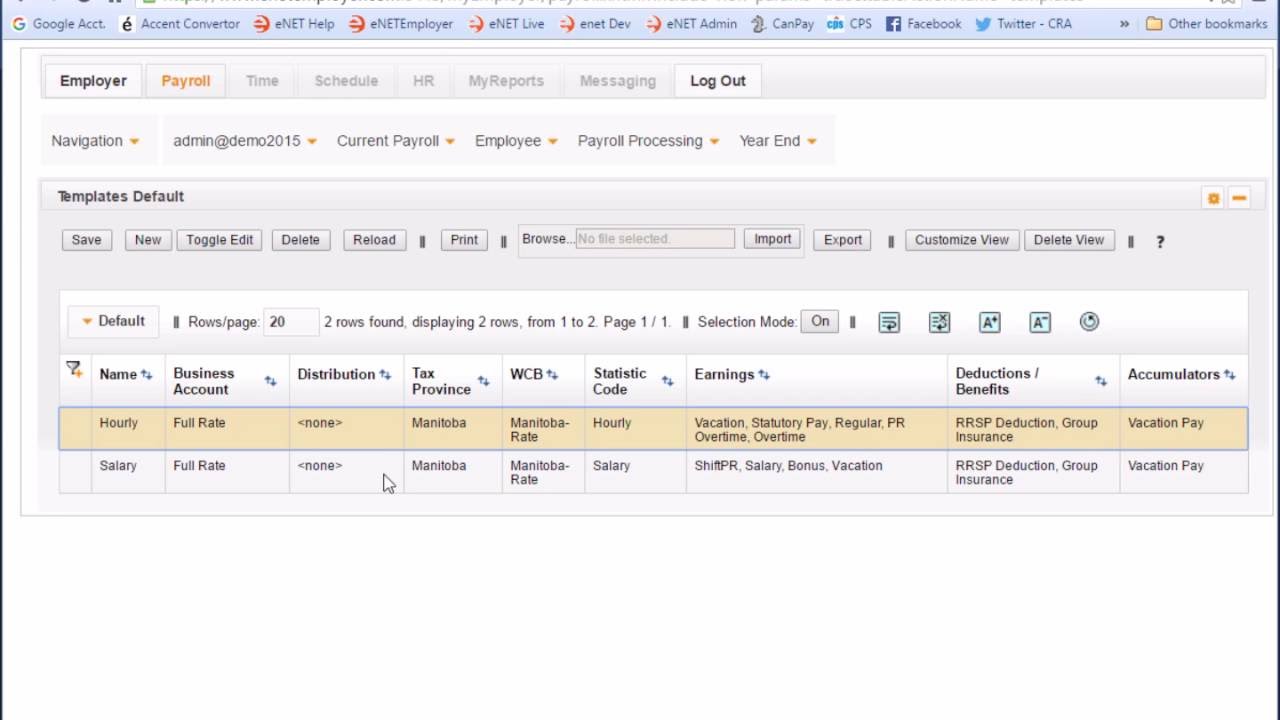
• The first location is the Employer tab's Calculations page. If your company processes one payroll only, you will likely not be familiar with this particular page (as it is used primarily when you are working with multiple payrolls).
• The second Restore button location is also under the Employer tab. It's on the Tools page that is accessible via the Admin - Tools menu command. The Backup button is also located here for easy reference for this companion feature.
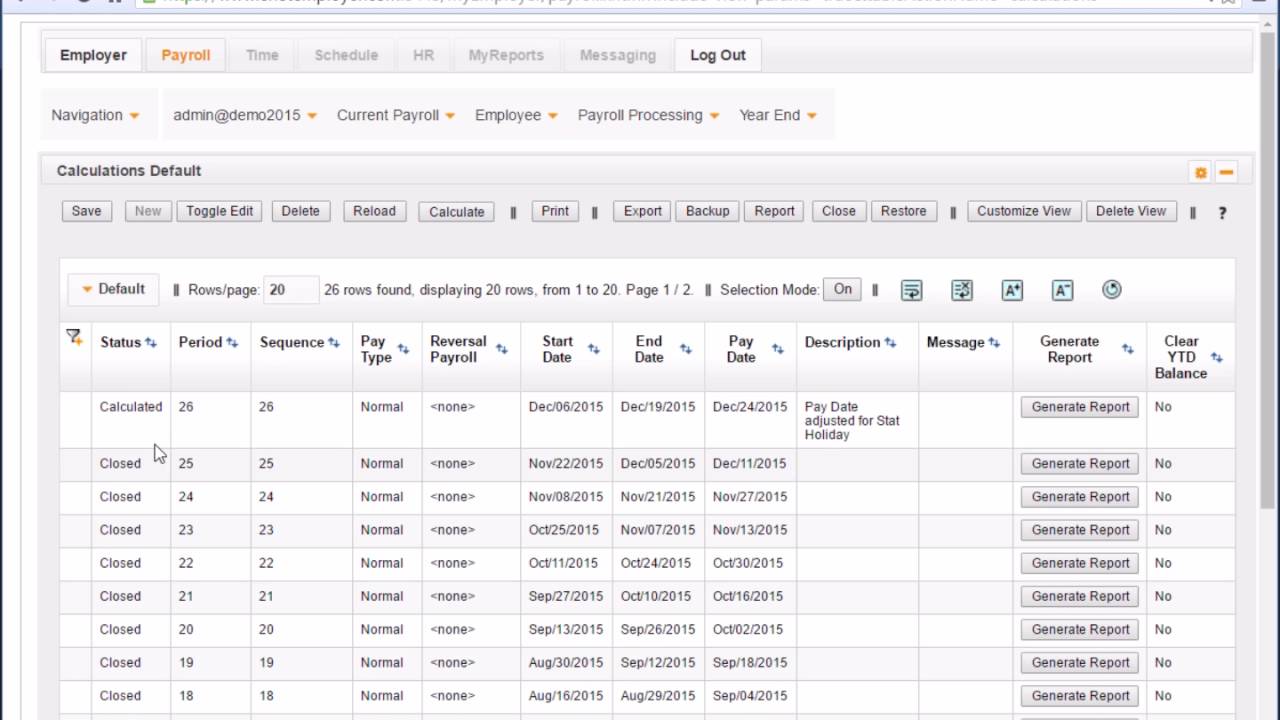
• And the third Restore button location, which is the most common, is found on the Payroll tab's Calculations page. The Restore button is located in the button bar above the table and is available at any time during your payroll cycle.
Since this page is the location where you perform your calculations each pay period, it will likely be the page on which you spend most of your time when working with eNETEmployer.
As mentioned earlier, the Restore procedure can be carried out at any time. However, be aware that any changes that were made to the payroll since the last backup will be erased.
So let's move forward and perform the payroll Restore procedure.
To do so, simply move to the button bar and select the Restore button. This action displays the Restore Employer Data page, where you must choose the location of your backup .DAT file.
Select the Browse option, and when the Open dialog box appears, navigate to the location where you saved your most recent backup file.
Many companies prefer to store their payroll data on a network drive that is backed up each evening. For easier accessibility, some users retain a backup copy that is independent of the network backup, such as on a local computer or even on a flash drive.
Each backup file name contains a number of identifiers to help us distinguish the most recent backup from other backups in the folder.
Choose the desired backup file, select the Open button, and then select the Restore button to proceed.
Restoring a payroll database may take a significant amount of time, depending on the size of your payroll. Once the restore procedure has completed, eNETEmployer will display the results of the restore process and it will also list the backup file that was used in the procedure.
A note is also displayed stating that you must logout and close the browser to complete the process. This safeguard is in place to ensure that there are no browser-related caching issues.
Повторяем попытку...
Доступные форматы для скачивания:
Скачать видео
-
Информация по загрузке: