How to Use Bitwarden to Manage Your Passwords
Автор: David V. Kimball's Bonus Channel
Загружено: 2025-09-05
Просмотров: 3079
Описание:
MAIN CHANNEL► / davidvkimball
TWITCH► / davidvkimball
DISCORD► / discord
A guide to how to manage your passwords with Bitwarden.
PHILOSOPHY:
1. One source of truth for your passwords, always up to date. You reject using browsers or insecure note apps to keep track.
2. You don't memorize any of your passwords except for your master password, because they're too secure to be remembered.
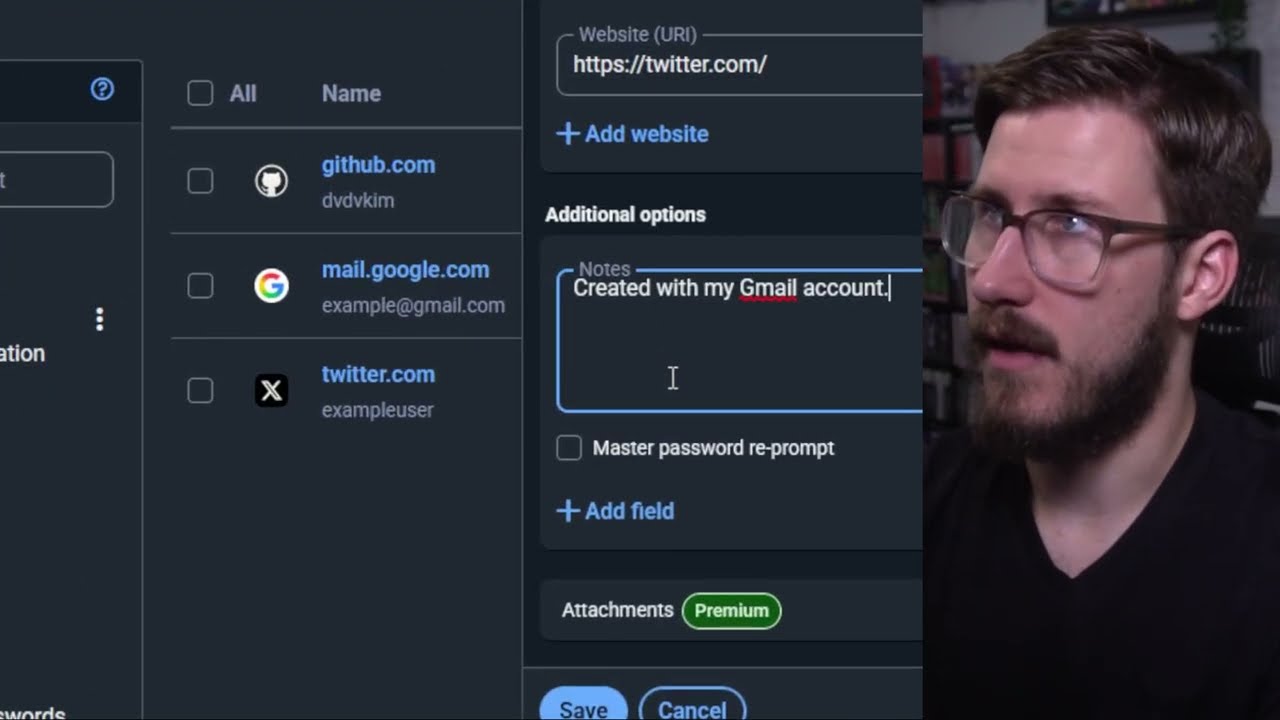
3. You tie any other important bits of information to each account.
SETUP STEPS:
1. Create a Bitwarden account.
2. Create a secure master password that you can remember. Write it down on a piece of paper and keep it with your passport, birth certificate and other important documents. Whenever you change it, update it there, too. Along with that, write down the recovery code.
3. Import passwords from your primary browser.
4. Install the browser extension for your primary browser, and install the mobile app and sign in on both.
5. Customize "account security" behavior. Unlock with biometrics, unlock with pin, or never lock (depending on how you secure your device itself). I have biometrics unlock on my phone and a pin unlock on my desktop.
6. Customize the "generator" settings. I like to do 20 character passwords, include capital letters, lowercase, numbers, and special characters with a minimum of 2 each.
7. Change your passwords for your most important accounts, going to the item in bitwarden, generating a new password, and setting it. Password history will always store your earlier passwords for you.
OPTIONAL ADDITIONAL STEPS:
8. Once this is in place, disable password saving for your passwords, and consider deleting password data altogether. You have a up-to-date copy of it in Bitwarden now.
9. Store other important bits of information - your vehicle details, credit cards, whatever you need secure, quick access to.
10. Experimental: passkeys can make signing in even easier.
11. URI will make it pop up for the correct website - so make sure it's set. CTRL + SHIFT + L to load the last used login.
12. Use folders to organize types of passwords, for example separating work logins from the rest with a Work folder. Set custom equivalent domains in settings.
Bonus tip: share passwords securely with your spouse. Set up an "organization" and when you want to share passwords, share it to that organization. Takes some getting used to, but it's very handy.
LINKS:
Create an account on Bitwarden: https://bitwarden.com/
Download Bitwarden browser extension and mobile app: https://bitwarden.com/download/
Guide for how to share passwords securely with your spouse: https://davidvkimball.com/posts/top-5...
00:00 - 01:02 - Philosophy
01:03 - 06:48 - Setup Steps
06:49 - 13:46 - Additional Steps
Повторяем попытку...
Доступные форматы для скачивания:
Скачать видео
-
Информация по загрузке: