How to enable developer tab in excel I Excel VBA - User-Interface of VBA Screen I Excel VBA
Автор: RTECH EDU INDIA
Загружено: 2026-02-10
Просмотров: 11
Описание:
How to enable developer tab in excel I Excel VBA - User-Interface of VBA Screen I Excel VBA
#excel #vbaexcel #exceltutorial
How to enable developer tab in excel
Here's a step-by-step guide for Windows:
Open Excel Options: Click the File tab, then select Options at the bottom of the menu.
Go to Customize Ribbon: In the "Excel Options" window, click Customize Ribbon in the left sidebar.
Check the Developer Box: Under "Main Tabs" on the right side, find and check the box next to Developer.
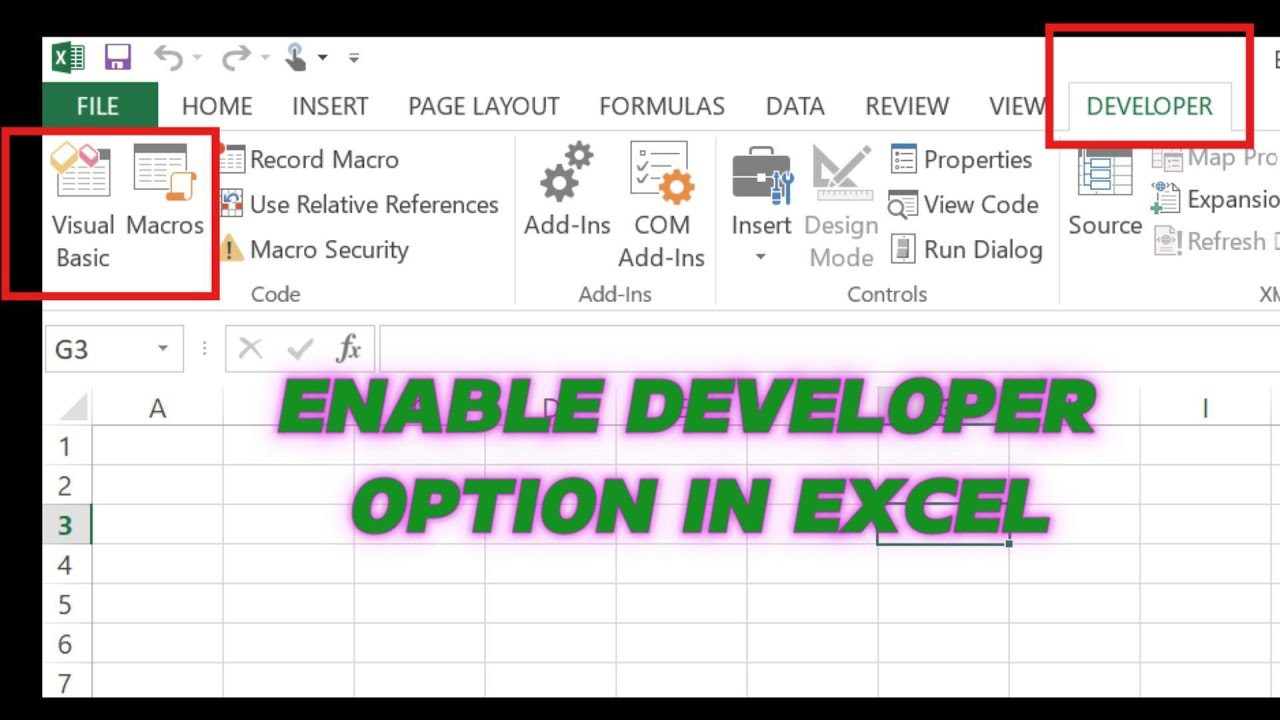
Confirm: Click OK. The Developer tab will now appear in your Excel ribbon, usually at the far right.
Quick Tip: You can also right-click any tab on the ribbon (like Home or Insert) and select Customize the Ribbon, then follow steps 3 and 4 above.
Once enabled, the Developer tab offers access to tools for recording macros, using the Visual Basic Editor (VBA), and managing add-ins, and it will stay visible in future Excel
Повторяем попытку...
Доступные форматы для скачивания:
Скачать видео
-
Информация по загрузке: