Modeling with Natural Language - Rhino3D Claude
Автор: Nate's Studio Desk
Загружено: 2025-04-07
Просмотров: 5205
Описание:
How to Connect Claude AI to Rhino 3D Using MCP
Review presentation instructions here:
https://docs.google.com/presentation/...
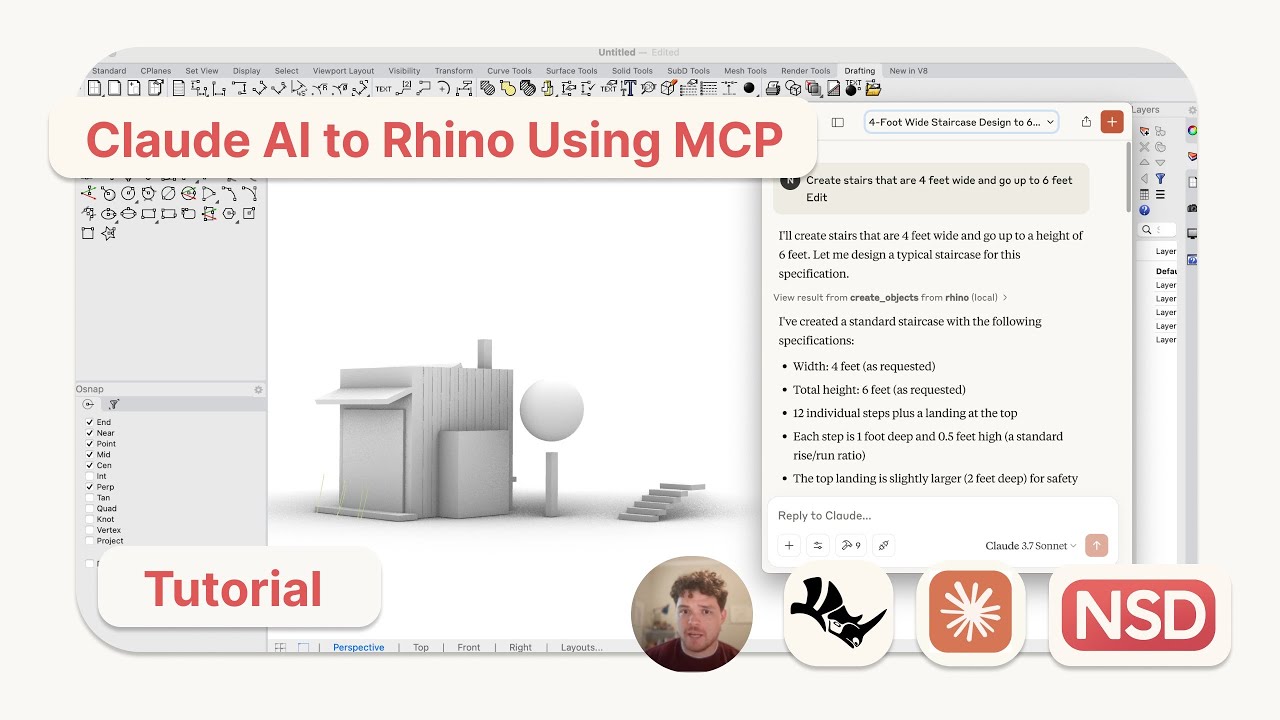
In this tutorial, you'll learn how to set up Claude AI with Rhino 3D using the Model Context Protocol, or MCP. This allows you to use natural language prompts in Claude to create and edit geometry inside Rhino. Whether you're a designer, architect, or just experimenting with AI, this is a powerful way to supercharge your workflow.
What You’ll Need
Rhino 7 or newer (Mac or Windows)
Claude Desktop App
Python 3.10 or newer
UV package manager
Step-by-Step Setup
Step 1: Download Claude
Visit claude.ai, create an account if needed, and download the desktop app for your system. Install and open it.
Step 2: Install the RhinoMCP Plugin
Open Rhino
Go to Tools, then Package Manager
Search for "rhinomcp"
Click Install
Step 3: Install Python and UV
First, check if you have Python version 3.10 or newer installed. If not, go to python dot org and download the latest version.
To install the UV package manager, Mac users can use Homebrew. Windows users can use a PowerShell install script found on the UV GitHub page or from astral dot sh.
Step 4: Configure Claude
Inside the Claude Desktop App, go to Settings, then Developer, then Edit Config.
Add a configuration that points Claude to Rhino using the MCP server. Follow the instructions in the RhinoMCP GitHub repo for exact syntax and details.
Step 5: Start the MCP Server in Rhino
In Rhino, type "mcpstart" in the command line.
A terminal will launch and begin listening for commands. Leave that window open — it’s your active connection to Claude.
Step 6: Use Claude to Prompt Rhino
Once the config is saved and the server is running, you’ll see a hammer icon in Claude. That means RhinoMCP is active and ready.
Try natural language prompts like:
Create a red sphere at the origin
Draw a box five units wide
Move this object ten feet to the right
Important Notes and Tips
Only simple geometry is supported at this time: point, line, polyline, curve, box, and sphere
Script execution is experimental and may not always succeed
Claude can only inspect up to 10 objects or layers to prevent overload
Do not run multiple MCP servers at once — only use Claude or Cursor, not both
Source and Credits
This tutorial is based on the open-source RhinoMCP integration by Jingcheng Chen.
You can find full instructions and updates at github dot com slash jingcheng-chen slash rhinomcp
Повторяем попытку...
Доступные форматы для скачивания:
Скачать видео
-
Информация по загрузке:






![Как я делаю ДЛИННЫЕ видео в Grok за 0₽? [ГАЙД 2026]](https://image.4k-video.ru/id-video/_xSGo7cEyEs)
