How to copy & paste tables from Excel to Word | My version of APA Style | For beginners
Автор: Kent Lofgren
Загружено: 2020-04-27
Просмотров: 35015
Описание:
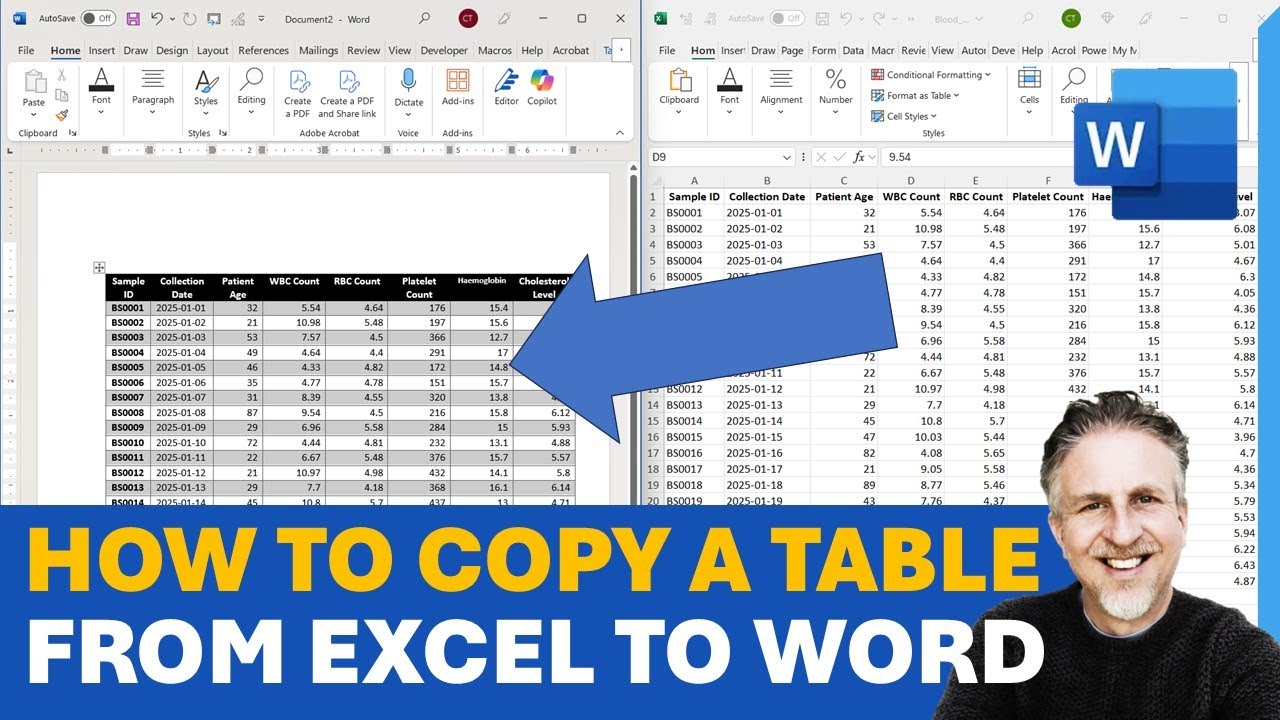
1) In Excel, click, drag, and select the table.
2) Right-click and copy. Switch back to the Word document.
3) Click once and put the blinking marker in the right place.
4) Right-click to see all the paste options.
I recommend the option "Use Destination Style."
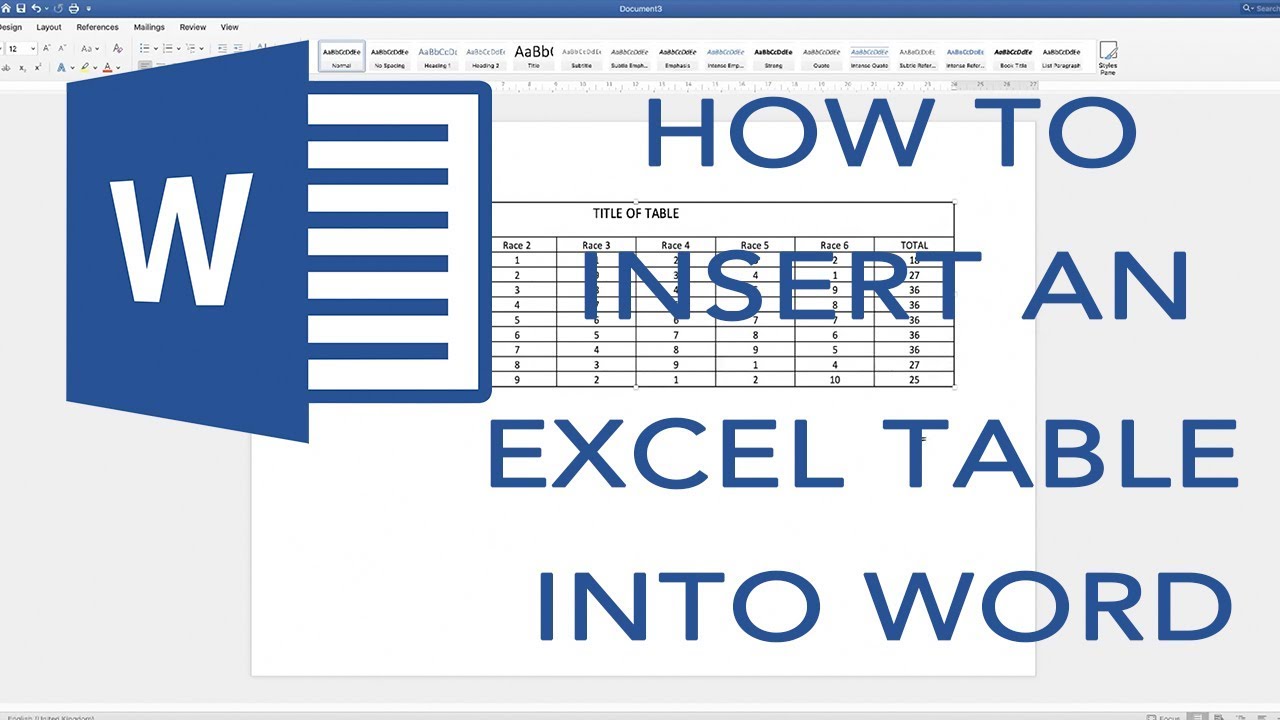
Your table is now inside Word. However, it needs formatting.
I recommend APA style for academic documents.
5) Click, drag, and select the table.
6a) click the small triangle at the Border button under the Home tab.
Drag down and select the No Border option.
6b) Next, click, drag, and highlight one section.
Under the Home tab, click the small triangle at the Border button.
Drag down and select a Top Border.
Then, while the section is still highlighted, repeat and create a Bottom Border.
7a) Next, we will remove any unnecessary rows.
Click and drag to select those rows.
7b) Right-click and select Delete Cells, then select Delete Entire Row.
Click OK to execute.
8a) write the word Table with a capital T and then the appropriate number over the table.
Use bold letters. In this example, I'll use the digit one.
8b) Write the table header in italics on a new line.
I'll write, "Highest educational level, split by gender. Frequencies."
9) Further, I would highlight and right-align the columns.
Please note that the guidelines change regularly. The table example in this video table might not be the perfect APA Style for you.
It's, therefore, your responsibility to make sure everything is OK according to the APA Style Guidelines.
The best place for the newest information is apastyle.apa.org
Copyright
Text, video, and audio © Kent Löfgren, Sweden
Повторяем попытку...

Доступные форматы для скачивания:
Скачать видео
-
Информация по загрузке:
















![HOW TO COPY FROM EXCEL TO WORD IN 3 STEPS [WORKS EVERY TIME]](https://imager.clipsaver.ru/yrKgxwDFvhE/max.jpg)