2012 NISSAN Murano - Audio Systems
Автор: Nissan Owner Channel
Загружено: 2015-04-18
Просмотров: 202338
Описание:
Audio Systems
Your audio system includes an AM/ FM radio and either a single-disc CD player or a six-disc CD changer. This chapter will cover the operations for the single-disc CD player equipped with the Navigation System. For additional information on all other audio systems please refer to your Owner's Manual.
Press the center of the VOLUME/ON-OFF knob to turn your system ON or OFF. Turn to adjust volume.
Your radio will play FM and AM stations and, if so equipped, it will tune in XM® Satellite Radio. Press the AM/ FM Band Select button to change between AM, FM1 and FM2. Pressing the SATELLITE button, will allow you to choose XM1, XM2 or XM3, if so equipped. For full details on XM® Satellite Radio you can refer to your Owner's Manual or to the XM® Satellite website at www.siriusxm.com.
To manually tune the radio, turn the TUNE/ FOLDER/ AUDIO knob right or left to move up or down through the stations.
To tune and stop at the next broadcast station, press the SEEK/ CATEGORY or TRACK buttons, left or right. If playing a CD, pressing and holding the SEEK/CATEGORY or TRACK buttons will fast-forward or rewind. Pressing the buttons for less than one and a half seconds, will advance to the next track or return to the beginning of the current track. Press the SEEK/ CATEGORY button at the beginning of the current track and the previous track will play. Press either button several times to skip through multiple tracks. To quickly scan through radio broadcast stations, press the SCAN button. The tuner will seek out and stop at each broadcast station for five seconds. When you reach a station you want to listen to, press SCAN again to stop.
You can set up to 18 AM and FM stations and, if so equipped, 18 satellite radio stations in memory. First, choose a radio band by pressing the AM/ FM band select button. To select satellite radio stations, press the SATELLITE button. After selecting a radio band, tune to the desired station. Now, press and hold the desired station button, one through six, until audio sound mutes, indicating the station is set in memory. To play a stored station, select the radio band where it was stored. Then press the corresponding button, one through six.
While playing the radio, if you want to change to CD play, press the DISC/ AUXILIARY button. The current disc will start to play.
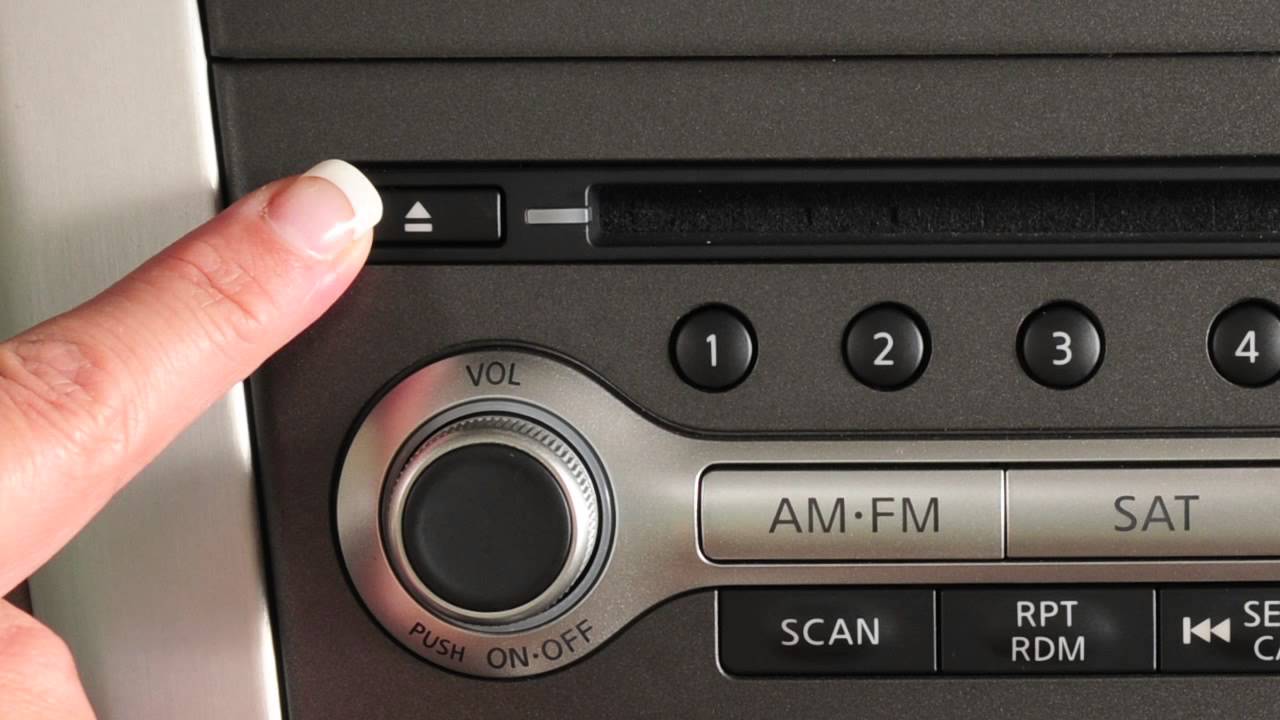
To load a CD, the ignition must be at ACC or ON. Carefully insert the disc into the slot, with the label side up. The CD will automatically be pulled into the slot and start to play. To eject a compact disc, press the CD EJECT button.
Press the REPEAT/ RANDOM button while a CD is being played to change the play pattern among one track repeat, one disc random and normal play. This feature also works to randomize or repeat tracks, discs and folders when MP3 discs or optional features, such as iPods® and the Music Box® are played, if so equipped.
To adjust audio quality, press the AUDIO button in the center of the TUNE/ FOLDER knob. It can adjust bass, treble, balance and fade. Simply press the AUDIO button repeatedly until the effect you want to adjust appears in the display. Then turn the TUNE knob left or right to adjust the desired effect.
The auxiliary input jacks inside the center console storage box allow compatible devices to be plugged into the audio system, accepting NTSC compatible devices, such as video games, camcorders, portable video players and some MP3 players. These jacks are color coded for easy identification. The yellow input jack is for video input, white is for left audio input and red is for the right audio input. Before connecting a device to the jacks, make sure the device is turned OFF. Please refer to your vehicle's Owner's Manual and the manufacturer's Owner's Manual supplied with your device for detailed information when connecting the device to an auxiliary jack.
If so equipped, a USB jack is also located inside the center console storage box, enabling you to access files from a compatible USB device using the audio system control panel. Plug a compatible storage device, such as an iPod®, into the jack. When plugged into the jack, only the control panel for your audio system can be used to navigate and operate all iPod® functions. The interface for iPod® operation shown on the vehicle center display is similar to the iPod® interface. If compatible, the battery of your iPod® will charge while connected to the vehicle. Once a device is plugged into the USB or auxiliary input jacks, you will press the DISC/ AUXILIARY button repeatedly to switch to the Auxiliary or USB/ iPod® input modes.
Pressing the DISC/ AUXILIARY button repeatedly will also allow you to cycle through and choose from the following modes: USB/ iPod®, CD/ DVD, Music Box®, Bluetooth® Streaming Audio and Auxiliary modes, if so equipped.
Please refer to your Owner's Manual for more information on all audio systems and their various features.
Повторяем попытку...
Доступные форматы для скачивания:
Скачать видео
-
Информация по загрузке: