JenesisNow - How to apply invoices to receipts
Автор: Jenesis Software
Загружено: 2024-02-23
Просмотров: 201
Описание:
How to apply invoices to receipts within JenesisNow
Jenesis insurance software for agents was thoughtfully designed to help insurance agents better serve clients while growing their agency. This video shows how to apply invoices to receipts within JenesisNow. We're so happy to announce that this affordable insurance agency management system from jenesissoftware.com is constantly improving!
Learn about the updates within receipts within JenesisNow:
• JenesisNow - How to setup your Docusign cr...
______
Jenesis Software, an affordable insurance CRM software, helps Insurance Agents efficiently manage personal and commercial clients by keeping relevant agency and coverage information organized, easy to edit, and use insurance agency management system.
For more valuable information on building your insurance agency, get your copy of "The Perfect Insurance Agency," - an Amazon Bestseller by Jenesis' founder, Eddie Price. Learn how to grow your agency faster, improve team training, and implement simple changes to ensure success!
http://bit.ly/ThePerfectInsuranceAgency
______
Make sure to connect with us on social media!
/ jenesissoftware
/ jenesissoftware
/ jenesis-software
______
JenesisNow- How to apply invoices to receipts
Go into a policy and click the plus sign on the Invoices card to create a new invoice. Fill in the Policy Number, Type, any comments, and Amount Due, and then click the green save button in the window's lower right corner. With the invoice now created, click the invoice inside the invoice card to see a red ‘X’ Not Paid next to the paid status to quickly identify that it hasn’t been paid.
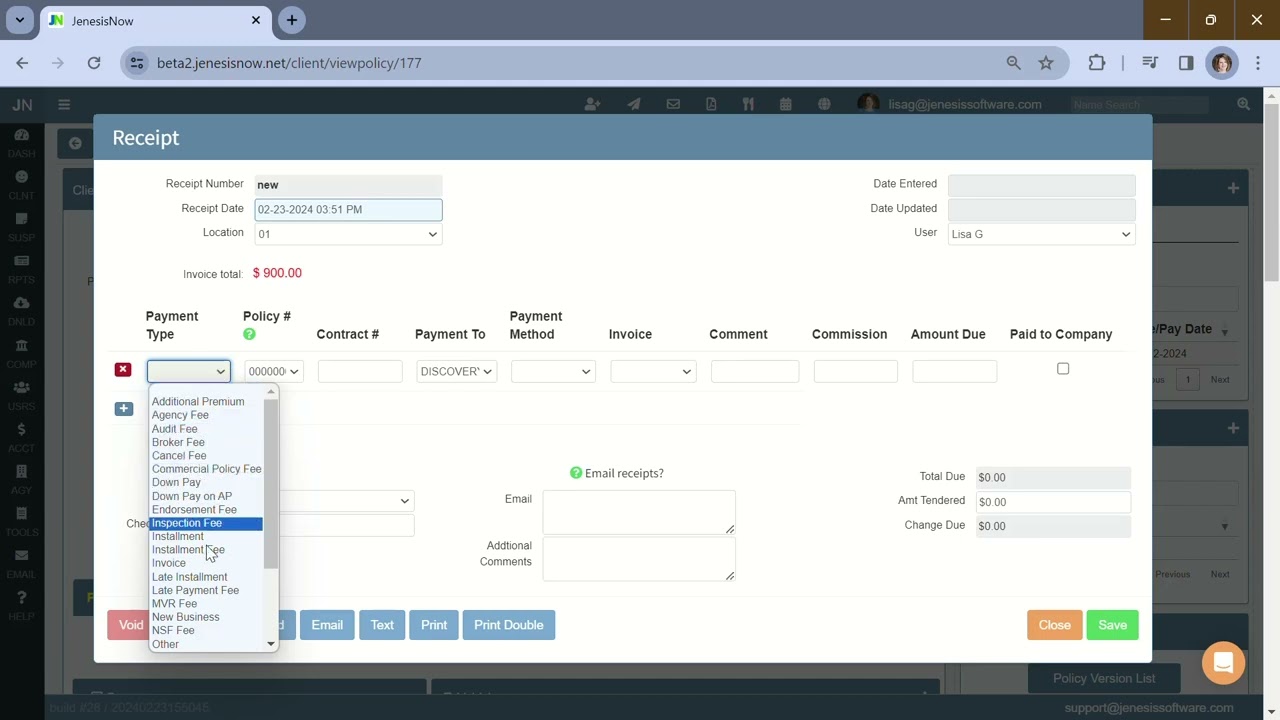
To create a receipt for the invoice created, click the plus sign in the upper right corner of the receipt card. Previously, for payment type you would have had to select invoice, but now there are several options to choose from, thus giving more clarity for the receipt. Then, fill in the appropriate fields, and in the Invoice field, you can select the invoice just created by using the drop-down menu, which will automatically fill in the amount due, and then click the green save button. Once this invoice has been tendered, there will be a green highlighted field in the invoice card to show it has been paid, which is the receipt, and the original invoice will now have a green check mark next to the amount due.
Still have questions? Check out www.jenesissoftware.com or Request a demo here: https://www.jenesissoftware.com/reque...
______
Feel free to contact us with any questions
• Email [email protected]
• Chat with us at www.JenesisSoftware.com
• Call 828-245-1171 Option 1
Subscribe to this YouTube Channel at / @jenesissoftware
Send any additional questions to [email protected]
For details on Basic Agency Setup in JenesisNow, watch this: • Видео
^^^^^^^^^
About Jenesis Software
^^^^^^^^^^
After struggling to find the solutions he craved in insurance agency CRM software, Eddie Price began taking programming classes to create his own. He spent the 90's crafting and developing the robust JenesisNow system you know today.
His appreciation for technology and marketing, combined with the desire to serve customers efficiently while helping agencies grow, is reflected in the user-friendly insurance agency management software named proudly after his daughter, Jenna.
This agency management system (created by an agent for agents) was incorporated in 1999 and continues to provide the same personalized customer service and commitment Eddie has always shown for his customers.
Повторяем попытку...
Доступные форматы для скачивания:
Скачать видео
-
Информация по загрузке: