Getting Started in Your Account / Lesson 3: Creating Your Signature
Автор: Dubsado CRM
Загружено: 2023-10-04
Просмотров: 1596
Описание:
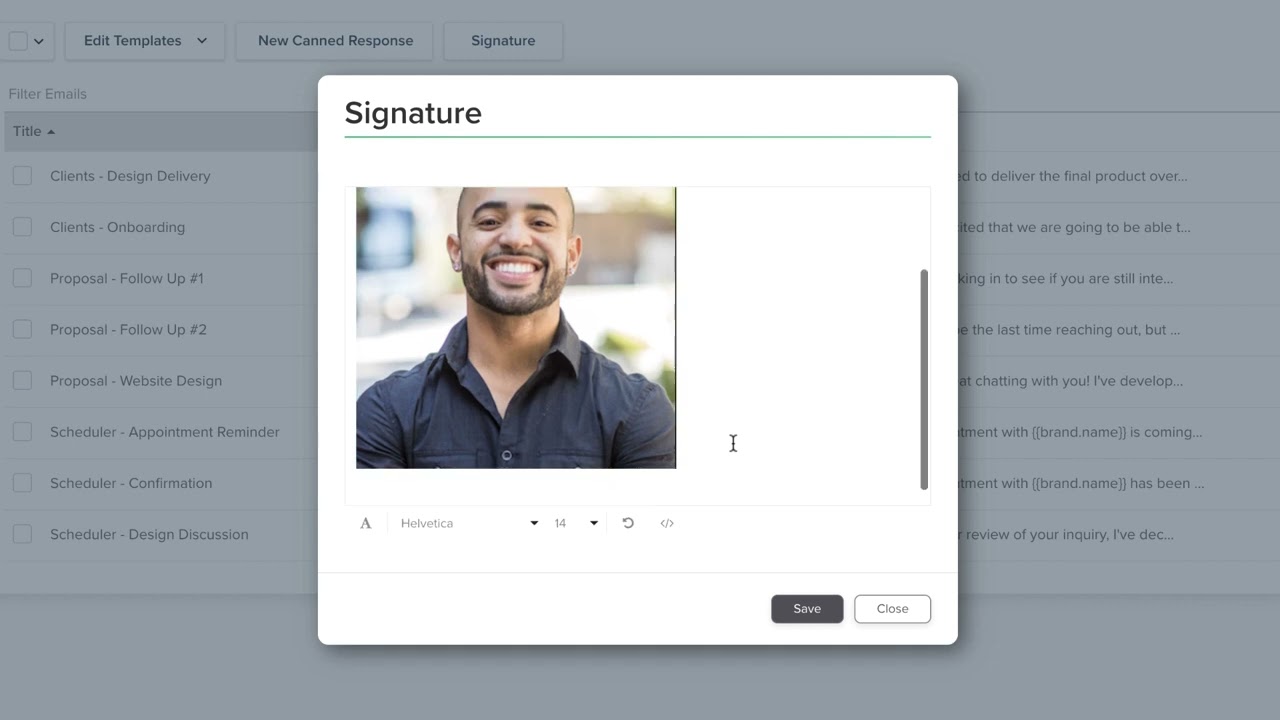
To edit your default email signature, head to templates, canned emails, signature.
You can keep your email signature simple using basic text, or you can open the formatting tool for additional customization. This menu has options for changing the font color, adding italics or inserting an image. We recommend adding a small image if you want to include one - something in the ballpark of 300 x 600 pixels.
You can even make that image into a hyperlink by clicking on it. This is a great way to link a social media profile.
If you already have an HTML signature, you can click on the code icon to insert it. After you've pasted in information, you'll need to click on the code icon again, then click save.
An HTML email signature generator will help you create a signature with more design elements, but know that not every email client will display it the same way. When you're finished with your signature, click Save.
Your email signature will appear automatically on any new email you start from scratch, but if you want it to show up in a canned email, you'll need to add the email signature smart field. Inside the canned email template, insert the Smart Field under Business for Email Signature.
Tip #1
When you're testing out how your signature looks, be sure to check both a desktop and a mobile device.
Tip #2
Keep your email signature simple. Every email client is different, and may treat images and HTML differently. Dubsado has no control over how each email client decides how to display your signature, so simple is the safest way to go.
Tip #3
You can only create one email signature per brand.
Повторяем попытку...
Доступные форматы для скачивания:
Скачать видео
-
Информация по загрузке: