Canon | Address Book Export/Import
Автор: Ray Morgan Company
Загружено: 2018-01-04
Просмотров: 16512
Описание:
In this video, our ProIT team will demonstrate how to export and import address books on a canon copier. It will also review the settings to export with passwords. This video is compatible with a gen3 copier, canon gen1 copier, and a canon gen advanced copier. For more information or help with your Document Technology Solutions, visit us at www.raymorgan.com or call at 800-640-6065
Summary: This video is going to export and import address books on a canon copier. It will also review the settings to export with passwords. This video is compatible with a gen3 copier, canon gen1 copier, and a canon gen advanced copier.
Requirements:
• IP address of the copier
• network access
• login credentials for the copier
How to: Setup Address Book Export/Import – Cannon
• Open a web browser
• Enter the IP address of a copier in the address bar
• Username: administrator
• Password: 7 6 5 4 3 2 1
• Select settings and registration
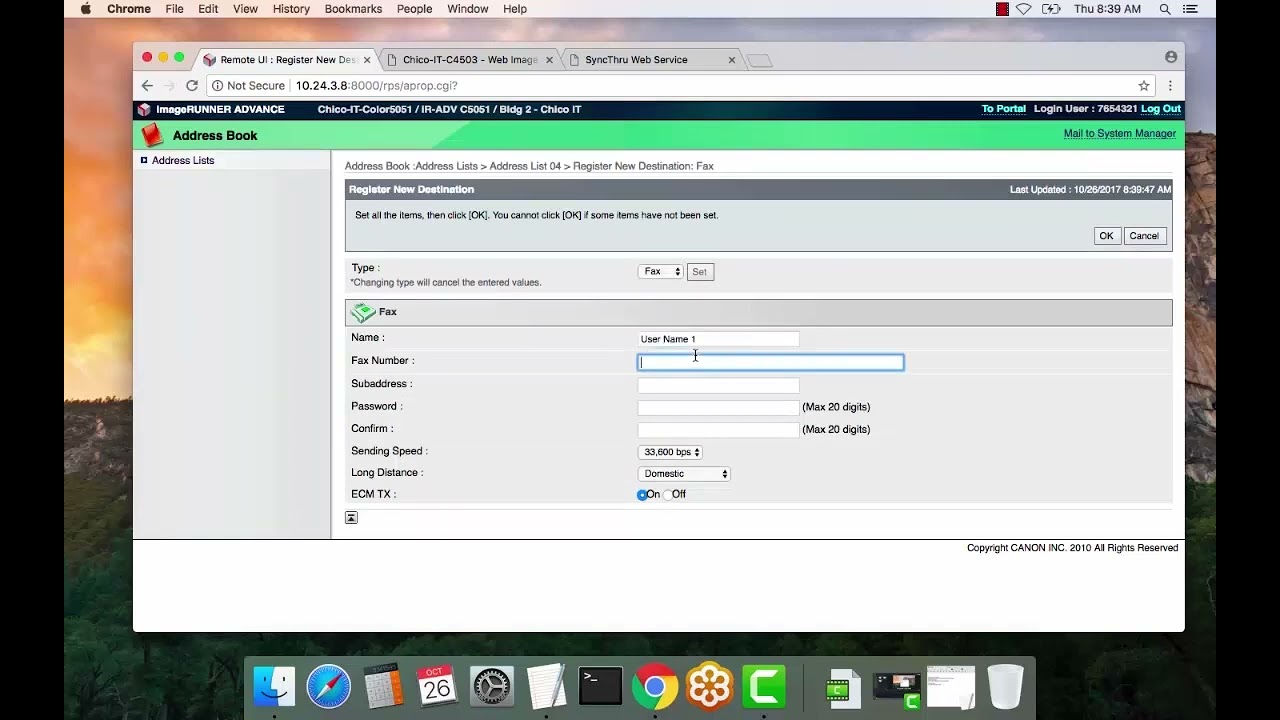
• To Export with passwords select set destination
• Select address book export settings
• Check the checkbox: “Include Password When Exporting Address Book”
o This will export any SMB folder path with the username and password
• Select ok
• Scroll down to management settings
• Click data management
• Select address lists
• Select export
• Select Level 2 for Gen 2
• Select Level 1 for Gen 1 to 2 Conversion
• Select address list 1
• Enter a password
• Select start export
• To import go back to data management
• Select address lists
o This is the process to import the address book you just exported from another copier.
• Select import
• On the import method drop down Select Add
• Select Address list to import to: ex. Address Book 3
• Choose the file
• Enter password
• Click Ok
• You will find all Addresses in the Address Book in your Portal.
Повторяем попытку...
Доступные форматы для скачивания:
Скачать видео
-
Информация по загрузке:







![Chicago Soul | Marvin Gaye Inspired 1970s Soul — Mercy & Grace [Unreleased Album]](https://imager.clipsaver.ru/YTytykkOygg/max.jpg)