PALE SKIN TONES... Do THIS to get RICH & WARM Look!
Автор: PSDESIRE
Загружено: 2023-06-03
Просмотров: 4913
Описание:
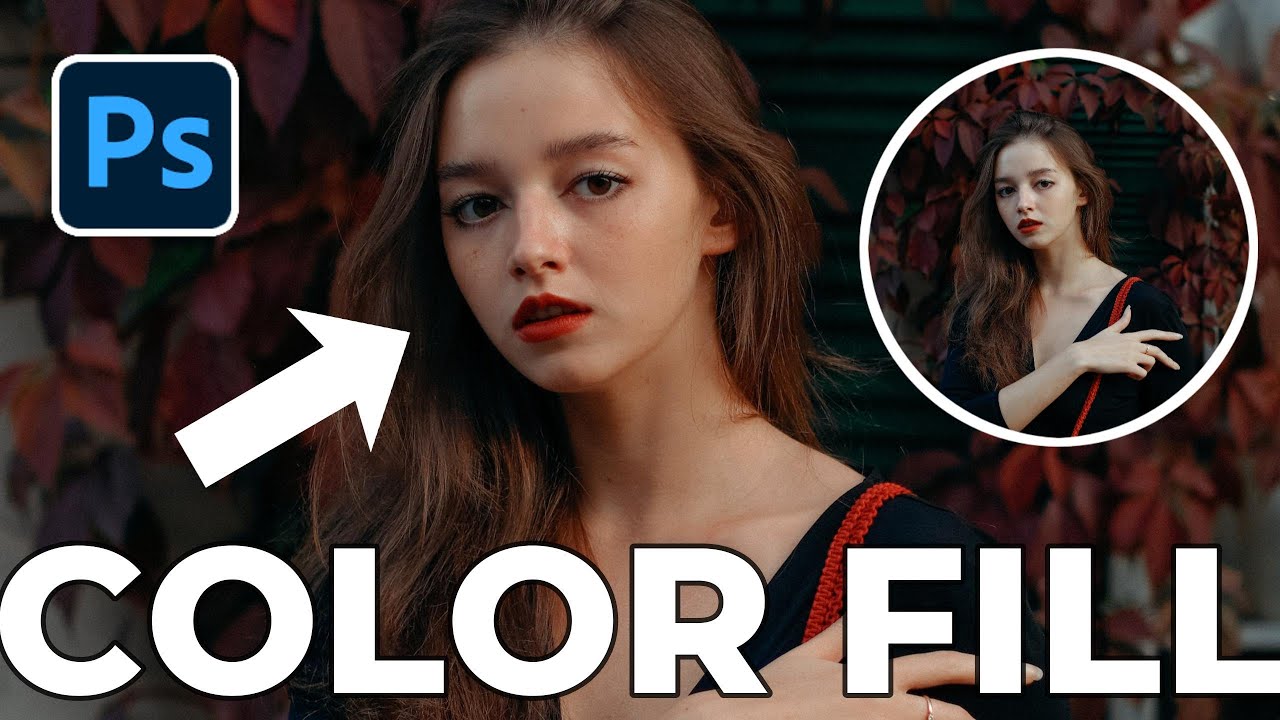
Photography Photoshop Tutorial: When it comes to enhancing a washed-out pale portrait and adding warm skin tones, there's a simple technique you can follow in Photoshop. By incorporating a solid color adjustment layer and utilizing blending options, you can achieve the desired effect.
Open the desired image in Photoshop.
Add a solid color adjustment layer by clicking the "Create new fill or adjustment layer" button in the Layers panel and selecting "Solid Color." Choose a vibrant burnt orange color.
Adjust the blending mode of the color fill layer to "Multiply" for better blending.
Refine the effect by working on the layer mask. Select the layer mask and go to the "Image" menu, then choose "Apply Image."
Double-click on the color fill layer to open the layer style dialogue box. Adjust the white point slider in the underlying layer section for a more realistic look.
That's it! Follow these steps to transform a washed-out portrait into one with rich and warm skin tones.
Remember to customize the color and blending options based on your preference. Subscribe to our channel for more Photoshop tutorials. Like, share, and comment. Happy editing!"
►SUBSCRIBE: https://goo.gl/d31fld
►Check out all tutorial here : https://www.youtube.com/photoshopdesi...
Don't forget to COMMENT, LIKE and SHARE, to get more :)
Follow US - LET'S BE FRIENDS!
------------------------------------------
►Official Website: http://www.photoshopdesire.com
►FACEBOOK : / photoshopdesire
►GOOGLE+ : https://plus.google.com/+photoshopdes...
►Twitter : / psdesire
►Instagram: / photoshopdesire
Повторяем попытку...
Доступные форматы для скачивания:
Скачать видео
-
Информация по загрузке:





![Create Highly Realistic SKIN TEXTURE In Photoshop! [FREE Download]](https://imager.clipsaver.ru/so-ZjeE2MuA/max.jpg)