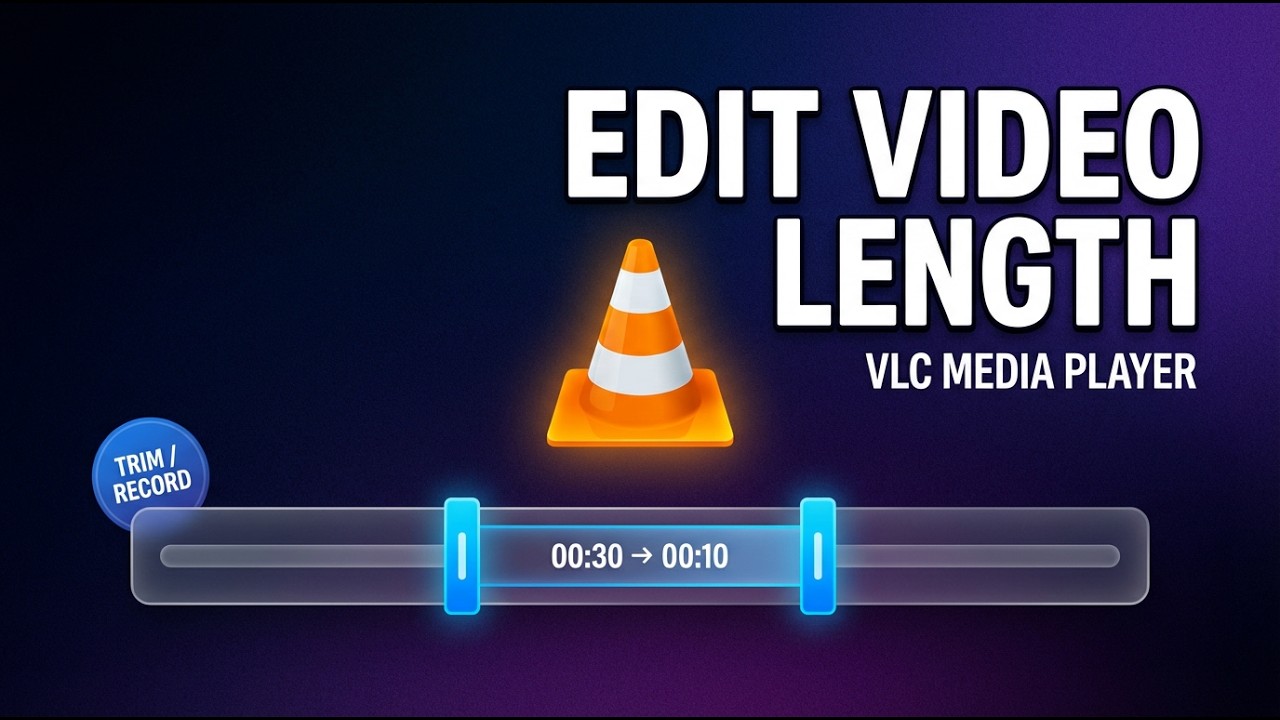
How To Trim Videos In VLC Media Player (Cut Video Length Without Extra Software)
Автор: Delft Stack
Загружено: 2026-02-12
Просмотров: 24
Описание:
Need to cut a video fast without downloading a bulky editor? 🎬⚡ In this tutorial, you’ll learn how to trim or change the length of a video using VLC Media Player. VLC isn’t a full video editor, but it has a super useful trick. You can record only the section you want and save it as a new clip. Simple, quick, and no extra software needed. ✅
Key Takeaways ✅
• Enable Advanced Controls in VLC to unlock the Record button
• Trim a video by recording the exact segment you want to keep
• Set a clean start point using the timeline
• Stop recording at the right end point to create the trimmed clip
• Find the saved file in your Videos folder by default 📁
• Quick tip to reduce audio/video sync issues 🎧
• When it’s better to use Premiere Pro or DaVinci Resolve for precise edits
Timestamps ⏱️
00:00 . Intro . Trim video length in VLC without extra apps
00:17 . Enable Advanced Controls (View menu)
00:27 . Set start point + Click Record (red button)
00:42 . Stop recording + Find the saved trimmed clip
Why Watch This Video? 👇
If you just need a quick trim for a preview, removing dead time, or cutting unwanted parts, this method helps you:
• Save time by using a tool you already have
• Avoid installing heavy editing software
• Create a clean short clip in minutes 💡
• Keep the same format as the original file for easy sharing
👍 If this helped, hit Like, share it with a friend who uses VLC, and subscribe for more fast tutorials.
🔔 Turn on notifications so you don’t miss the next tip.
Повторяем попытку...
Доступные форматы для скачивания:
Скачать видео
-
Информация по загрузке: