ycliper

Популярное

Музыка Кино и Анимация Автомобили Животные Спорт Путешествия Игры Юмор

Интересные видео

2025 Сериалы Трейлеры Новости Как сделать Видеоуроки Diy своими руками

Топ запросов

смотреть а4 schoolboy runaway турецкий сериал смотреть мультфильмы эдисон
Скачать

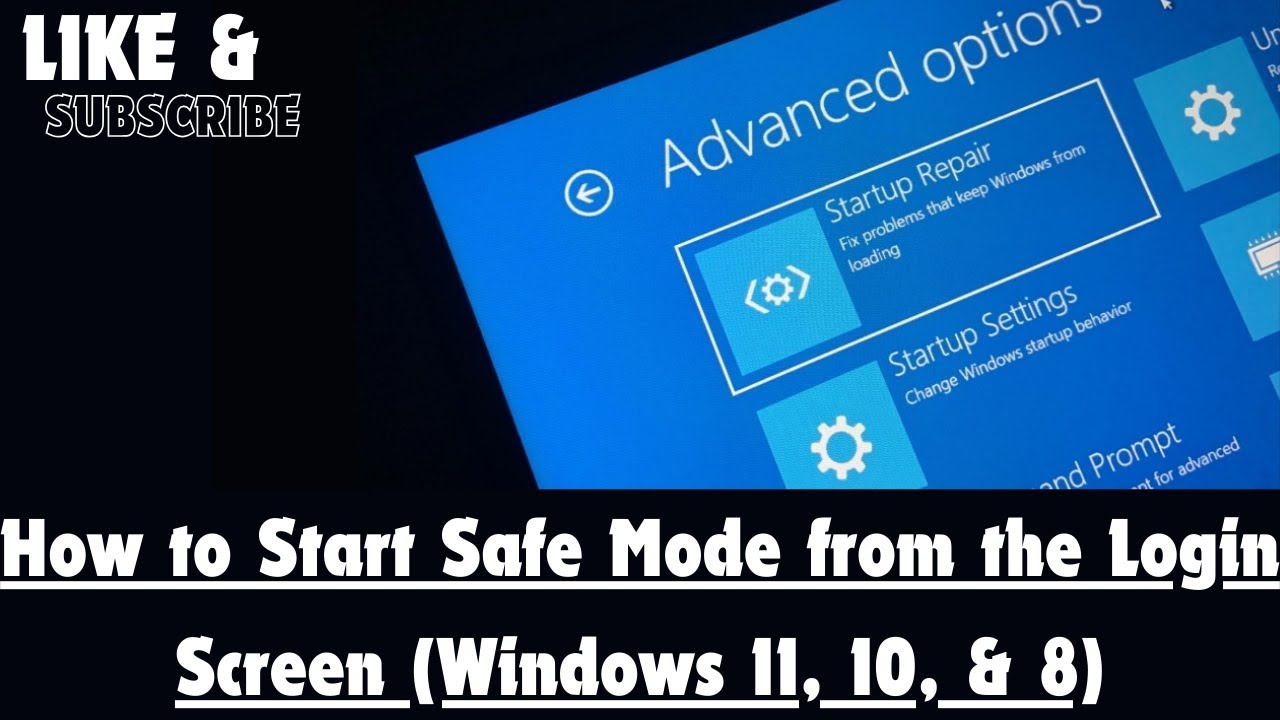
How to Start Safe Mode from the Login Screen (Windows 11, 10, & 8)

Автор: EvilComp

Загружено: 2023-04-08

Просмотров: 2226

Описание: you can to start your Windows computer in Safe Mode, which is a boot option that prevents start-up programs from running and loads only the bare minimum programs needed to operate the PC. Safe Mode is a good way to access a computer that would otherwise run too slow to function.
1-Suspend BitLocker protection (if enabled). Go to Manage BitLocker then click on "Suspend protection". If you do not suspend BitLocker protection, then you will be asked for your recovery key to continue booting into safe mode.
2-Turn on or restart your computer. Do so by pressing your computer's power button. If your computer is already on but malfunctioning, first press and hold the power button to turn it off.
3-Click the start-up screen. Once your computer finishes starting (or waking up), you should see a screen with a picture and the time in the bottom-left corner. Clicking this screen will bring up the user selection screen.
4-Click the power icon. This icon, which is in the bottom-right corner of the screen, resembles a circle with a line through its top. Doing so invokes a pop-up menu.
5-Hold down ⇧ Shift and click Restart. The Restart option will appear near the top of the pop-up menu, and you'll find the ⇧ Shift key on the left side of your computer's keyboard. This process will restart your computer and open the Advanced Options page.
6-Click Troubleshoot. It should be the middle option on the Advanced Options page, which is a light-blue screen with white text.
7-Click Advanced options. It's the bottom option on this page.
8-Click Startup Settings. This option is on the right side of the page, just below the Command Prompt option.
9-Click Restart. It's in the bottom-right corner of the screen. Clicking it will restart your computer to the Startup Settings menu.
10-Press the 4 key. Once Windows has restarted to the Startup Settings page, pressing 4 will select Safe Mode as your current start-up option.
11-Wait for your computer to finish restarting. Once it finishes restarting, your computer will be in Safe Mode.
#windows #windows10 #windows11 #safemode #startup #loginscreen #łoginscreen #loginscreens #loginscreenlol #loginscreendesign #SafeMode #safemode #safemodel #safemodeon #safemodels #start #startup #windows8pro #windows81 #windows⒏1 #windows8 #windows11release #windows11home #windows11update #windows11pro #wi̇ndows11 #Windows10Pro #windows 10 #windows7 #windows7pro #windows7 #windows 7

Не удается загрузить Youtube-плеер. Проверьте блокировку Youtube в вашей сети.
Повторяем попытку...
How to Start Safe Mode from the Login Screen (Windows 11, 10, & 8)

Поделиться в:

Доступные форматы для скачивания:

Скачать видео

  • Информация по загрузке:

Скачать аудио

Похожие видео

Как запустить безопасный режим в Windows 10 или Windows 11 (работает даже при черном экране)

Как запустить безопасный режим в Windows 10 или Windows 11 (работает даже при черном экране)

Забыл пароль Windows 10\11 сброс пароля

Забыл пароль Windows 10\11 сброс пароля

Как включить Secure Boot безопасную загрузку в Windows 11/10

Как включить Secure Boot безопасную загрузку в Windows 11/10

Fix Windows 11 start-up - Blackscreen, Bootloop, Infinite Loading

Fix Windows 11 start-up - Blackscreen, Bootloop, Infinite Loading

Забыли пароль от Windows 11? Вот решение за 10 минут! 🔓

Забыли пароль от Windows 11? Вот решение за 10 минут! 🔓

Откройте для себя секрет быстрой загрузки Windows 10 в безопасном режиме!

Откройте для себя секрет быстрой загрузки Windows 10 в безопасном режиме!

Windows 11: Enter Safe Mode (6 ways)

Windows 11: Enter Safe Mode (6 ways)

Как исправить проблемы с запуском Windows 10/11 — цикл автоматического восстановления, бесконечна...

Как исправить проблемы с запуском Windows 10/11 — цикл автоматического восстановления, бесконечна...

Как исправить проблемы с запуском Windows 10/11 с помощью командной строки (полное руководство) |...

Как исправить проблемы с запуском Windows 10/11 с помощью командной строки (полное руководство) |...

Как переустановить Windows БЕЗ ФЛЕШКИ и ПОТЕРИ ДАННЫХ?

Как переустановить Windows БЕЗ ФЛЕШКИ и ПОТЕРИ ДАННЫХ?

Как войти в безопасный режим в Windows 11 — пошагово

Как войти в безопасный режим в Windows 11 — пошагово

✨ How to bypass a forgotten PIN, Microsoft account password in cmd with a local account

✨ How to bypass a forgotten PIN, Microsoft account password in cmd with a local account

How to Boot into Safe Mode from Windows 11/10 Login Screen/Black Screen

How to Boot into Safe Mode from Windows 11/10 Login Screen/Black Screen

Как исправить ошибку «синий экран» в Windows 10 (BSOD FIXED)

Как исправить ошибку «синий экран» в Windows 10 (BSOD FIXED)

Как сбросить Windows 10 до заводских настроек

Как сбросить Windows 10 до заводских настроек

Как сбросить забытый пароль в Windows 10 без потери данных

Как сбросить забытый пароль в Windows 10 без потери данных

Лучший способ установки Windows 11 на любой ПК быстро и без проблем на любой ПК

Лучший способ установки Windows 11 на любой ПК быстро и без проблем на любой ПК

✅ How To Fix Windows 10/11 Stuck on Welcome screen [3 METHOD 2024] | Stuck On Login Screen Laptop/PC

✅ How To Fix Windows 10/11 Stuck on Welcome screen [3 METHOD 2024] | Stuck On Login Screen Laptop/PC

How to enter and use Automatic Repair Mode on Windows 10 and 11 - The easy way!

How to enter and use Automatic Repair Mode on Windows 10 and 11 - The easy way!

Как сбросить Windows 11 до заводских настроек.

Как сбросить Windows 11 до заводских настроек.

© 2025 ycliper. Все права защищены.


  • Контакты
  • О нас
  • Политика конфиденциальности


Контакты для правообладателей: [email protected]