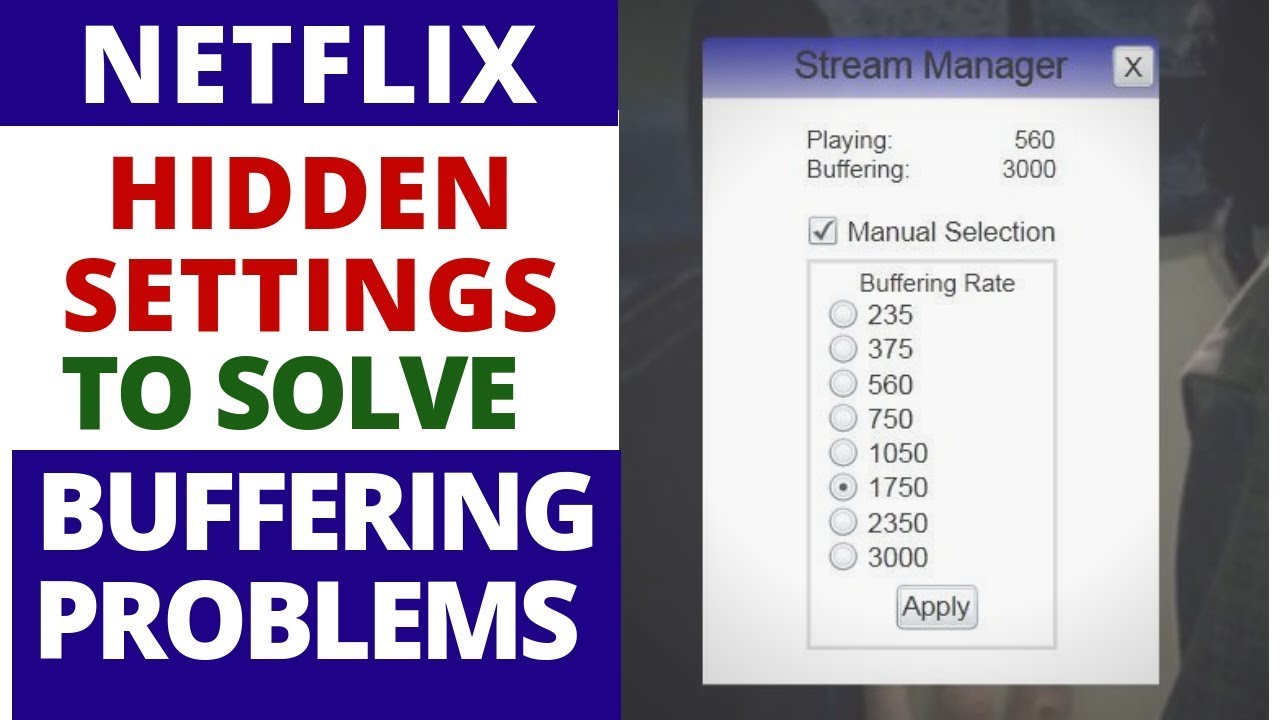
How to use NETFLIX Hidden settings to Solve Buffering Problems on Smart TV & Windows 10
Автор: TechVibes
Загружено: 2019-01-13
Просмотров: 15159
Описание:
There are several reasons why your NETFLIX Buffering on Smart TV & Windows 10, and understanding each possible cause can help you resolve the problem quickly.
It does happen that you are binge-watching your favorite show and a buffering icon turns up. This problem can be tackled by Netflix’s hidden streaming menu which will lower the streaming speed. Here’s how to access hidden buffering fixes in Netflix.
Step 1
Open 'Netflix'
Navigate to www.netflix.com or download their app on Android or iOS. You will then need to log in or sign up.
Step 2
Head Over to 'Account'
Hover over to the profile icon and click on 'Account'.
Step 3
Click on ‘Playback Settings’
Scroll down and click on ‘Playback Settings’. This allows you to change the streaming speed.
Step 4
Select 'Low'
Click on ‘Low’ from the ‘Data usage per screen’ list. This will allow the Netflix website to keep streaming even if the network is not good enough to play high-quality videos.
Step 5
Chose a 'Title'
Now choose a video to watch. You can continue watching if you left off from somewhere.
► Please Remember to Subscribe channel: https://goo.gl/yqupti
Follow me
-----------------------------------------------------------------------------------------------
►Facebook (Traveling to World): https://goo.gl/pGf29A
►Facebook (Concert Window): https://goo.gl/WsDWvb
►Twitter: / mafidea
►Google plus: https://goo.gl/S8AqTA
-----------------------------------------------------------------------------------------------
#NetflixBufferingProblem
#NetflixBufferingFIx
#fixNetflixBuffering
Повторяем попытку...
Доступные форматы для скачивания:
Скачать видео
-
Информация по загрузке: