ycliper

Популярное

Музыка Кино и Анимация Автомобили Животные Спорт Путешествия Игры Юмор

Интересные видео

2025 Сериалы Трейлеры Новости Как сделать Видеоуроки Diy своими руками

Топ запросов

смотреть а4 schoolboy runaway турецкий сериал смотреть мультфильмы эдисон
Скачать

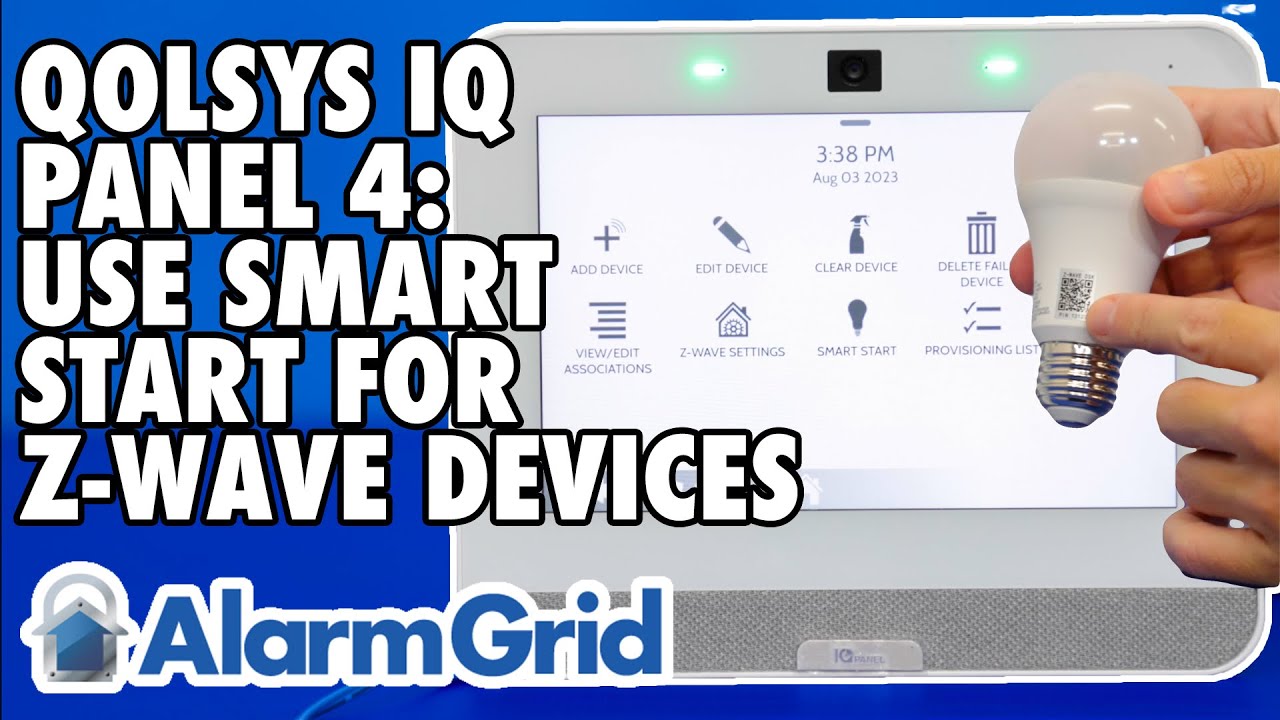
Qolsys IQ Panel 4: Use SmartStart to Include Z Wave Devices

Автор: Alarm Grid

Загружено: 2023-08-22

Просмотров: 5449

Описание: In this video, Dylan from Alarm Grid shows you how to use the SmartStart feature to add Z-Wave devices to the Qolsys IQ Panel 4. SmartStart allows a dealer to pre-load Z-Wave devices into a system prior to shipping it to a customer. Then, once the panel is installed and powered on, as each Z-Wave device is installed and powered on, it automatically joins the network.

DIYers can also use this feature to simplify Z-Wave device installation. In order to support SmartStart, the Z-Wave device must support S2 security. That means that the device will be a Z-Wave Plus or higher version product. Devices that support SmartStart will have a QR code on their packaging and should indicate support for the SmartStart feature.

To enroll a Z-Wave device with the Qolsys IQ Panel 4 using SmartStart begin by tapping the gray bar at the top of the panel screen. Select Settings then Advanced Settings. Enter the Installer or Dealer Code (1111 or 2222 respectively, by default). Next choose Installation, then Devices, then Z-Wave Devices, and finally SmartStart.

This will bring up a screen showing the view from the panel's front-facing camera and a number pad. You can either scan the QR Code from the packaging, or from the device itself. Alternatively, you can enter the 40-character DSK code shown on the box. Once the QR code has been picked up by the panel's camera, or the DSK code has been entered, basic information about the device will be shown on the screen. You can edit the device name by tapping the generic name provided and either choosing from the list, or choosing Custom Description and entering whatever you want. Once that's done, press Add.

This takes you to the provisioning list. This is a list of all Z-Wave devices being added using SmartStart and their current status. A status of Not in Network means that the QR Code or DSK has been entered, but the panel has not yet heard from that device. Now, install and/or power on the device. The panel will communicate with it, and will add it to the Z-Wave network. This will change the status in the provisioning list screen to Started, and eventually to Included. At this point, the device has been successfully added to the network and is ready to be used through the panel, and Alarm.com, if the panel is tied to an account with support for Automation.

https://www.alarmgrid.com/faq/how-do-...

http://alrm.gd/get-monitored

Не удается загрузить Youtube-плеер. Проверьте блокировку Youtube в вашей сети.
Повторяем попытку...
Qolsys IQ Panel 4: Use SmartStart to Include Z Wave Devices

Поделиться в:

Доступные форматы для скачивания:

Скачать видео

  • Информация по загрузке:

Скачать аудио

Похожие видео

Qolsys IQ Panel 4: локальная регистрация Z-Wave и простая автоматизация

Qolsys IQ Panel 4: локальная регистрация Z-Wave и простая автоматизация

Удивительные функции панели Qolsys IQ

Удивительные функции панели Qolsys IQ

Programming a Qolsys IQ Panel 2 Alarm System

Programming a Qolsys IQ Panel 2 Alarm System

How To Add Admin To Facebook Page | Manage Admin Roles On Facebook Page 2026

How To Add Admin To Facebook Page | Manage Admin Roles On Facebook Page 2026

Qolsys IQ Panel 4: Подключение iPhone

Qolsys IQ Panel 4: Подключение iPhone

How to add a sensor to a Qolsys IQ system

How to add a sensor to a Qolsys IQ system

IQ Panel 4 / IQ4 Hub LMS Lessons

IQ Panel 4 / IQ4 Hub LMS Lessons

Взлом WiFi за 60 секунд | Как взламывают Ваш роутер будьте осторожны!

Взлом WiFi за 60 секунд | Как взламывают Ваш роутер будьте осторожны!

Чем ОПАСЕН МАХ? Разбор приложения специалистом по кибер безопасности

Чем ОПАСЕН МАХ? Разбор приложения специалистом по кибер безопасности

Qolsys IQ Panels - Overviews and Tutorials

Qolsys IQ Panels - Overviews and Tutorials

Видео по установке Qolsys Hardwire 16-F

Видео по установке Qolsys Hardwire 16-F

Как они смогут отобрать у нас деньги?! ❌ || Дмитрий Потапенко*

Как они смогут отобрать у нас деньги?! ❌ || Дмитрий Потапенко*

Введение в беспроводную систему сигнализации Qolsys IQ Panel: руководство по установке и обзор си...

Введение в беспроводную систему сигнализации Qolsys IQ Panel: руководство по установке и обзор си...

Билл Гейтс В ПАНИКЕ: Утечки Windows 12 ПОТРЯСЛИ Мир Технологий!

Билл Гейтс В ПАНИКЕ: Утечки Windows 12 ПОТРЯСЛИ Мир Технологий!

Qolsys IQ Lock-PG: Setting Up on IQ4 Panel

Qolsys IQ Lock-PG: Setting Up on IQ4 Panel

Авиация США уничтожена / Досрочная отставка президента?

Авиация США уничтожена / Досрочная отставка президента?

Qolsys IQ Panel 4: Is It Worth Upgrading Your Alarm Panels?

Qolsys IQ Panel 4: Is It Worth Upgrading Your Alarm Panels?

КАК узнать, что за тобой СЛЕДЯТ?

КАК узнать, что за тобой СЛЕДЯТ?

1 — Обзор (Панель IQ 4)

1 — Обзор (Панель IQ 4)

DSC - IMPASSA Self-Contained 2-Way Wireless Security System - User Video English

DSC - IMPASSA Self-Contained 2-Way Wireless Security System - User Video English

© 2025 ycliper. Все права защищены.


  • Контакты
  • О нас
  • Политика конфиденциальности


Контакты для правообладателей: [email protected]