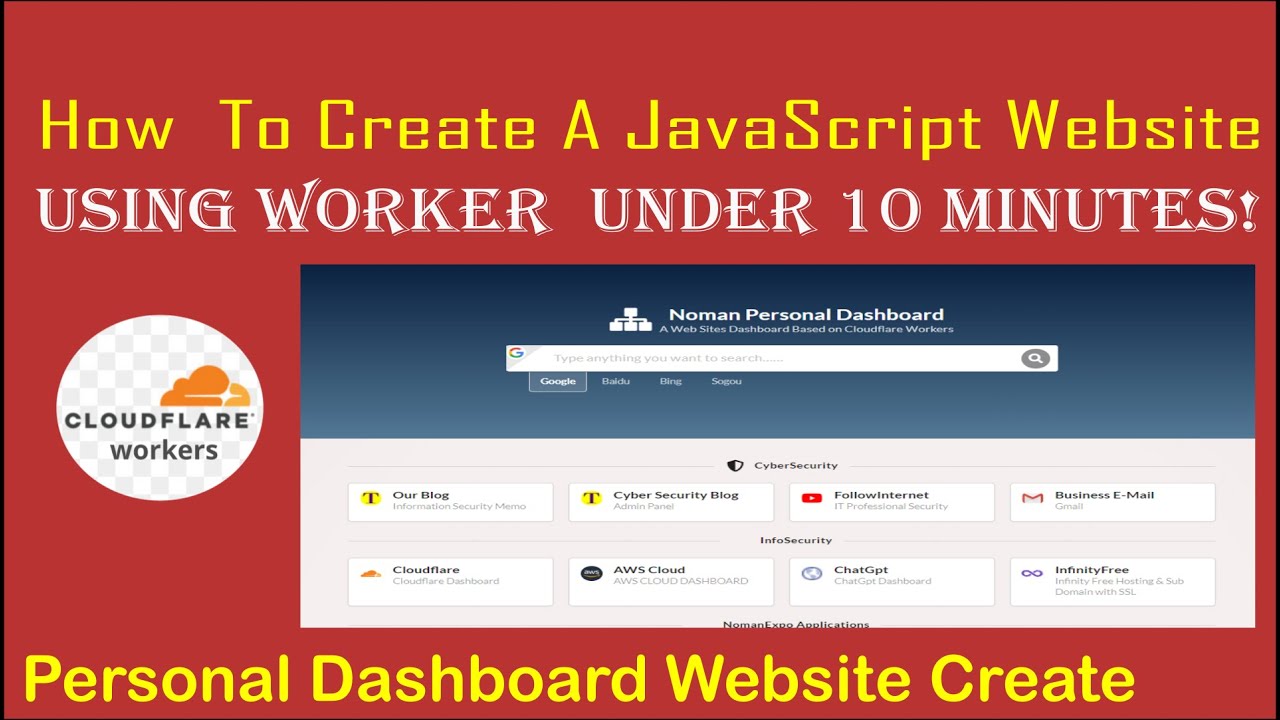
How to Create an admin dashboard website for personal use on Cloudflare Workers
Автор: FollowInternet
Загружено: 2023-10-04
Просмотров: 577
Описание:
Creating an admin dashboard website for personal use on Cloudflare Workers involves several steps. Cloudflare Workers allow you to run JavaScript code at the edge, which means your code will execute on Cloudflare's servers closer to the user's location. Here's a high-level overview of the process:
Set Up a Cloudflare Account:
If you haven't already, sign up for a Cloudflare account at https//www.cloudflare.com/. Follow the on-screen instructions to configure your domain and set up Cloudflare DNS.
Create a Cloudflare Worker:
Once your domain is set up on Cloudflare, you can create a new Cloudflare Worker to serve your admin dashboard. Here's how:
a. Log in to your Cloudflare account.
b. Go to the Workers dashboard.
c. Click "Create a Worker."
d. Write your JavaScript code for the admin dashboard in the editor.
Develop Your Admin Dashboard:
Write the JavaScript code for your admin dashboard using HTML, CSS, and JavaScript. You can use frameworks like React, Vue, or plain JavaScript depending on your preferences. Make sure to structure your code properly for the dashboard's functionality.
Access Data:
If your admin dashboard requires data, consider how you will access and manage it. You may need to integrate with databases, APIs, or other data sources. For simplicity, you can start with hard-coded data.
Secure Your Dashboard:
Since this is a personal admin dashboard, security might not be as complex as a production system, but it's still important. You can use Cloudflare Access to restrict access to authorized users only. Set up access policies to ensure only you and trusted users can access the dashboard.
Deploy Your Worker:
Once you have developed your admin dashboard and ensured it's secure, deploy your Cloudflare Worker. Click the "Save and Deploy" button in the Cloudflare Workers editor. This will generate a unique URL for your admin dashboard.
Testing:
Test your admin dashboard to ensure it works as expected. Access it using the generated Cloudflare Worker URL.
Custom Domain (Optional):
If you want to use a custom domain for your admin dashboard (e.g., admin.yourdomain.com), you can configure Cloudflare DNS to point to your Worker. Set up a CNAME record that maps the subdomain to the Worker URL.
Monitoring and Maintenance:
Regularly monitor your admin dashboard for performance and security. Cloudflare provides various tools and analytics to help with this.
Documentation and Support:
Document how to use and maintain your admin dashboard for personal use. You can also seek support from Cloudflare's community or support channels if you encounter issues.
Remember that Cloudflare Workers have usage limits based on your subscription plan, so make sure your usage falls within those limits for personal use. Additionally, keep your JavaScript code efficient to minimize resource consumption and improve performance.
#how #to #create #serverless #admin #dashboard #website #cloudflare #workers
#how #to #make #admin #dashboard #using #js #deploy #on #cloudflare #worker
Повторяем попытку...
Доступные форматы для скачивания:
Скачать видео
-
Информация по загрузке: