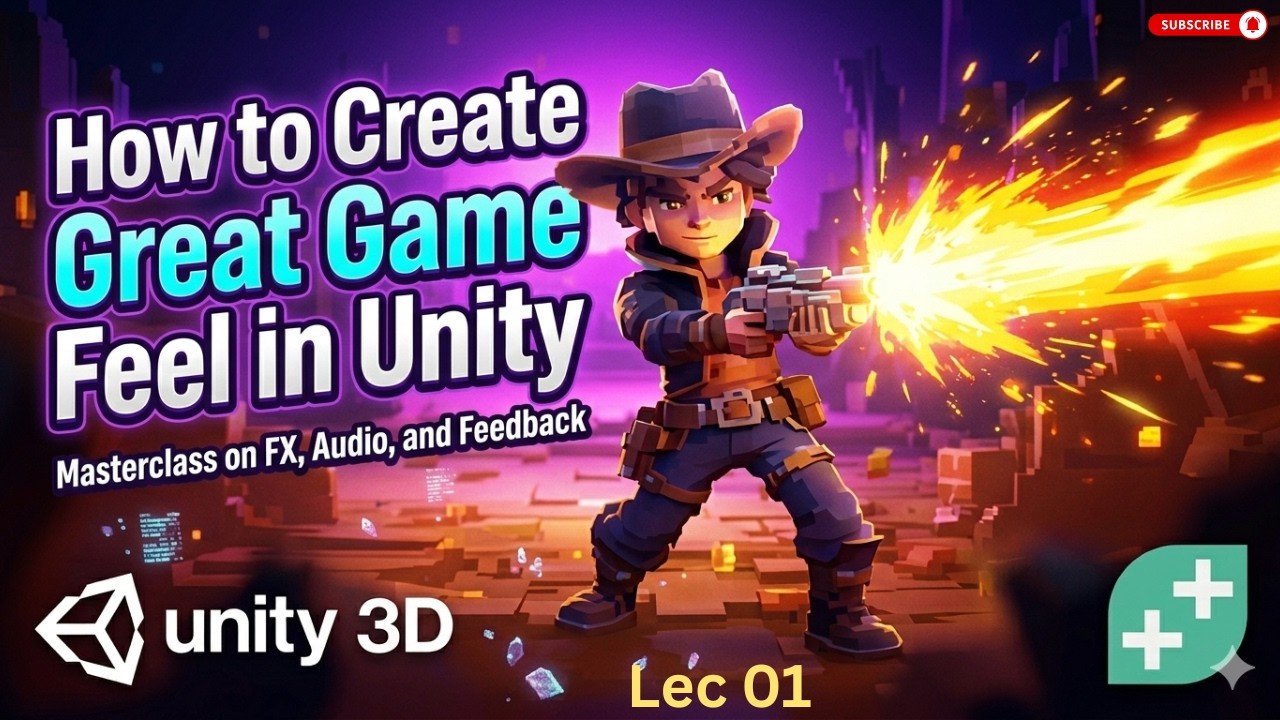
WARNING Don't Make This Common Mistake with Unity and VS Code Configuration Lec 01
Автор: Mastery Courses
Загружено: 2026-03-03
Просмотров: 37
Описание:
In this video, you will learn how to properly set up Unity with Visual Studio Code (VS Code) for smooth and efficient game development. We’ll walk through the complete project configuration process, ensuring your scripts open correctly, IntelliSense works perfectly, and your development workflow is optimized.
Setting up Unity with VS Code the right way is essential for productivity. Many beginners face issues like missing IntelliSense, project files not syncing, or scripts not opening in the correct editor. In this step-by-step guide, we solve all those problems and configure everything correctly from scratch.
🎮 What You’ll Learn:
How to install and connect VS Code with Unity
Setting VS Code as the default script editor
Fixing IntelliSense and auto-completion issues
Installing required extensions (C# support, Unity tools)
Generating and syncing project files
Troubleshooting common Unity + VS Code errors
Best practices for a clean development workflow
Whether you’re a beginner starting your Unity journey or an intermediate developer wanting a cleaner setup, this guide will help you build a stable and efficient coding environment.
A properly configured setup means:
✅ Faster coding
✅ Better debugging
✅ Cleaner workflow
✅ Fewer errors
By the end of this video, your Unity project will be fully connected to VS Code, and you’ll be ready to write, edit, and manage scripts like a professional game developer.
If you found this helpful, don’t forget to like, comment, and subscribe for more Unity tutorials, game development tips, and practical coding guides.
Повторяем попытку...
Доступные форматы для скачивания:
Скачать видео
-
Информация по загрузке: