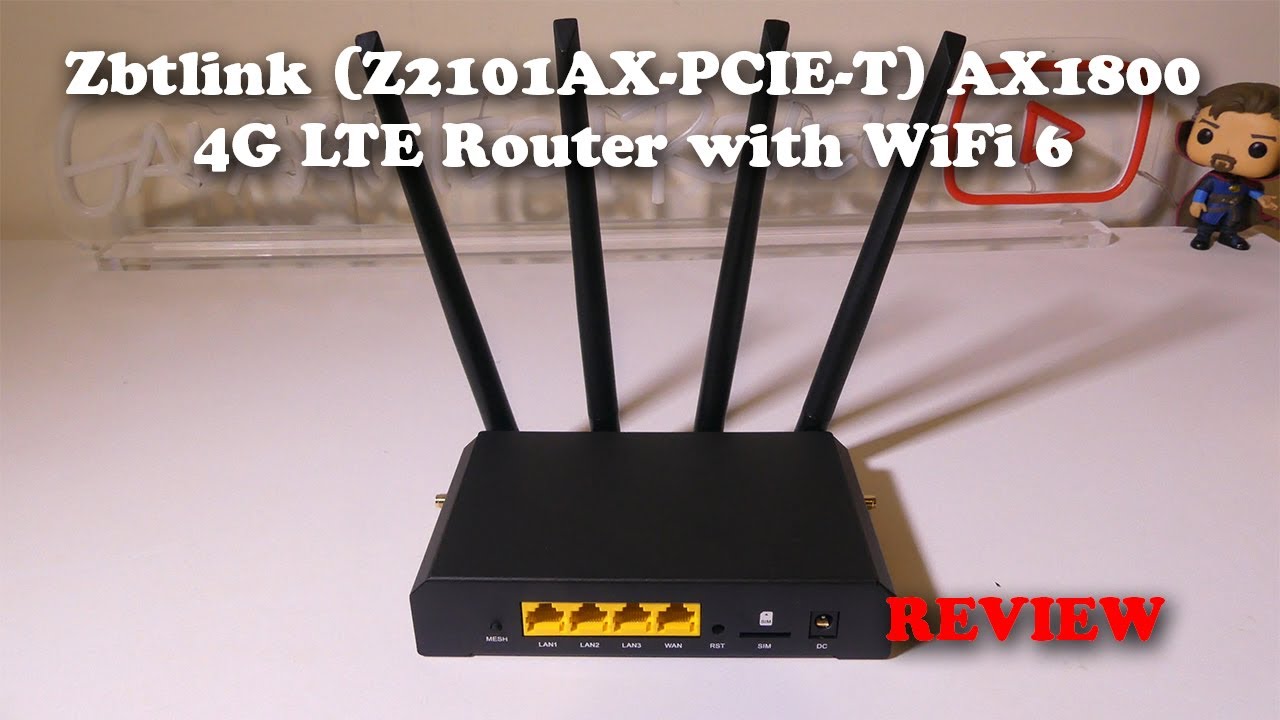
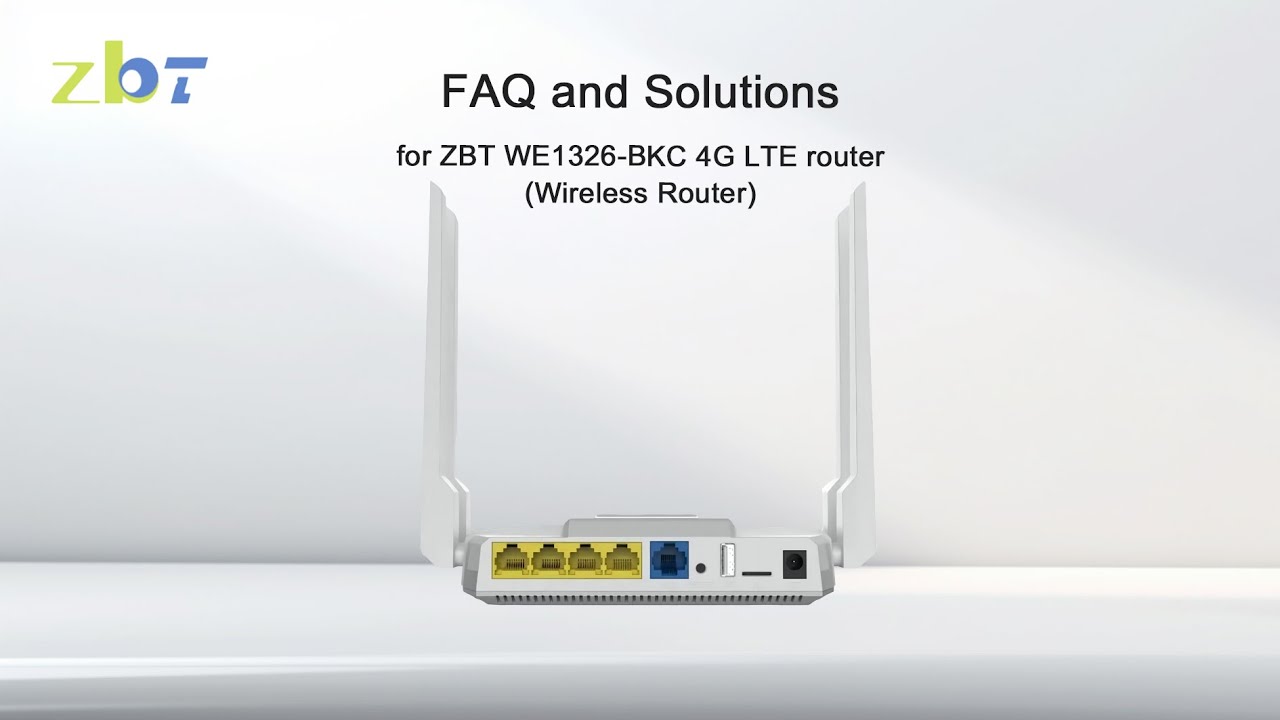
ZBT WE1326 BKC 4G LTE router FAQ & Solutions | Wi-Fi Router
Автор: ZBT | A IoT Devices Manufacturer
Загружено: 2023-08-18
Просмотров: 460
Описание:
❓Experiencing issues with your WE1326-BKC 4G LTE router?
Don't worry, we've got solutions for you. In this video, we provide solutions for common issues such as internet access, reboots, and Wi-Fi setup. We also cover firmware updates, router resets, app control, and compatible ISPs.
Stay tuned for more details!
Contents:
🕶️Q1: The 4G router cannot access the Internet after inserting a SIM card.
🔄Q2: The router keeps rebooting or dropping connections.
🔐Q3: How to set a WIFI password?
🚀Q4: How to upgrade the firmware?
🔧Q5: How to reset the router?
📡 Q6: Can the router connect to a 4G network and broadband at the same time?
📱Q7: Is there an APP to control the 4g router?
🌐Q8: Which ISPS are compatible?
0:11 📜Q1:The 4G router cannot access the internet after inserting a SIM card.
Solution:
1.Check if the frequency bands match
The Bands of this router:
4G LTE FDD: B2/B4/B5/B12/B13/B14/B66/B71
3G WCDMA: B2/B4/B5
2. Check the 3G 4G setting interface after login
The interface when the router works fine and can access the Internet.
Solutions for not being able to access the internet
0:27 Problem 1: SIM card hasn't been installed correctly.
Solution: Reinstall the SIM card.
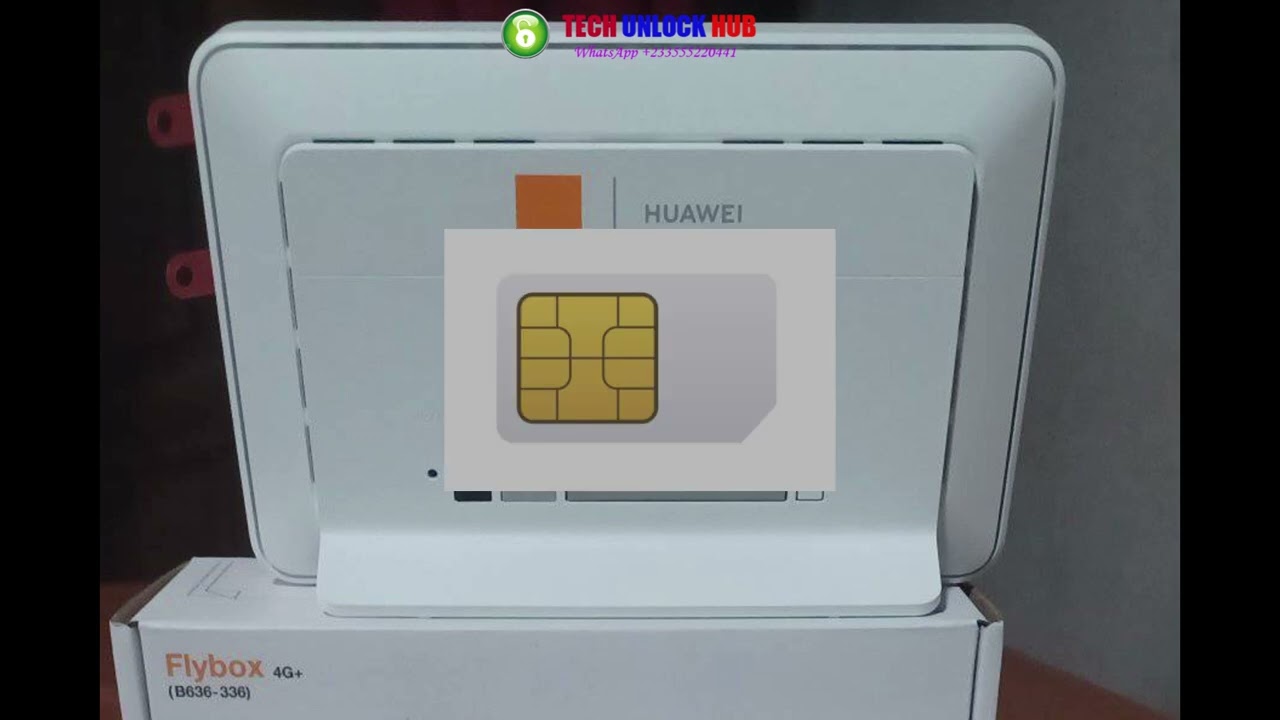
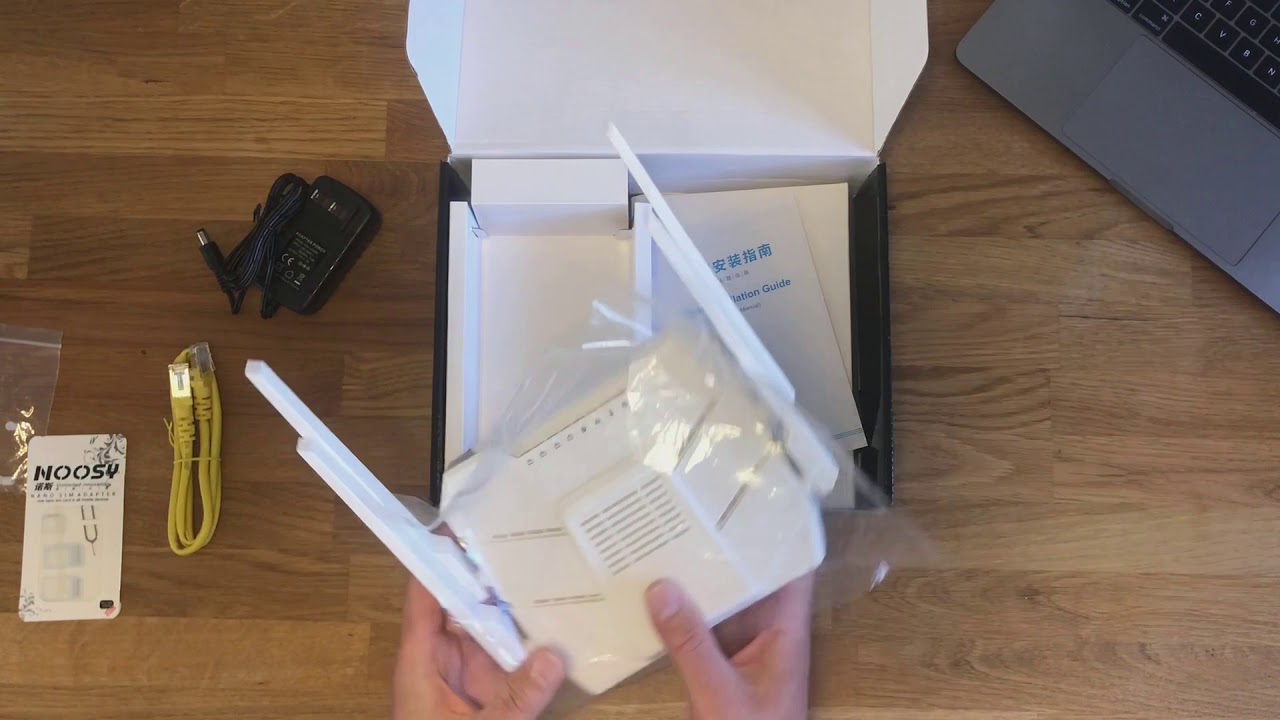
The router requires a standard sim card
Convert your micro or nano sim to standard with the sim adapter.
Install the SIM correctly
SIM card faces down and the golden chip up, notch end inward.
0:40 Problem 2:SIM has been locked
Solution: Contact the network operator to unlock the SIM card.
0:45 Problem 3:No Service of the operator
Solution: Check whether the SIM is activated or in arrears
and whether the data has been used up.
3. Fill in the APN and try again
APN can be obtained from your network operator.
0:56 📜Q2:The router keeps rebooting or dropping connections
Solution:
1.Set execute an action as “No action” in the watchdog setting.
2.Or change the detection address to 127.0.0.1 in the watching setting.
1:20 📜Q3:How to set the WIFI password
A3: You can set it in the WIFI setup.
2:03 📜Q4:How upgrade the firmware
A4:You can upgrade the firmware online or contacts us to get the firmware.
2:08 📜Q5:How reset the router
1. Click on the off button after login, then click “reset”.
2. Long press the reset button for more than 3 seconds to reset it.
2:16 📜Q6:Can the router connects to a 4G network and broadband at the same time?
A2: Yes, by default broadband is prioritized. You can prioritize 4G LTE.
2:20 📜Q7: Is there an APP to control the 4g router?
A7: Yes, you can download the APP "Zbtlink" in the APP store.
2:22 📜Q8: Which ISPs are compatible?
A8: The 4g router is unlocked to any network carrier.
But please check the frequency band compatibility.
The Bands of this router:
4G LTE FDD: B2/B4/B5/B12/B13/B14/B66/B71
3G WCDMA: B2/B
#zbt #network #wifi #router #smarthome #technology #office #4g #qa #howto
Повторяем попытку...
Доступные форматы для скачивания:
Скачать видео
-
Информация по загрузке: