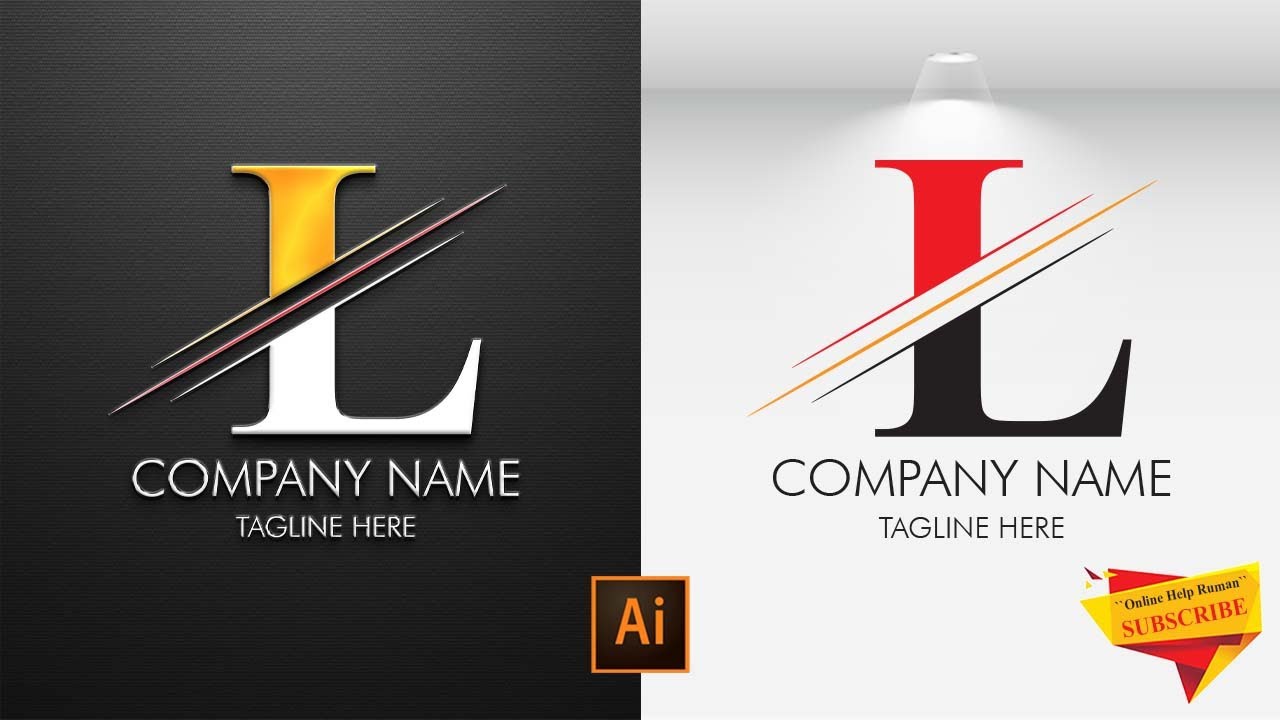
Letter L Logo Design Illustrator | L Letter Logo Design Illustrator
Автор: GD Alam
Загружено: 2018-12-02
Просмотров: 1359
Описание:
Letter L Logo Design Illustrator, L Letter Logo Design Illustrator.
In this video I will show you letter l logo design illustrator, l letter logo design illustrator, how to make l letter logo in adobe illustrator tutorial.
This Video Also Includes: logo design illustrator, illustrator, logo design, illustrator tutorial, logo design tutorial, adobe illustrator, graphic design, letter l logo design illustrator, design, adobe illustrator tutorial, letter logo design illustrator, letter logo design, logo design process, illustrator logo design, simple logo design illustrator, professional logo design, l letter logo design, logo design in illustrator, how to design logo and more.
You can check also my Adobe Illustrator Tutorial links below:
Adobe Illustrator | Adobe Illustrator Tutorial (Playlists):
https://www.youtube.com/playlist?list...
A-Z Letter Logo | Adobe Illustrator Tutorial (Playlists):
https://www.youtube.com/playlist?list...
Creating an "L" letter logo design in Adobe Illustrator is a great beginner-friendly project that also allows for a lot of creative freedom. Here's a step-by-step tutorial you can follow to design a sleek, professional "L" logo in Illustrator:
L Logo Design in Illustrator – Step-by-Step Tutorial
Tools You Need:
• Adobe Illustrator (any recent version)
• Basic knowledge of Illustrator tools (Pen, Shape, Pathfinder, etc.)
Step 1: Create a New Document
• Open Adobe Illustrator
• Go to File → New
• Set your artboard size (e.g., 1000 x 1000 px)
Step 2: Draw the "L" Letter
• Select the Type Tool (T)
• Type a capital “L”
• Choose a bold sans-serif font (like Montserrat, Gotham, or Bebas Neue)
• Increase the font size (e.g., 400 pt)
Step 3: Convert Text to Shape
• Select the text
• Go to Type → Create Outlines (or press Shift + Ctrl/Cmd + O)
• Now your "L" is a vector shape you can modify
Step 4: Customize the "L"
Here's where your creativity kicks in:
Option A: Geometric Modern Style
• Use the Rectangle Tool (M) to add or subtract elements
• Apply the Pathfinder tool (Window → Pathfinder) to merge/subtract shapes
Option B: Minimalist Cut Style
• Create a diagonal line using the Line Segment Tool () across the “L”
• Use Shape Builder Tool (Shift + M) to remove overlapping parts and give a sharp, unique look
Option C: 3D or Shadow Effect
• Duplicate the “L”
• Offset it slightly
• Blend the layers to give a sense of depth
Step 5: Add Color
• Choose 1–2 colors for a clean, professional look
• Try modern palettes (blue gradients, black/gold, or monochrome)
• Use Window → Swatches or Window → Gradient to apply colors
Step 6: Align and Finalize
• Center your logo on the artboard
• Use Align tools to make sure everything is symmetrical
• Group all elements (Ctrl/Cmd + G)
Step 7: Export the Logo
• Go to File → Export → Export As
• Choose PNG for web or SVG for scalable vector
• Use CMYK for print, RGB for digital
Watch More At:
/ @gdalam602
Get On This Logo From Here & A-Z Logos Here:
https://www.shutterstock.com/en/g/Nur...
Follow me on Fiverr:
https://www.fiverr.com/mdnurealam602
#illustrator #letterllogodesign #lletterlogodesign #llogo #logodesign #letterlogo #graphicdesign #gdalam
Повторяем попытку...

Доступные форматы для скачивания:
Скачать видео
-
Информация по загрузке: