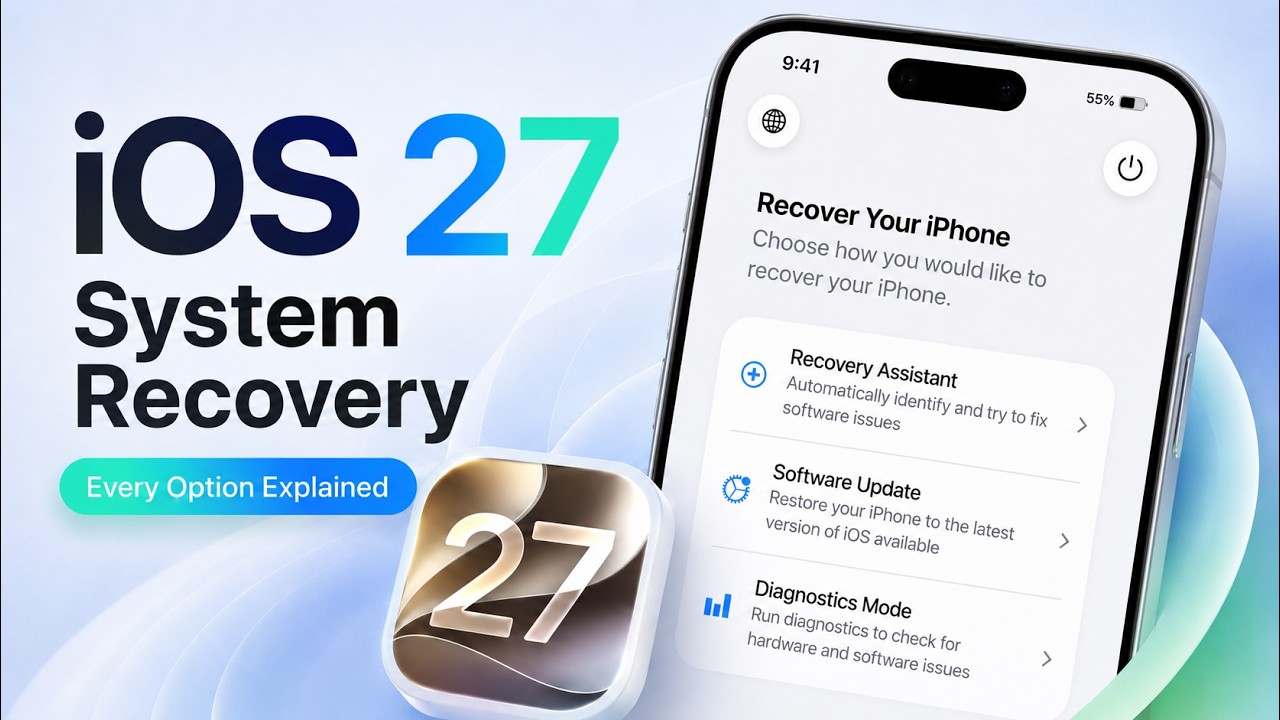
iOS 27 System Recovery - How to Use iOS 27 New System Recovery 2026 | Every Option You Need to Know!
Автор: TenorshareOfficial
Загружено: 2026-06-11
Просмотров: 851
Описание:
System Recovery Mode on iOS 27 Explained 👉: https://bit.ly/3QzTVO3
[iOS 27 Recovery Mode ] Apple has introduced a brand-new System Recovery environment in iOS 27, and it might be one of the most useful features for troubleshooting iPhone problems. In this video, I'll show you how to enter System Recovery Mode, explain what each recovery tool does, and help you understand when to use Recovery Assistant, Diagnostics Mode, Software Update, Recovery Mode, and more. Whether you're testing iOS 27 Beta or simply want to learn Apple's new recovery tools, this guide covers everything you need to know.
⏱TIMESTAMP:
00:00 Introduction
00:30 How to Enter System Recovery Mode
01:35 Recovery Assistant Explained
02:20 Diagnostics Mode Explained
03:10 Software Update Explained
04:00 Erase All Content and Settings
04:10 Recovery Mode Explained
05:00 How to Exit Recovery Mode
05:25 Alternative Repair Solution with ReiBoot
💡Text guide here:
How to Use iOS 27 System Recovery Mode
Enter System Recovery Mode
1. Disconnect any USB cable from your iPhone.
2. Press Volume Up, then Volume Down.
3. Press and hold the Side button.
4. Keep holding until "Loading Recovery Options" appears.
Recovery Assistant
1. Open Recovery Assistant.
2. Connect to the internet.
3. Run device diagnostics.
4. Review detected software issues and recommendations.
Diagnostics Mode
1. Open Diagnostics Mode.
2. Accept the terms and conditions.
3. Select the hardware tests you need.
4. Verify repaired or replaced components if necessary.
Software Update
1. Select Software Update.
2. Bring a nearby iPhone or iPad close to the device.
3. Follow the on-screen instructions.
4. Download and reinstall iOS without erasing data.
Erase All Content and Settings
1. Select Erase All Content and Settings.
2. Confirm the device reset.
3. Wait for the iPhone to erase and restart.
Recovery Mode
1. Select Recovery Mode.
2. Connect the iPhone to a computer.
3. Use Finder or Apple Devices to update or restore iOS.
🤨Understanding Key Terms and Resources
**System Recovery Mode**: A dedicated recovery environment introduced in iOS 27 that provides troubleshooting, repair, diagnostics, and recovery tools directly on the iPhone.
**Recovery Assistant**: Apple's built-in software troubleshooting tool that analyzes device issues and recommends solutions based on diagnostic results.
**Diagnostics Mode**: A hardware testing environment used to verify components, run diagnostics, and configure repaired parts after service.
**Software Update Recovery**: A wireless recovery process that uses another nearby Apple device to reinstall iOS without requiring a computer.
**Recovery Mode**: Apple's traditional recovery environment that allows iOS updates, restores, and firmware recovery through a Mac or PC.
👇You might also want to know:
How to Update to iOS 27 Beta After WWDC 2026: • iOS 27 Not Showing? Fix It and Update to i...
How to Downgrade iOS 27 to iOS 26: • How to Remove & Uninstall iOS 27 Beta With...
📑Official Links and Resources:
Apple Beta Software Program: https://beta.apple.com
#iOS27 #SystemRecovery #iPhoneRecoveryMode #iOS27Beta #ReiBoot #Tenorshare
🔔 Subscribe Here (it's FREE!): https://bit.ly/30eZwvG
---------Social Media------------
Free AI Photo Editor: https://pixpretty.tenorshare.ai/
Free iPhone Wallpaper: / pixpretty
More iPhone Tech Tips: / tenorshare_tech_tips
Tenorshare Official Facebook: / tenorshareofficial Tenorshare Official Twitter: / tenorshare_inc
Tenorshare Official Website: https://www.tenorshare.com/
Tenorshare iAnyGo Discord: / discord
Tenorshare AI Youtube: / @tenorshareai
Tenorshare AI Bypass: https://ai.tenorshare.com/
Tenorshare AI Diagrimo: https://www.tenorshare.ai/diagrimo.html
Повторяем попытку...
Доступные форматы для скачивания:
Скачать видео
-
Информация по загрузке: