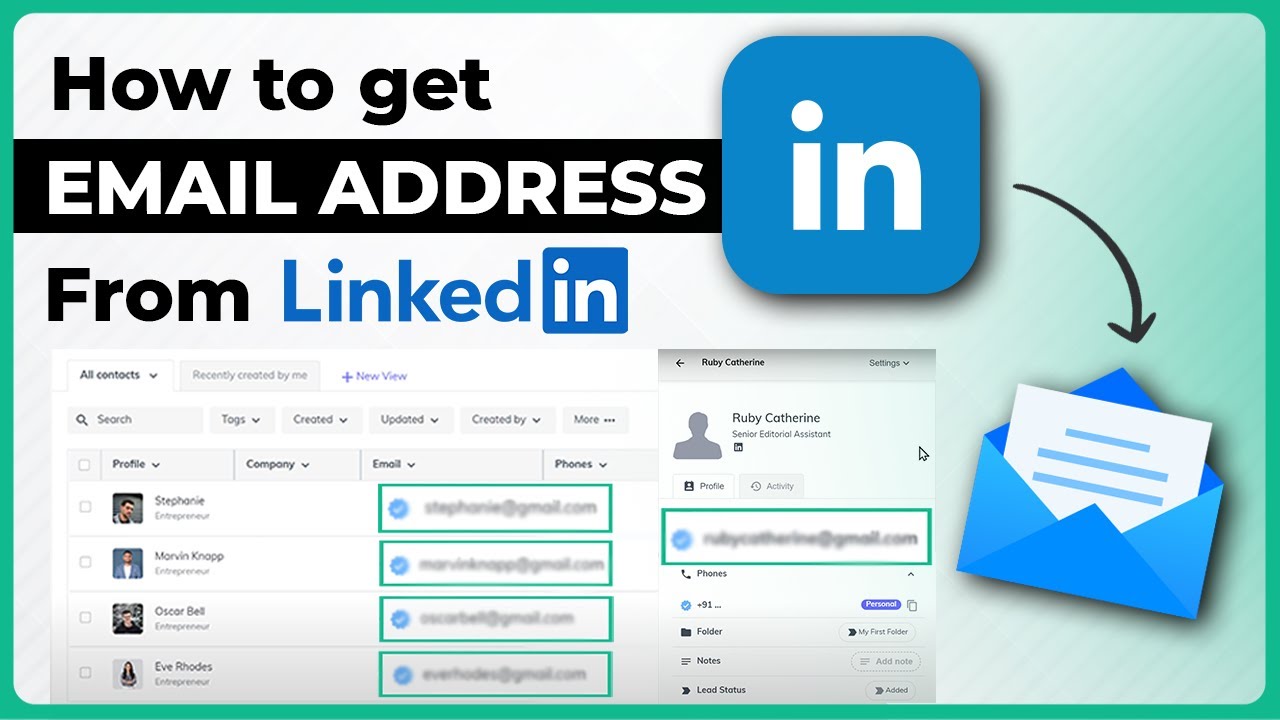
How To Find Emails on Linkedin in BULK - Get Emails of CEOs, Founders, Employees and more
Автор: useArtemis
Загружено: 2022-12-09
Просмотров: 5949
Описание:
🔔 SUBSCRIBE to useArtemis NOW: / @useartemis
Create a free useArtemis account here : https://useartemis.co
0:00 Intro
01:06 Create an account
01:16 Make a search on Linkedin
01:39 Import Linkedin Search results
02:14 Enrichment
In this video I’m going to show you step by step how you can find email addresses and generate leads from Linkedin search results so you can start closing more deals.
As you know Linkedin is the biggest B2B database with over 700 million users, and if you work in B2B there are many chances that your dream customer is somewhere on LinkedIn.
Linkedin offers several way to get in touch with your potential leads. You can for exemple send an in-mail or send them a request to add them to your network. But you will always be limited to a few requests and in-mails per week, which may not be enough for most of you.
But good news, there is an amazing way to get emails of almost anybody on Linkedin in just a few clicks with useArtemis.
useArtemis is B2B email finder tool that allows you to find emails from Linkedin , Facebook and Google and send cold emails to your leads.
In this video I’m going to show you step by step how to import Linkedin search results and enrich them with emails.
Step 1: Create an account
Create an account on useartemis.co and install the chrome extension , you can find the link below in the description.
Step 2: Make a search on Linkedin
Go to Linkedin and make a search. In my case I will search for CEO.
Then click on « People » ( for Dom, It’s just under the search input )
Now I can see that Linkedin found many results. You can filter them even more deeply using locations, company , industry etc …
Step 3: Import Linkedin Search Results
Import those results to useArtemis
Click on the useArtemis extension. Give a name to your import, in my case I will name it CEO , select how many pages you want to import, in my case I will leave it like it is. Then click on « Start Import »
You can now close the page and go back to your useArtemis dashboard.
You can see a popup at the bottom left corner that tells you the progress of the import. Once the import is hover you can find it in the tab « imported leads ».
I can find all Linkedin search results I imported with their names and company names.
Step 4: Enrichment
We are almost done. The final step is to enrich those leads with emails and phone numbers. And to do that I just have to click on « enrich ». ( for Dom, the enrich button is on the list CEO from « imported leads » that we just created above )
The app will create a new list that will be available on « Lists » and which will contains my leads enriched with emails. Let’s give it a name, In my case I will name it « CEO enriched ». Then I click on start enrichment.
Again I can see at the bottom left corner the progress bar showing me the progress of the enrichment. And once it’s finished I can find my list in « Lists » that contains emails and phone numbers.
This is is probably the most powerful way to build a targeted mailing list in just a few clicks.
Повторяем попытку...

Доступные форматы для скачивания:
Скачать видео
-
Информация по загрузке: