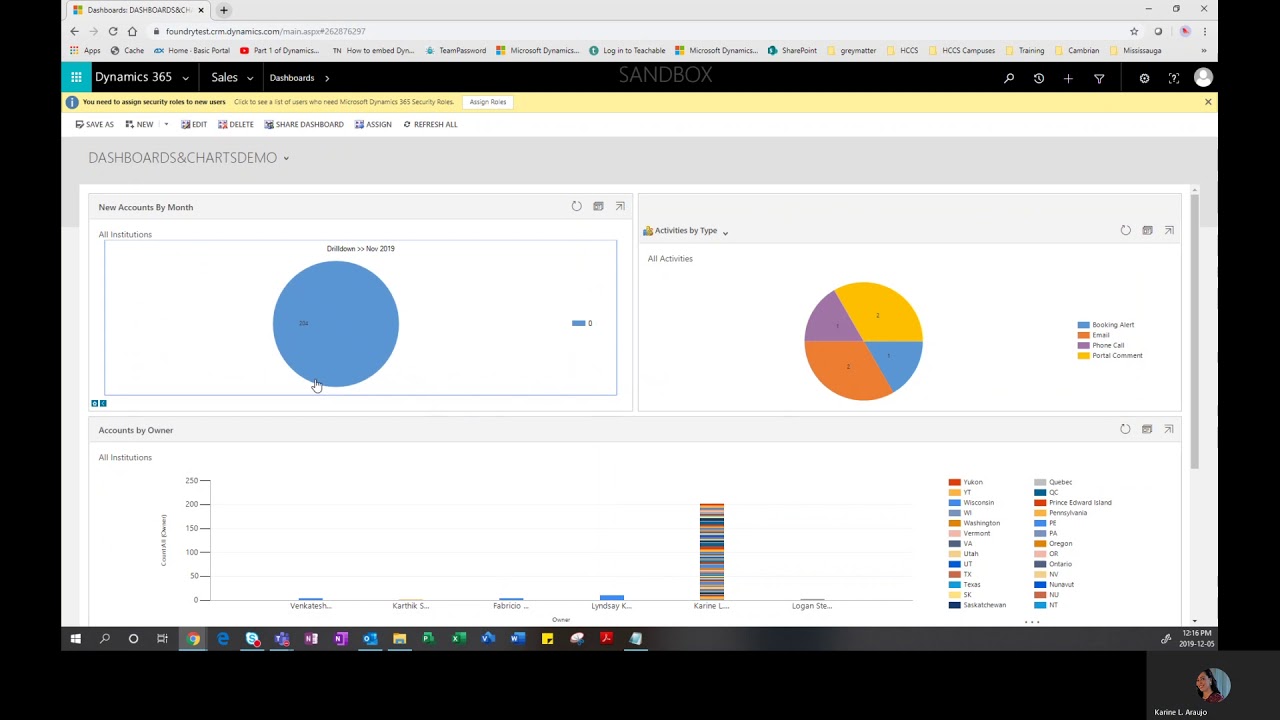
Tracking and Managing Activities in Dynamics CRM
Автор: Integent
Загружено: 2021-11-23
Просмотров: 8542
Описание:
Tracking and Managing Activities in Dynamics CRM
In Dynamics CRM, activities are used to track, plan, document and organize all customer interactions. Examples include setting up appointments, taking notes, making phone calls, sending emails, or assigning yourself a task as you work a sales or resolve a customer service case. Activities cover numerous types of interactions.
Activities in Dynamics CRM are automatically timestamped by the system as well as owner-identified. You and your entire sales team can scroll through activities in the Activities view via the timeline when browsing an opportunity. The entire history of a customer will show up, giving a complete picture of interactions.
It is important that everyone in the organization tracks all customer interactions in Dynamics CRM in order to get a complete picture of the relationship. This includes types of activities such as emails, phone calls, tasks and appointments. A list of activities conveying a complete customer history is the ideal goal of all customer engagements.
License and Role Requirements
License
Microsoft Dynamics 365 Sales Enterprise or Dynamics 365 Sales Premium
Security Roles
Salesperson and above
Independent Activities in CRM Online
Create independent activities that aren't associated with any customer or sales record.
Select Activities and then on the command bar, select Email or Phone Call or Task, depending on which activity you want to create.
Conversely, you can edit an existing activity
Adding an Activity
Most often, you'll want to add an activity associated with a contact, opportunity, account, or other type of record to help you keep track of all the communication history you have with a customer.
To add an activity for a customer:
Open the record (Opportunity, Account, etc.) . You can use Quick Search on the navigation bar to find a record quickly.
Select Activities to add a task or phone call to the record. Select More (…) to add an email or appointment. Or, select Notes and then start typing.
Adding an activity for yourself
Add a task or note for yourself when you want a reminder to do something personal, like schedule a doctor's appointment or attend a sporting event.
How to add an activity for yourself:
On the navigation bar, select Create and then select the icon or tile for the activity.
Fill in the fields and then select Save.
Attach a document to an Activity
Documents, spreadsheets, pictures, and just about any type of file can be attached to email, appointments, and notes.
To attach a document to email:
Open the email form by clicking on activity email
On the command bar, select Attach File.
The Add attachment dialog box opens.
Browse to and then select the file that you want to attach, and then select Attach.
To attach a document to appointments:
Open the appointment form.
Enter data in the required fields and save the form.
In the Attachment section, select New Attachment.
In the Manage Attachment dialog box, browse to and then select the file that you want to attach, and then select Attach.
Change your activities view
You can use views to see the activities you want. For example, you can use the My Activities view to see activities assigned to you and My Team Members' Activities view to see your team's activities.
Filter the list of activities
You can filter the list of activities to see only the ones you're interested in. For example, you can further limit the activities you are seeing in a view by using the activity type filter. The activity type filter allows you to filter activities based on the type, such as email, task, phone call, and so on.
Best-practices for Activities
Add activities for every customer interaction and communication. You ideally want a customer's activity history to include every record of communication.
Ensure you use the correct activity type to create activities for the correct type of interaction. A note may be a tempting way to state "Sent an email with a proposal attached to a new opportunity", however, you ideally want to use an email activity to track those types of activities and notes for general text situations.
Do not forget to add activities for you, too. You can keep track of and record your own assignments, trainings, events, and notes without associating the activities with a customer.
The Create command on the navigation bar is your friend! Activities may be found in the activities list by sorting on the Regarding column, which is blank to denote the activity is not associated with a customer record.
Related
https://integent.com/microsoft-projec...
https://integent.com/microsoft-projec...
https://integent.com/consulting-2/mic...
https://integent.com/consulting-2/mic...
https://integent.com/consulting-2/mic...
Повторяем попытку...

Доступные форматы для скачивания:
Скачать видео
-
Информация по загрузке: