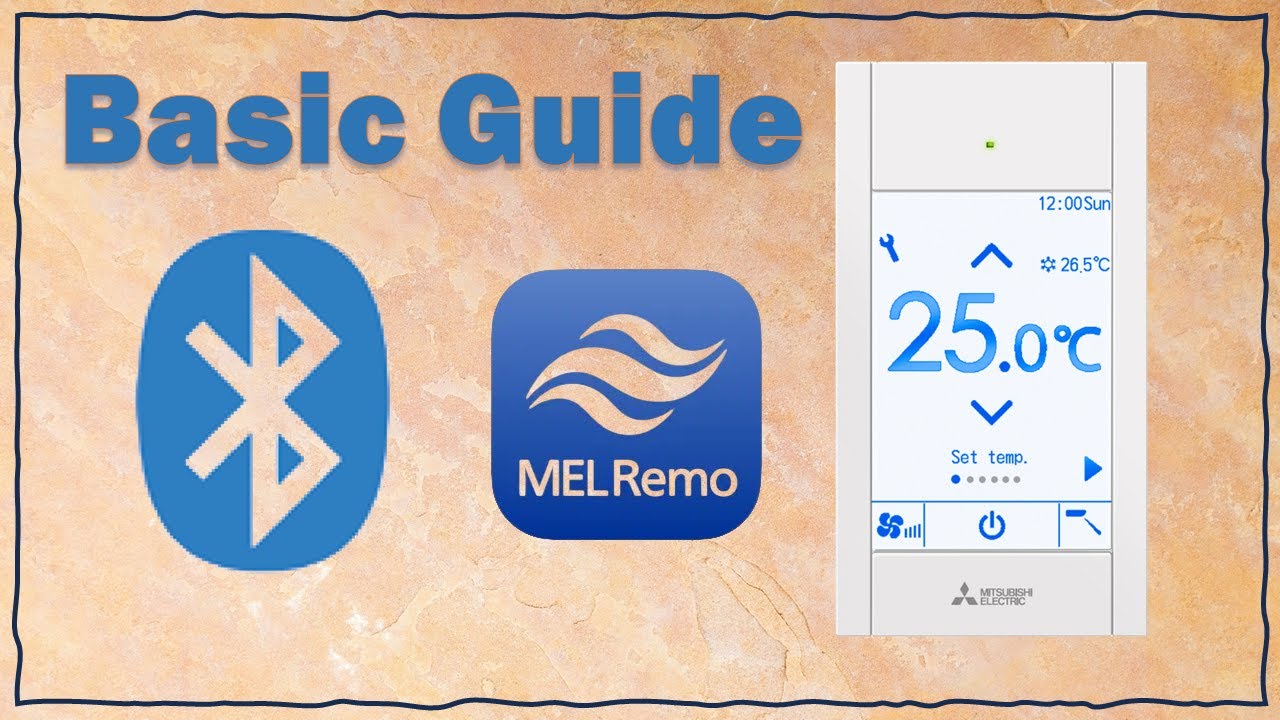
The complete guide for PAR-CT01MAA Bluetooth
Автор: TodayHVAC
Загружено: 2024-02-05
Просмотров: 2045
Описание:
MELRemo App for android: https://play.google.com/store/apps/de...
MELRemoPro App for android: https://play.google.com/store/apps/de...
Hi guys, Today I’m going to teach you how to operate your air conditioners through Bluetooth
in 4 simple steps:
Step 1-Activate the Remote Controller Bluetooth.
Step 2-Get the Bluetooth address from the Remote Controller.
Step 3 & Step 4-download the Mitsubishi Electric MELRemoPro & MELRemo apps.
Before you start, look at the RC model name located at the bottom,
The Bluetooth available only for suffix SB and PB.(you can press here for more information[0016 link])
If you have more than one remote controller, do these four steps individually for each remote controller
If you get value from this video-give it a thumbs up and subscribe to the channel.
Step No. 1: Activate RC Bluetooth
The Bluetooth is set by default to off. When the Bluetooth is set to on, you will see this sign on the screen
To activate the Bluetooth:
• Press on the Setting button (wrench icon) to bring up the Main menu
• Go to Initial setting menu
• Press here to set the administrator password to “0000” and press “Select” (V)
• Stay on “Basic setting” and press “select” (V)
• Go to “Bluetooth” and press “select” (V)
• Stay on “Bluetooth”, set it to “on”
• Let’s go to the PIN code. The PIN code is needed to connect your smartphone to the RC.
I recommend you to change it to a number that you can remember such as 0000 so you don't have to remember it by heart. When you finish press “select” to confirm.
• Press “Return” 3 times and go back to the Main menu
Step No. 2: Get the Bluetooth address
You can pass this step if you have only one Remote Controller.
Before you start this step, you need to prepare a note and a pen in advance.
• Move the cursor to “Operation” and press “select” (V)
• Go to “Bluetooth connection” and press “select” (V)
• Write down the Room Name and the last 4 digits of the Bluetooth address(without the hyphen) in a chart, for example:
If this remote controller connected the Living room AC unit, then write:
No. Room Bluetooth address
Name (last 4 digits)
1 Living Room 6EE8
2
3
….
• When you finish, press “Return” 3 times and go back to the Status display.
Step No. 3: download the gray MELRemoPro app
This app will allow us to change the default model name, of the remote controller, from something that looks like this or this, to a more friendly name that looks like this this or this.
• Open your web browser or Google Play and type MELRemoPro, the gray App and click “Install”
• Click “Open”, you will be asked to
“Allow MELRemo to access device’s location”-choose “while using the app”.
“Allow MELRemo to find, connect ….”-choose “Allow”
“Allow MELRemo to access photos, videos …”-choose “Allow”
• Scroll down the License agreement and click “AGREE” (it cannot be used without agreement)
Now we will change the default name of our controller to the actual Room Name that it relates to:
Stay close to the remote controller you are working on
• Press: Settings→ + Create new → Select the model name → OK → Initial setting → Device name
→ “Living Room” → OK → “← ← → Done → “Enter the setting title”:”Living Room setting” → ok →
• Click on “Living Room1” → Send data to remote controller →”---6EE8”→ you will be asked to put administrator password, the password is 0000 → SEND → OK
• To add another Remote Controller, repeat Step 1,2 & 3.
when you finish Close the MELRemoPro app and go to step 4
Step No. 4: download the blue MELRemo app
• Open your web browser or Google Play and type MELRemo, see that the icon is blue and click “Install”
• Click “Open”, you will be asked to
“Allow MELRemo to access device’s location”-choose “while using the app”.
“Allow MELRemo to find, connect ….”-choose “Allow”
“Allow MELRemo to access photos, videos …”-choose “Allow”
• Now the app will recognize you remote controller [pay attention that the 4 last digits (without the hyphen) are correct] and click on it.
• Click here, enter the PIN code and click “SEND”, now you can operate the air conditioners from your smartphone.
When you finish open the Blue MELRemo app, select the Remote controller, click on the Password and type the PIN code which is 0000 from step 1, and click “SEND”.
Have a nice day and see you soon
Bye bye
#mitsubishielectric
Повторяем попытку...

Доступные форматы для скачивания:
Скачать видео
-
Информация по загрузке:










![Как я делаю ДЛИННЫЕ видео в Grok за 0₽? [ГАЙД 2026]](https://imager.clipsaver.ru/JqmsTdUdfeY/max.jpg)