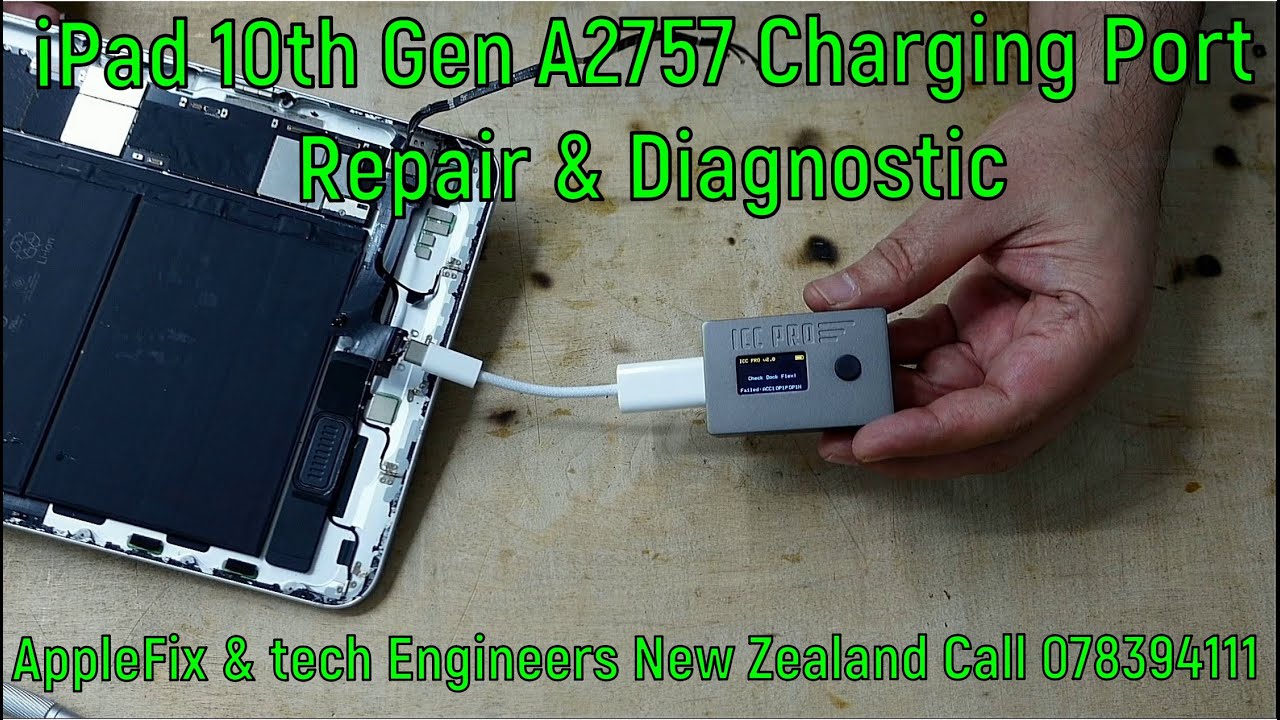
iPad 10th Gen Charging port Replacement A2757 A2696 A2777 | ipad repair Hamilton New Zealand
Автор: Tech Engineers & AppleFix Hamilton New Zealand
Загружено: 2024-12-16
Просмотров: 12609
Описание:
AppleFix & Tech Engineers New Zealand Call 078394111 or visit 937 victoria street Hamilton New Zealand iPad 10th Generation Not Turing on | How to replace charging port on ipad 10th generation A2757 A2696 A2777.
A general guide to replace charging port on ipad 10
Replacing the charging port on an iPad 10th generation (2022) can be a complex task, requiring precision and technical skills. It involves removing internal components and safely detaching the old charging port. Here's a step-by-step guide to help you perform the replacement:
Tools Needed:
1. Pentalobe screwdrivers
2. Phillips screwdriver
3. Plastic prying tools
4. Tweezers
5. Suction cup tool
6. SIM card ejector tool (if needed)
7. Heat pad or hairdryer (optional, for softening adhesive)
8. Replacement charging port
Preparation:
• Power Off the iPad: Ensure the device is completely powered off to avoid any damage or short circuit.
• Remove the SIM Card (if applicable): Use the SIM ejector tool to remove the SIM card tray.
Step-by-Step Replacement:
1. Heat the iPad (Optional)
• Use a heat pad or a hairdryer to soften the adhesive on the iPad's display. Apply moderate heat for about 2-3 minutes to make it easier to remove the screen.
2. Open the iPad
• Use a suction cup tool to gently lift the screen. Place the suction cup on the screen, near the edge. If the screen is not lifting easily, use a plastic prying tool to carefully separate the screen from the frame.
• Work your way around the perimeter, ensuring you don't apply too much force to avoid cracking the screen.
3. Disconnect the Battery
• Once the screen is separated, locate the battery connector. Disconnect the battery to ensure that there’s no power running through the device during repairs.
• Use a Phillips screwdriver to remove screws securing the battery connector, and then gently lift it off using a plastic prying tool.
4. Remove Internal Components Blocking the Charging Port
• If there are any cables, metal shields, or components obstructing access to the charging port, carefully remove them. Use a small Phillips screwdriver or tweezers to handle these parts.
• Keep track of the screws and components removed for reassembly.
5. Remove the Old Charging Port
• The charging port is typically located at the bottom of the iPad. Use a Phillips screwdriver to remove any screws holding it in place.
• Use Hot air and precision tweezers to gently pull the charging port when solder is melted.
6. Install the New Charging Port
• Position the new charging port into place, making sure the connectors align with the motherboard.
• Solder new charging port with soldering iron as shown in the above video.
7. Reassemble the iPad
• Reconnect the battery by carefully placing the battery connector back into position.
• Reinstall any internal components or metal shields that were removed during the disassembly process.
• Carefully align the screen with the iPad frame and press it into place. Be sure to remove any old adhesive residue before resealing the device.
8. Test the Charging Port
• Power the iPad back on and check if the charging port works correctly. Plug in a charger and ensure that it charges the device.
9. Final Assembly
• Once the new charging port is working, ensure that everything is securely in place and that the screen is properly attached to the frame.
• Power off the device one more time, and then fully reassemble it by tightening screws and checking for any loose parts.
________________________________________
Important Tips:
• Be Careful with the Screen: iPads have delicate displays, so always use plastic prying tools rather than metal tools to avoid damage.
• Document the Process: Take photos as you go, so you can remember the order and orientation of the components during reassembly.
• Work in a Clean Area: Avoid working on a soft surface like a carpet, which can generate static electricity or make it harder to find small parts.
If you're unsure about any step or feel uncomfortable performing the repair, it's always best to consult a professional technician. Or bring it to applefix & Tech engineers 937 victoria street Hamilton New Zealand or Call 078394111 or 078394188
Повторяем попытку...
Доступные форматы для скачивания:
Скачать видео
-
Информация по загрузке:


