Fieldworker User Guide - Creating and updating booking details
Автор: OctopusPro
Загружено: 2020-11-02
Просмотров: 378
Описание:
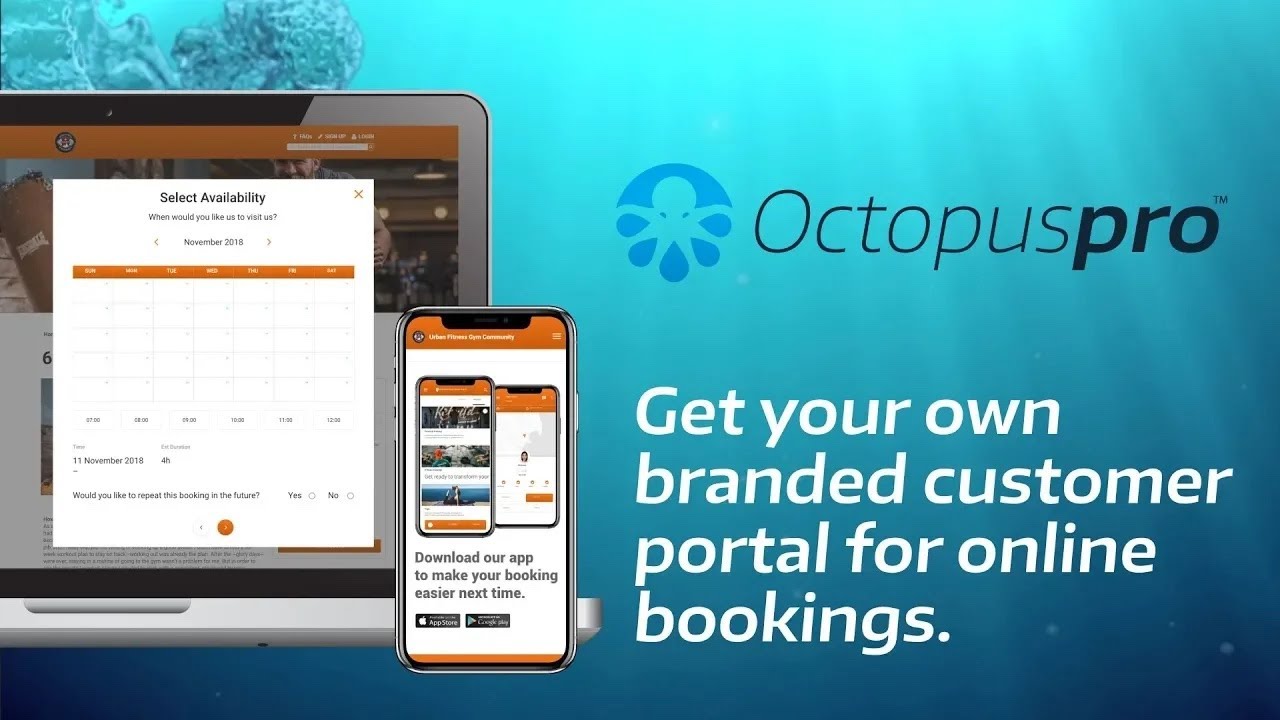
You can create new bookings quickly by creating a new customer or selecting an existing one. If your admin has shared their customer database with you then you will be able to see the list of existing customers to select from when making a booking.
Add a new quote or booking
If given permission by your admin, you can create new customer quotes and add bookings to your calendar directly from the app. To do this:
Tap on the main menu on the top left hand side of the app
Under your bookings tab, tap on the “Create a new booking” to create a new booking
If you want to add a new quote press on the “Add new quote” button below the Quotes tab
So we search for our existing customer, select the customers location, and add a service called "Basic Service", we then enter the time required to complete the job,,,, the price is pre set from our service price list but we can change it here if we want,,, we page through extra charges and discounts if there isn't any, check the quote, select the next available date and time, check the service location is correct, check any preconfigured questions or forms, and then book it in. The system will then email the customer the booking confirmation.
Add a new contact to a booking
If you need to collect a signature or payment from a person other than the customer added to the booking, you can add the new contact to the booking. This is so details such as signatures and payments can be linked to the correct person. To do this:
Go to the booking
Scroll down to “Contact info” and press “Add”
Enter the new contact details
Press “Save”-Number of days
Repeat Bookings (Screenshots)
You can set a booking to become a repeat or recurring booking, or you can set it to repeat daily, or you can set it to repeat every number of days.
You can also set it to repeat weekly on specific days, or biweekly, monthly or even annually.
You can specify an end date for your repeat bookings or set a number of bookings to repeat. To do this:
Go to the booking
Tap on the Dots icon in the top right-hand corner
Press Repeat Booking
Email/SMS quote
If your admin has given you permission to create and send new quotes, you can forward quotes to your customers emails and mobile numbers, as well as to any other email addresses from the quotation page.
Email/SMS booking
If fieldworker booking confirmations are enabled, you can send booking confirmations to customer emails and mobile numbers, as well as any other customer contact in the booking page.
Forms and checklists
Forms and Checklists can be created to help you ensure that your jobs requirements are completed up to standard, and that all defined business processes are being followed, ensuring nothing is neglected and that your business stays compliant with regulations.
If there is a job that needs certain work items to be done before, while in progress or after, then this feature allows you to confirm that all steps were followed.
Forms and Checklists can also be used to create job completion reports and can be displayed at different occasions, like when you check into a job (Start button), or when you check out to finish a job (Finish button).
Email/SMS reports and checklists
If given permission by your admin, you can send via email or SMS completed forms and checklists to your customers or other parties following site visits or job completion. You can also view them again any time from the booking page.
Booking reports
You can also send your customers a booking completion report, which is similar to an invoice, but without the billing and payment info. This is used for when a report is required to be sent to someone listed on the booking but without the mention of any costs or pricing. To do this:
Go to the booking
Under the JOB tab, scroll down to the contact info
Press on the customer name, then press the Email icon
and then Press Email Report
The Email Report button only shows if there are reports completed for that booking.
View attachments
Attachments such as PDFs and other file types can be added to bookings and quotes. To view these attachments:
Go to the booking
Tap on the Dots icon in the top right-hand corner
and Select “File Attachment”
You can add attachments or download them to your device for opening with another app. You can also download and view these attachments on your computer if logged into your account through a browser.
Email/SMS files
If photo forwarding to customers is enabled by your admin, you can send photos and attachments directly to customers from the app at any time directly from the booking page.
SUPPORT, USER GUIDES AND FAQS https://help.octopuspro.com/
FREQUENTLY ASKED QUESTIONS https://help.octopuspro.com/frequentl...
FREE TRIAL SIGN-UP https://admin.octopuspro.com/6/au/signup
Повторяем попытку...

Доступные форматы для скачивания:
Скачать видео
-
Информация по загрузке: