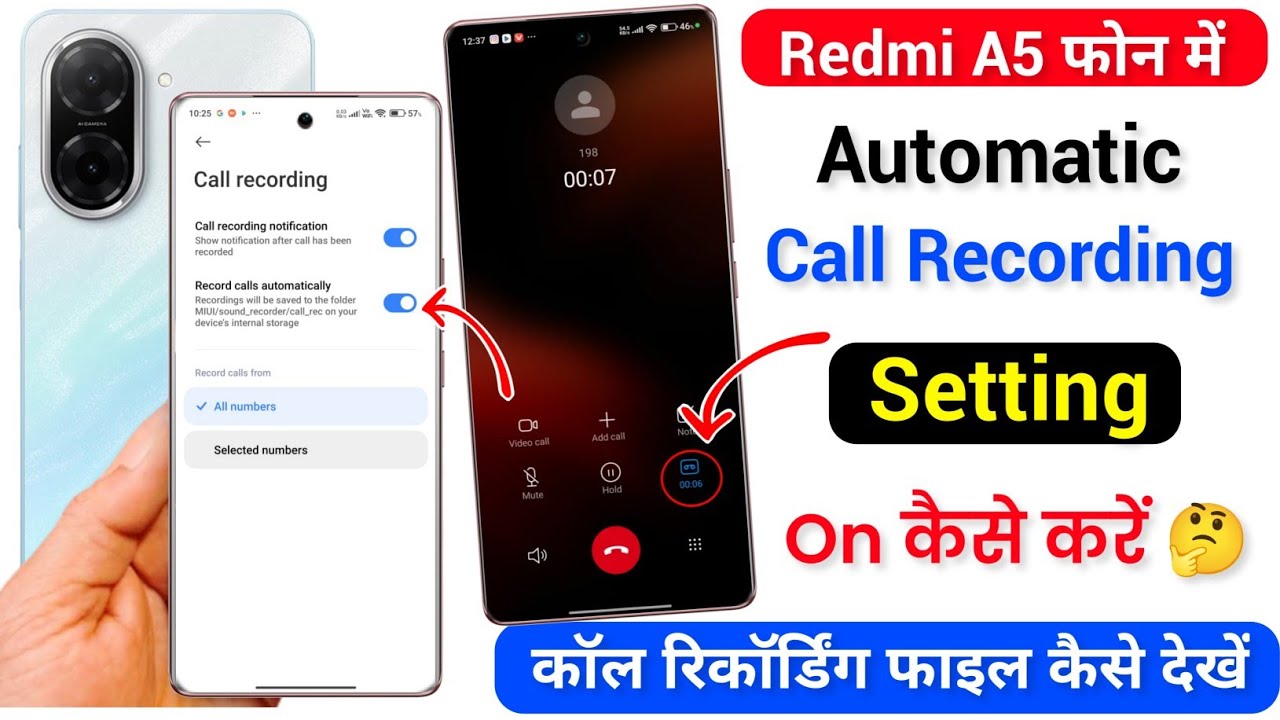
How to Enable Call Recorder on Xiaomi Redmi A5
Автор: TechQA
Загружено: 2025-06-07
Просмотров: 8113
Описание:
How to Enable Call Recorder on Xiaomi Redmi A5 – Step-by-Step Guide
0:00 Step by step guide
0:25 Testing call
1:02 Checking audio file
The built-in call recording feature on the Xiaomi Redmi A5 allows users to automatically or manually record phone conversations for personal reference. This function is useful for reviewing important calls, interviews, or verbal agreements.
Follow the detailed instructions below to activate call recording on your device:
⮕ Step 1: Open the Phone App
From the Home screen or App drawer
⮕ Tap on the Phone icon to launch the dialer interface.
⮕ Step 2: Access the Dialer Settings
In the Phone app
⮕ Tap the three-dot menu icon in the upper-right corner.
From the dropdown menu
⮕ Select Settings.
⮕ Step 3: Enter Call Recording Settings
Inside the Phone settings
⮕ Tap on Call recording or Call recording settings, depending on the software version.
⮕ Step 4: Enable Call Recording
In the Call recording section
⮕ Toggle the switch to enable call recording.
You may see additional options such as:
– Record calls automatically
– Auto record for selected numbers only
– Manage recorded files
Choose the settings that best suit your needs.
⮕ Step 5: Recording a Call (Manual Option)
If you have not enabled automatic recording:
⮕ During an active call, tap the Record button on the in-call screen to manually start recording.
Conclusion
You have now successfully enabled the call recording feature on your Xiaomi Redmi A5. Recordings are usually saved in the File Manager ⮕ Internal Storage ⮕ MIUI ⮕ sound_recorder ⮕ call_rec or can be accessed directly from the Phone app’s call history.
#redmia5
#redmitips
#redmitricks
#techqa
#autocallrecorder
#autocallrecording
#callrecord
#callrecorder
#recorder
Повторяем попытку...

Доступные форматы для скачивания:
Скачать видео
-
Информация по загрузке: