ycliper

Популярное

Музыка Кино и Анимация Автомобили Животные Спорт Путешествия Игры Юмор

Интересные видео

2025 Сериалы Трейлеры Новости Как сделать Видеоуроки Diy своими руками

Топ запросов

смотреть а4 schoolboy runaway турецкий сериал смотреть мультфильмы эдисон
Скачать

Reveal the Adobe Illustrator Stroke Secrets: 2 Proven Ways to Add Double the Impact

Автор: DesignParlor pk

Загружено: 2023-02-17

Просмотров: 11686

Описание: #graphicdesign #designparlorpk #adobeillustrator #illustratortutorial #satorigraphics
Hello designers,
Welcome to design parlor dot P K
In today's video tutorial, we'll show you two different ways how you can apply multiple strokes to a single path in Adobe Illustrator with ease, and we'll also discuss a problem regarding this and
off course provide the solution of it
In the first method you will learn all this with the help of appearance panel and in the second method with the help of transform effect,
stay with us and watch this video completely.

I watched a video by one of my respected mentors, @SatoriGraphics in which he taught how you can apply several strokes on a single path. In adobe illustrator
If you want to watch that video, the link is in the description below
When I made a few such objects according to his instructions and used them in my other artwork, I ran into a few problems.
So I have come up with a simple solution
Let's see
First,
let's show you how you can apply multiple strokes to the same path using the Appearance panel.
Draw a circle using the Ellipse Tool,
Adjust its stroke weight
Grab the Caesar tool by pressing the C on your keyboard and click on a side anchor point
Now select the lowest anchor point with the direct selection tool and delete it
Now open the Appearance panel by going to the window menu and take the five stroke layers and set their stroke weight in such a way that the biggest stroke should be at the bottom and the smallest stroke should be at the top.
And change their colors as shown to you

Boom your object is ready you can check it by going into outline mode by pressing the Control Y on your keyboard.
But
its difficult to use it in another artwork?
Again I have to go into the Appearance panel and adjust all the colors.
Don't worry I have a solution for this and a very simple solution

Draw a line using the Line Segment Tool
Adjust its stroke weight
Now go to the Effects menu and apply the Transform effect as shown.
Now open your Brushes panel
select all these lines and drag and drop them in the brushes panel
set up your brush as shown
This is your custom brush ready.
take a half circle like before. Now it doesn't matter how big you stroke weight
Click on your line brush while keeping that circle selected
And you are good to go
You can see this by pressing Control plus Y on your keyboard, it's just multiple strokes over a single path.
You can use it wherever you want
If you like the video, give us a thumbs up and share it
And don't forget to subscribe to our channel to watch more interesting videos like this
Thanks
satori graphics video;    • Get Ahead with These Adobe Illustrator Tri...  
more videos from designparlor.pk;    • How to Create a Simple Gradient Text Effec...  
   • How To Design Polygon Letter Mark Logo Usi...  
   • How to use pencil tool in Illustrator: 3 t...  

Не удается загрузить Youtube-плеер. Проверьте блокировку Youtube в вашей сети.
Повторяем попытку...
Reveal the Adobe Illustrator Stroke Secrets: 2 Proven Ways to Add Double the Impact

Поделиться в:

Доступные форматы для скачивания:

Скачать видео

  • Информация по загрузке:

Скачать аудио

Похожие видео

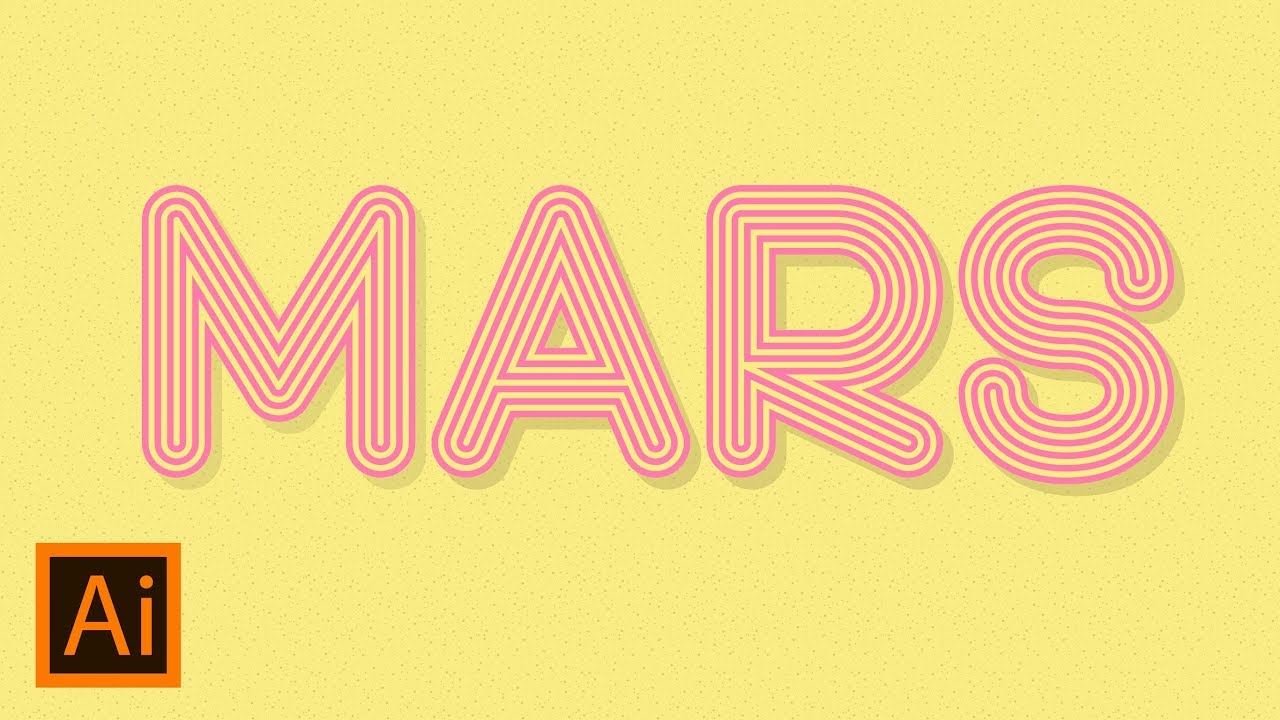
How to Create Multi-Stroke Text Effect in Adobe Illustrator

How to Create Multi-Stroke Text Effect in Adobe Illustrator

How to add noise effect with illustrator💥💥✨

How to add noise effect with illustrator💥💥✨

Продвинутые методы дизайна логотипа

Продвинутые методы дизайна логотипа

How To Add Multiple Strokes To Text/Objects In Adobe Illustrator

How To Add Multiple Strokes To Text/Objects In Adobe Illustrator

How To:  Fix Double Cut Lines in Adobe Illustrator

How To: Fix Double Cut Lines in Adobe Illustrator

How to use the Width Tool in Adobe Illustrator

How to use the Width Tool in Adobe Illustrator

Урок | Золотой Стиль | Редактируемый текстовый эффект | Иллюстратор

Урок | Золотой Стиль | Редактируемый текстовый эффект | Иллюстратор

Почему Ядерная война уже началась (А вы не заметили)

Почему Ядерная война уже началась (А вы не заметили)

13 продвинутых приемов дизайна логотипов, которые ВАМ НУЖНО ЗНАТЬ!

13 продвинутых приемов дизайна логотипов, которые ВАМ НУЖНО ЗНАТЬ!

12 инструментов дизайна логотипа, которые вам нужно знать в Illustrator

12 инструментов дизайна логотипа, которые вам нужно знать в Illustrator

Załatwiony Stanowski, zagładzana Republika – czyli Polska ratlerkiem UE

Załatwiony Stanowski, zagładzana Republika – czyli Polska ratlerkiem UE

Как создать 3D-каркасную графику в Adobe Illustrator

Как создать 3D-каркасную графику в Adobe Illustrator

Dynamic Line Wave | Adobe Illustrator Tutorial

Dynamic Line Wave | Adobe Illustrator Tutorial

Конвертируйте любую фотографию в векторную графику! (Урок по Photoshop и Illustrator)

Конвертируйте любую фотографию в векторную графику! (Урок по Photoshop и Illustrator)

How to design a logo with grid | Adobe Illustrator Tutorial

How to design a logo with grid | Adobe Illustrator Tutorial

Как настроить шрифт в Illustrator! (и инструменты, которые я использую)

Как настроить шрифт в Illustrator! (и инструменты, которые я использую)

How to Add & Delete Anchor Points (and Why) | Adobe Illustrator Tips, Tricks, & Shortcuts

How to Add & Delete Anchor Points (and Why) | Adobe Illustrator Tips, Tricks, & Shortcuts

Перевернуть текст с помощью инструмента «Текст по контуру» на окружности — Урок по ILLUSTRATOR

Перевернуть текст с помощью инструмента «Текст по контуру» на окружности — Урок по ILLUSTRATOR

5 законов дизайна, макета и композиции *золотые правила*

5 законов дизайна, макета и композиции *золотые правила*

Простая ленточная надпись в Adobe Illustrator

Простая ленточная надпись в Adobe Illustrator

© 2025 ycliper. Все права защищены.


  • Контакты
  • О нас
  • Политика конфиденциальности


Контакты для правообладателей: [email protected]