How to create a resume in InDesign
Автор: iZoRun
Загружено: 2025-02-20
Просмотров: 308
Описание:
How to Create a Resume in Adobe InDesign | Step-by-Step Guide
Want to design a professional resume in Adobe InDesign? In this tutorial, we’ll show you how to craft a stunning and modern resume using InDesign's layout tools. Whether you're creating a CV for job applications or designing a resume template to sell, this guide will help you build a polished, eye-catching design in no time!
🔔 Subscribe for more design tutorials! Hit the bell icon to stay updated with the latest InDesign tips: [Insert Your Link Here]
Why Use Adobe InDesign to Create a Resume?
Adobe InDesign is one of the best tools for designing clean, professional, and customizable resumes. Unlike word processors, InDesign offers precise layout control, advanced typography options, and export flexibility—perfect for creating standout CVs!
Step-by-Step: How to Create a Resume in InDesign
1. Set Up Your Resume Document
• Open Adobe InDesign and create a new document.
• Select A4 or US Letter size for standard resume dimensions.
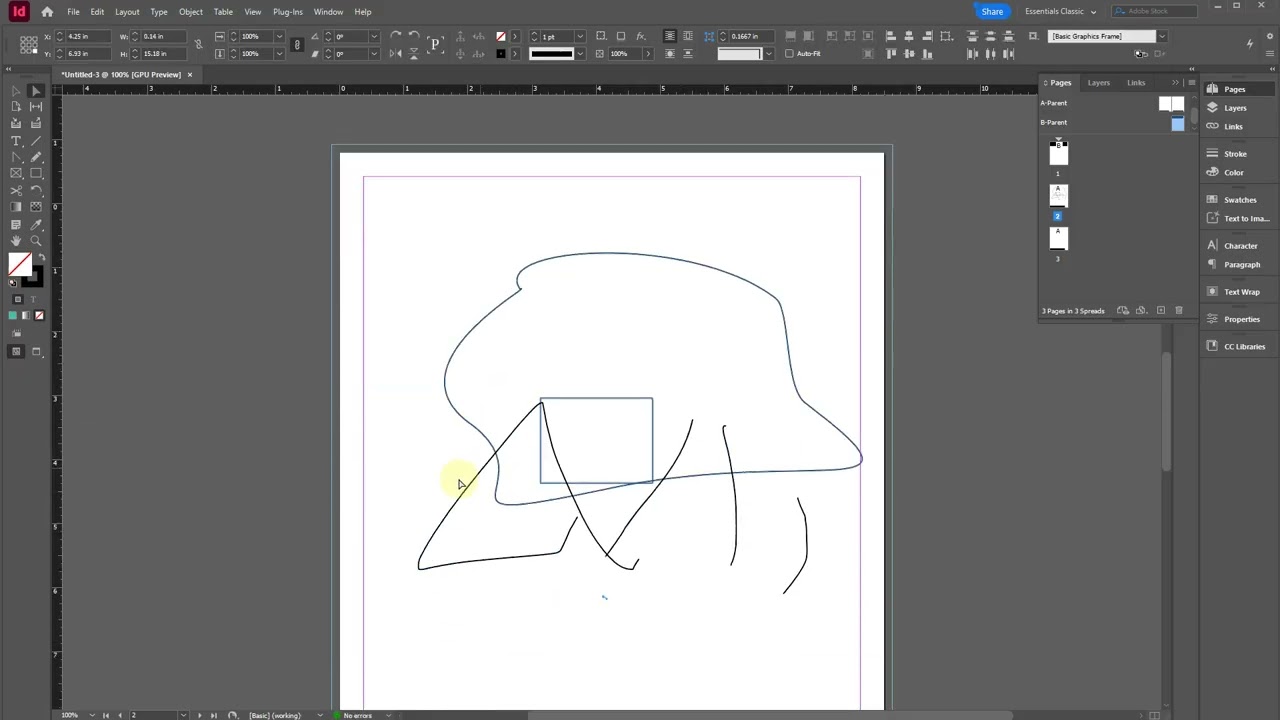
2. Design the Layout with Shapes & Frames
• Use the Rectangle Tool (M) to create background sections for text and images.
• To add a profile picture, use the Frame Tool (F) and create a placeholder.
3. Insert & Format an Image
• Select the Frame Tool and draw a shape where you want to place the photo.
• Press Ctrl + D to open the Place dialog box.
• Select your image and adjust it within the frame.
4. Add and Customize Text
• Select the Text Tool (T) and create text boxes for your:
• ✅ Name & Job Title
• ✅ Contact Information
• ✅ Work Experience
• ✅ Skills & Education
• Modify the text color, font, and size using the top toolbar.
• Choose modern, readable fonts like Montserrat, Open Sans, or Roboto.
5. Enhance the Design
• Add lines, icons, and dividers to improve readability.
• Experiment with colors and spacing for a visually appealing layout.
• Keep the design clean and professional—avoid clutter!
6. Export Your Resume as a PDF
• Press Ctrl + E to open the Export dialog.
• Choose Adobe PDF (Print) for high-quality output.
• Adjust settings and click Save to generate your resume.
Tips for a Standout Resume in InDesign
✔ Use grids & alignment guides for a balanced layout.
✔ Stick to 1-2 fonts for a professional look.
✔ Highlight important sections using bold text and color.
✔ Save as a template for easy future updates!
More InDesign Tutorials You’ll Love
🎨 How to Create a Portfolio in Adobe InDesign
📝 Best Fonts for Resume & CV Design
📂 How to Export High-Quality PDFs from InDesign
📌 Subscribe for more design tutorials and resume tips! [Insert Your Link Here]
Hashtags
#InDesignResume #AdobeInDesign #ResumeDesign #GraphicDesign #CVTemplate
Повторяем попытку...
Доступные форматы для скачивания:
Скачать видео
-
Информация по загрузке: