Day 1 Excel Tutorial
Автор: All In One 🥰
Загружено: 2026-01-09
Просмотров: 10
Описание:
Hello friends 👋
Welcome to my channel.
If you are watching this video, it means you want to **learn Excel from scratch**, and trust me, you’re in the right place.
In this Excel tutorial series, I’ll explain everything in a **very simple and practical way**, so even if you’ve **never opened Excel before**, you’ll understand it easily.
This is **Day 1**, and today we’ll cover:
1. What is Microsoft Excel
2. Excel screen basics
3. And the *Home Tab* in detail
So let’s get started.
---
🟢 What is Microsoft Excel?
Microsoft Excel is a computer software used to **store, organize, and calculate data**.
In simple words, Excel is like a **digital register or notebook**, but much smarter.
People use Excel for:
Salary sheets
Student marks
Attendance
Office reports
Expense tracking
And calculations
Almost every office uses Excel, so learning Excel is a **very useful skill**.
---
🟢 Understanding Excel Screen (Brief)
When you open Excel, you see:
*Rows* (horizontal lines – 1, 2, 3…)
*Columns* (vertical lines – A, B, C…)
And the small boxes are called cells
Each cell is where we type data.
At the top, you’ll see different tabs.
The first and most important tab is the **Home Tab. Home Tab – Your Daily Work Tab
The Home Tab is the tab you’ll use **most of the time**.
Almost 70–80% of Excel work is done using the Home Tab.
Let’s understand each part one by one in a **practical way**.
-
Clipboard Group
First is the **Clipboard group**.
Here we have:
Cut
Copy
Paste
Format Painter
These work just like on your phone or computer.
👉 *Example:*
If you type something in one cell and want the same thing in another cell:
Use *Copy* and *Paste*
If you want to move data:
Use Cut and Paste
*Format Painter* is used to copy formatting like color, font size, or style from one cell to another.
---
Font Group
Next is the **Font group**.
This is where you change how your data **looks**.
From here you can:
Change font style
Increase or decrease font size
Make text *bold*
Change text color
Add background color to cells
👉 *Practical use:*
Headings can be bold and colored, and important values can be highlighted.
This makes your data **easy to read and professional**.
---
Alignment Group
Now comes the **Alignment group**.
This helps you **organize data inside cells**.
You can:
Align text left, center, or right
Move text to top, middle, or bottom of a cell
Wrap text if the content is long
Merge cells to create headings
👉 *Example:*
If you are creating a table and want a title on top, you can **merge cells and center the text**.
This is very common in reports.
---
Number Group
This is a very important group.
The *Number group* tells Excel **what type of data you are using**.
You can set data as:
Number
Currency (for money)
Percentage
Date
Time
👉 *Example:*
If you type 5000 and mark it as **currency**, Excel understands it as money.
If you type 10% and set it as percentage, Excel treats it correctly in calculations.
This is very useful in **accounts and office work**.
---
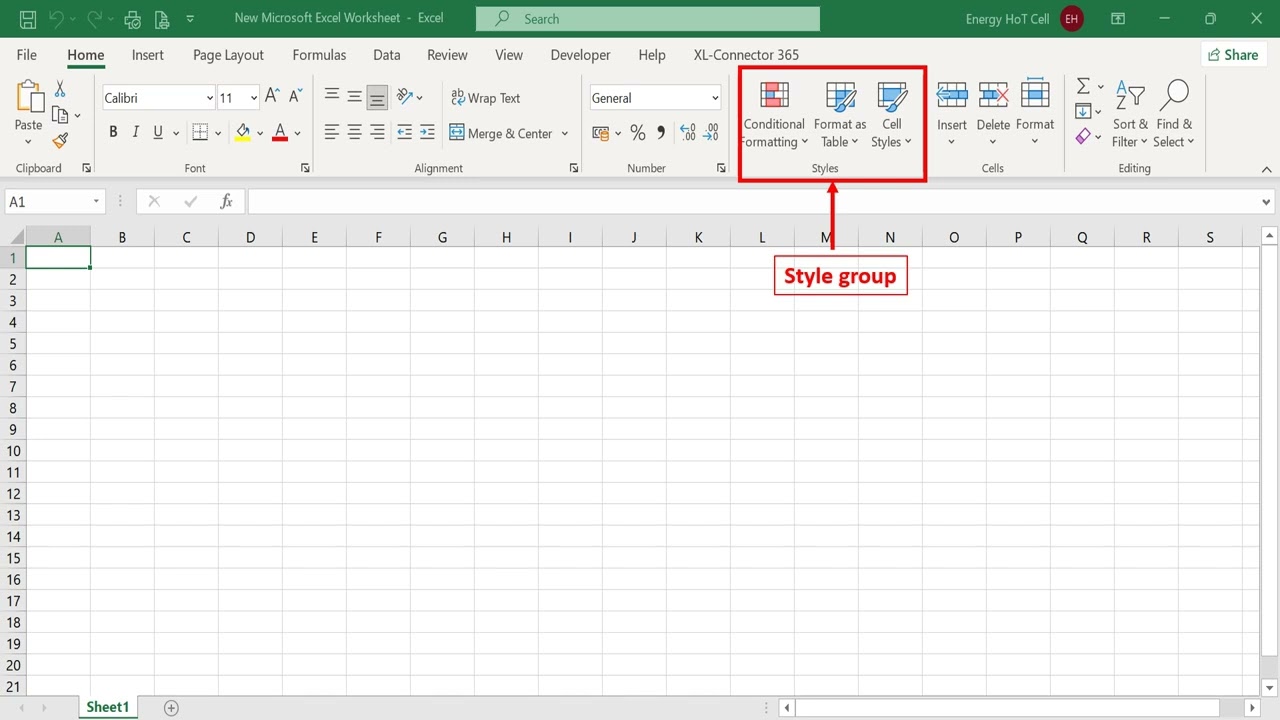
Styles Group
In the **Styles group**, Excel gives you ready-made designs.
You can:
Format cells quickly
Apply table styles
Highlight important data
👉 This saves time and makes sheets look clean and professional.
---
Cells Group
From the **Cells group**, you can:
Insert new rows or columns
Delete rows or columns
Adjust row height and column width
👉 *Example:*
If your text is not fully visible, you can increase column width from here.
---
Editing Group
Finally, the **Editing group**.
This group helps you work faster.
Here you’ll find:
*AutoSum* to quickly add numbers
Fill to copy data
Clear to remove content
Find and Replace to search data
👉 AutoSum is especially useful when working with totals.
---
In Summary
So today, we learned:
What Excel is
Basic Excel screen
And a *detailed explanation of the Home Tab*
Don’t worry if you don’t remember everything right now.
We’ll practice each tool slowly in upcoming videos.
---
If this video helped you:
Like the video
Subscribe to the channel
And press the bell icon so you don’t miss the next lesson
Thank you for watching,
See you in *Day 2 of Excel Tutorial* 😊
---excel tutorial, excel, ms excel tutorial, Excel tutorial for beginners, advanced excel tutorial, #excel #msexcel #learnexcel #beginner s#basic nner
Повторяем попытку...
Доступные форматы для скачивания:
Скачать видео
-
Информация по загрузке: