Email Configuration Part 01#
Автор: THIRUVALLUVAR SECURE SOLUTIONS
Загружено: 2023-09-28
Просмотров: 1214
Описание:
Please visit the following website to generate app password needed for email setup: https://support.google.com/mail/answe...
1. Access the DVR menu by clicking on the three lines at the bottom left of the screen.
2. Click on Setup
3. If prompted, enter the login credentials for your DVR.
4. Click on Network at the top of the screen.
5. Select Email on the left menu column.
6. Check the box to enable email.
7. Set encryption to Auto.
8. Set SMTP port to 587
9: Enter "smtp.gmail.com" into SMTP server without parenthesis.
10: Enter your full Gmail address in the User Name field.
11: Input the password generated from step 1 into the Password field.
12: Enter your full Gmail address in the Sender field.
13: Enter the email address you would like to receive the email alerts. (This can be the same as the sender)
14. Click on Email Test button.
15. If email test is successful please click apply at the bottom right to save settings
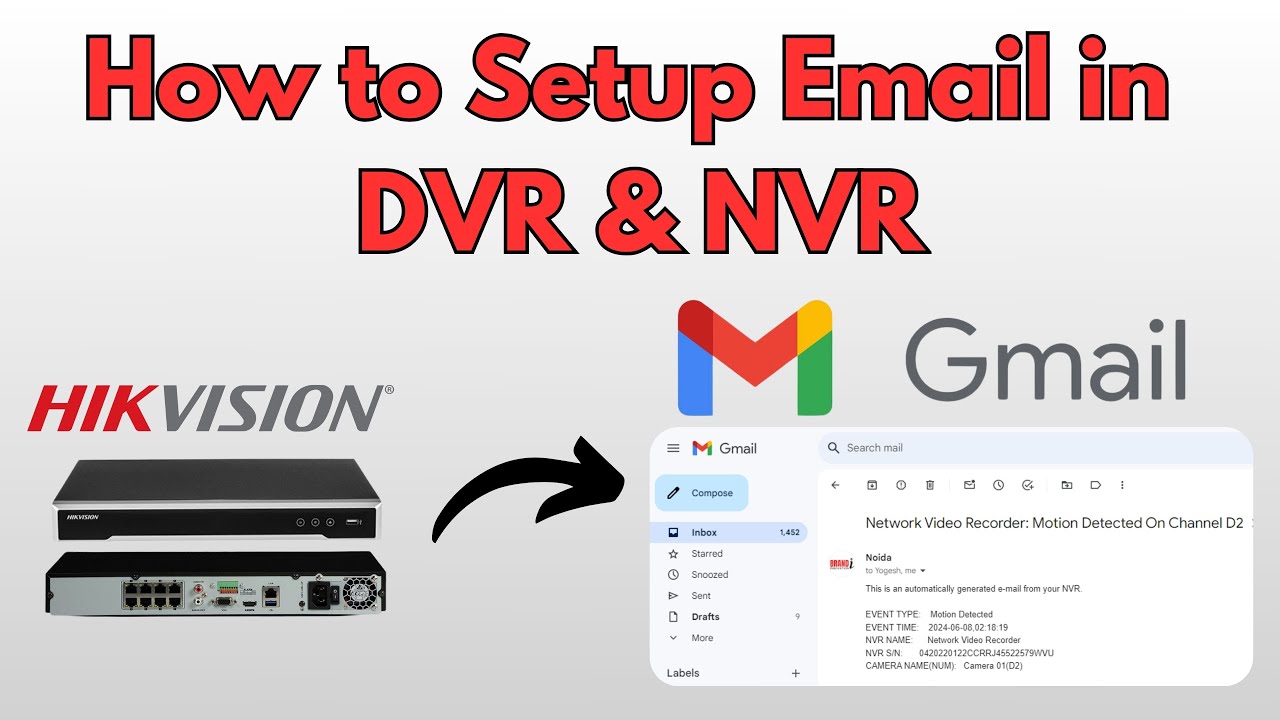
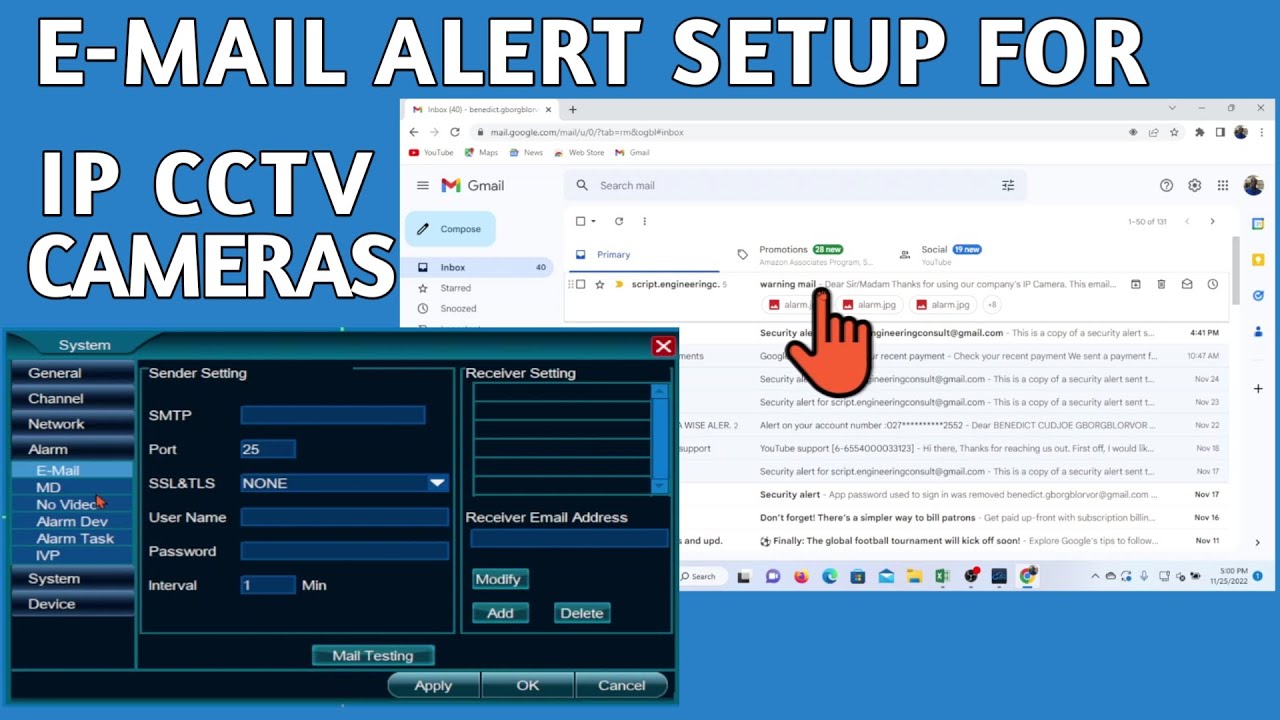
Today, we'll look at how to set up email notifications on Hikvision IP cameras, DVRs, and NVRs. You can use this functionality to send email notifications to the customer or to the appropriate admin and control center. This configuration will be extremely user-friendly and assist in identifying events such as Motion Detection, Line Crossing, Intrusion Detection, No Video, Hard Disk failed, and others.
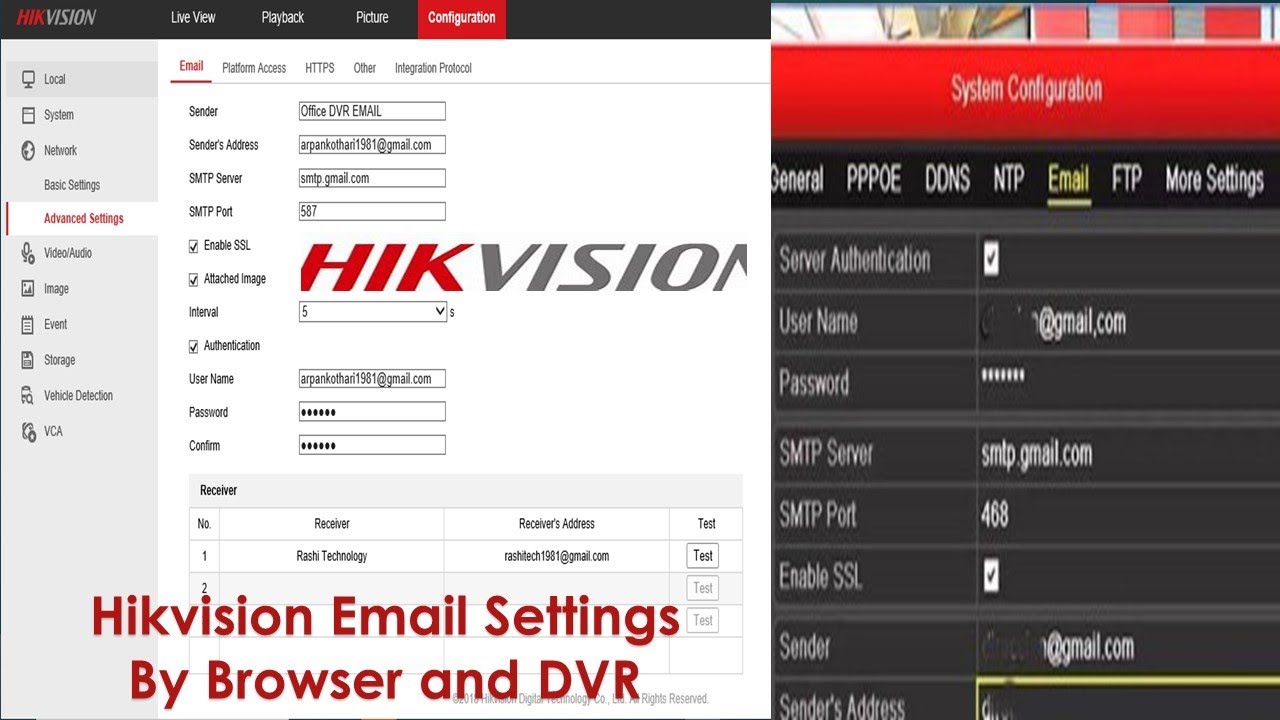
Log in to the device. Select Configuration in the Main Menu. Then click Network and Advance Settings. You can see the Email as the first option.
Enter Sender Name
I am using my company email as the sender name and email ID.
We can get the SMTP Server address by searching the internet; for that, you have to type Gmail SMTP Settings. From the result, you have to check for Google's official web site; otherwise, you will get an old server address or a wrongly guided, user-only Google web site.
Hear, we can see the Gmail SMPT server address. Copy the server address and paste it into the device's SMPT Server.
Enable SSL; Gmail is using SSL for sending mail. Enable Attached Image to get pictures as attachments in your mail. Note the SMTP port number, and type the same in Device SMTP Port.
Password and confirm is not the gmail’s password, you have to create a APP password
By default, two-step verification is not enabled. Without enabling 2-step verification, the APP Password cannot be generated. Hear, I have already enabled the two-step verification. To enable 2 step verification go through google document
Now Search for the APP Password in the search bar. Select the App password. Google will ask for which device you need to create a password for. In the Select App option, you can select Other, type any name, and click Generate to create an app password.
App Password is generated. The password created cannot be seen next time. If the password word is missed, you have to create the app password again. Now copy the password and paste it into the DVR's mail password, and confirm.
The app password was generated successfully. If the password is lost, you have to create it again. Now copy the password, paste it in the DVR's email password, and confirm.
Now we can send mail to three email addresses as per requirement. Type the receiver's name and email address. I am using my email address to receive the mail. We can self-test the configuration by selecting the Test button. If it is successful, all the configurations are correct.
If the test is successful. The receiver will get a test email confirmation.
If you have multiple devices in the same location or multiple customers, you can modify the device name to identify your customer and the device.
Now we will configure motion detection. Go to Event Enable Motion Detection, click Enable Motion Detection, Clear the full-screen detection, select Draw Area, and mark the place where motion needs to be identified. select schedule Set the time as per the requirement if it is a full-day detection leave as it is. If you have an ACU Sence DVR or NVR, false notifications will be stopped. In the linkage method, select send email and save the settings.
Once motion is detected, the DVR will send mail to all the receivers that are mentioned in the DVR. The mail will have all the details: Device name, Sender name, automatic mail type, date, and time of the event. And most importantly, it will have an attachment to the event. This mail will continue until the end of the motion is detected. You can download or view the pictures immediately. Even if the DVR is lost, we will have at least a picture of the incident.
Повторяем попытку...

Доступные форматы для скачивания:
Скачать видео
-
Информация по загрузке: