Chromebook Instinctive
Автор: Michael Simmons
Загружено: 2026-03-12
Просмотров: 4
Описание:
This video from the technology department provides a comprehensive guide on managing Chromebook checkout and check-in procedures using the Incident IQ system. It covers the process for both students checking out their devices and staff using the system for troubleshooting and inventory management.
Student Chromebook Checkout (0:01 - 1:36)
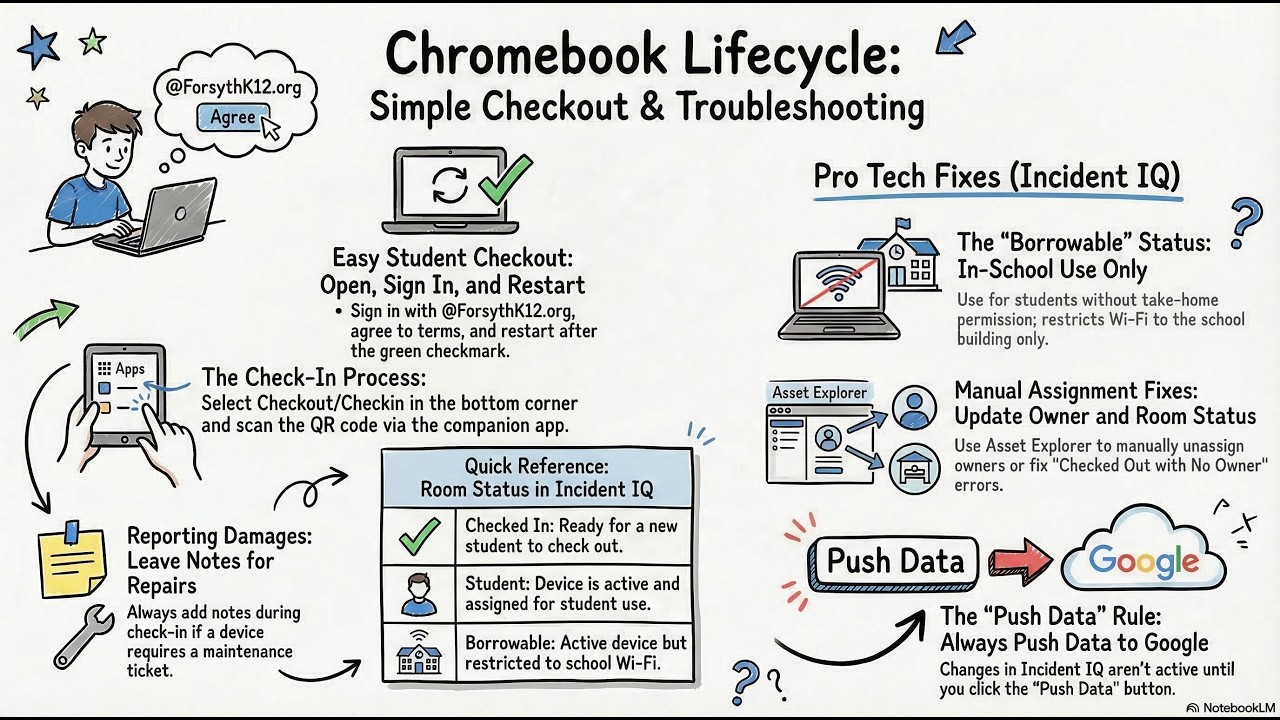
Initial Setup: Students open the Chromebook and select "Sign in with Google" (0:12).
Credentials: Students sign in using their username @ForsythK12.org (0:23).
Terms of Service: Students must read and select "agree and continue" on the terms of service page (1:03).
Finalization: A green check mark indicates the Chromebook is successfully checked out, at which point the device should be restarted (1:09).
Managing Chromebooks with Incident IQ (1:36 - 6:23)
Accessing System: Staff can access Incident IQ via forsythe.inccidentiq.com or through the ClassLink district tools folder (2:04).
Manual Check-in: If automated check-in fails, staff can look up a device using the serial number or barcode in the Asset Explorer (2:46).
Updating Status: Staff can edit the asset to unassign the current owner and change the room to "checked in" to make it available for another student (3:46).
Syncing to Google: It is crucial to select "push data to Google" after saving changes to ensure the update takes effect (4:00).
Detailed Chromebook Check-in Process (6:24 - 8:18)
Check-in App: Students can check in their devices by selecting the "apps" menu on the login screen and choosing "checkout" (6:38).
Scanning: Using a companion app (instinctive.app/checkout/companion), staff can scan the device's barcode to complete the check-in (7:16).
Maintenance Notes: Staff can add notes regarding damages before approving the check-in (7:56).
Incident IQ Tips and Views (8:19 - 15:56)
Finding Owners: Use Asset Explorer to identify who a roaming Chromebook belongs to (8:50).
Cleanup Views: Staff should monitor for "checked in Chromebooks with an owner" and "checked out with no owner" to fix data mismatches (11:17, 12:35).
Borrowable Devices: Chromebooks can be set to "borrowable" for students who need a device on-campus but do not have permission to take one home (13:33). These devices have restricted Wi-Fi that only works within the school building (14:11).
Повторяем попытку...
Доступные форматы для скачивания:
Скачать видео
-
Информация по загрузке: