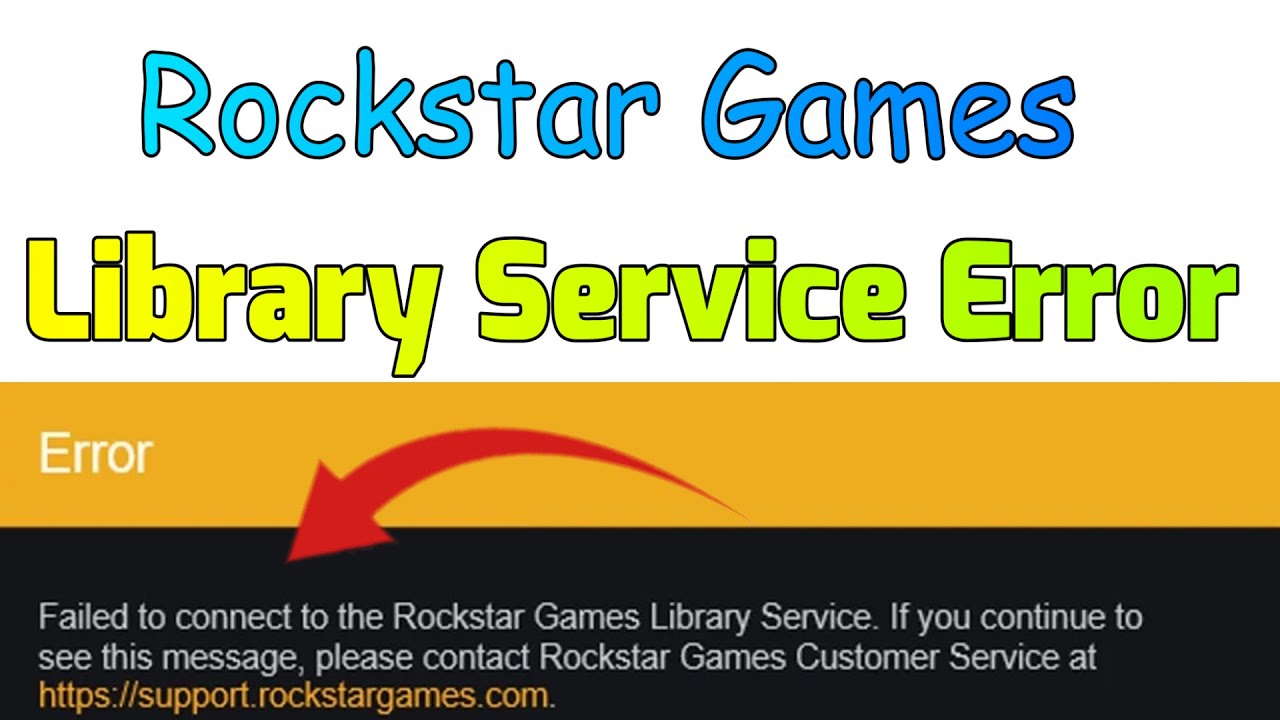
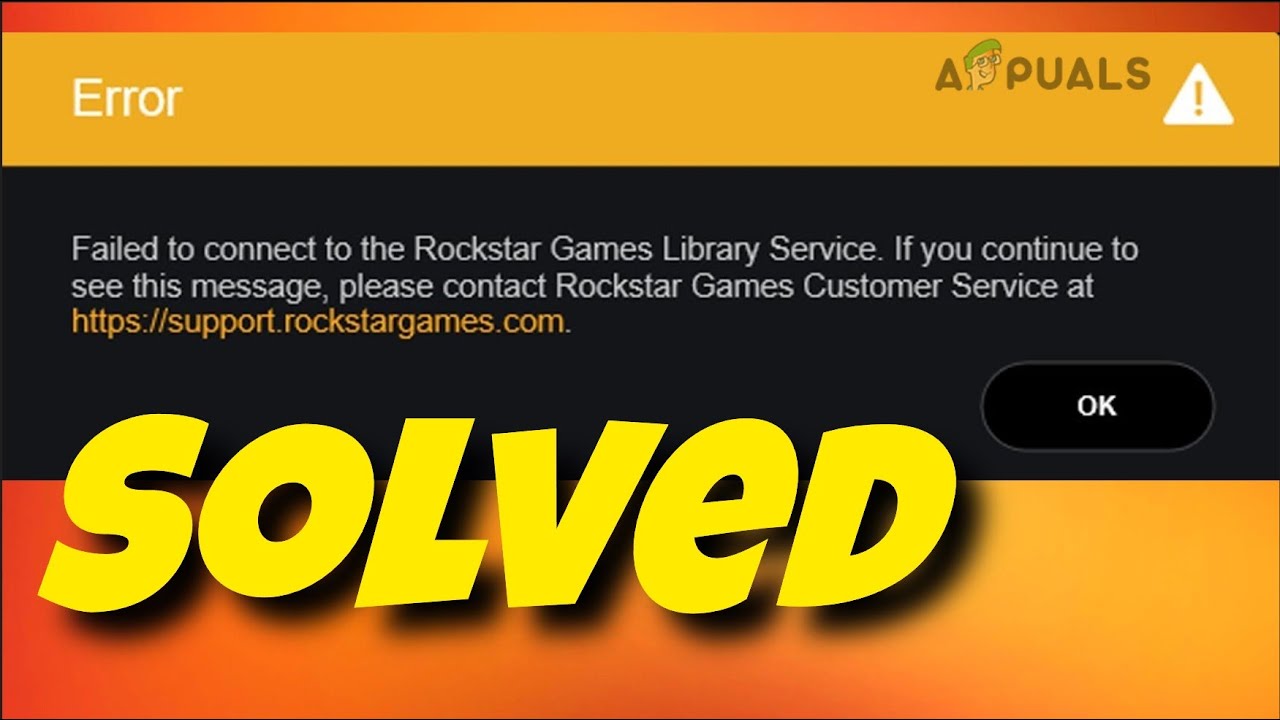
Fix Failed to connect to the Rockstar Games Library Service
Автор: Global Success Narratives
Загружено: 2025-08-29
Просмотров: 7749
Описание:
If you get this error in GTA 5, Failed to connect to the Rockstar Games Library Service Follow the steps below to resolve this issue.
Go to services and look for "Rockstar Game Library Service" if it is shown disabled double click on it and change it's startup type to automatic, start service click apply and ok.
If you have Manually set your DNS server addresses switch back to automatic
If its not set try with these Google DNS just to test if it works
Enter the following DNS addresses against your network adapter:
Preferred DNS server: 8.8.8.8
Alternate DNS server: 8.8.4.4
Try to Switch Network
Try to connect using your mobile data or another wi-fi network. It will work
Check if Rockstar’s launcher is having a correct path
This error can happen if your Documents folder is still pointing to OneDrive, even after uninstalling onedrive.Rockstar’s launcher needs the correct path. Here’s how to fix it:
Step 1: Check Your Folders
Open File Explorer.
Look at both:
C:\Users\YourName\OneDrive\Documents
C:\Users\YourName\Documents
If you still have files in the OneDrive path, copy them somewhere safe.
Step 2: Fix the Registry Path
Press Win + R, type regedit, and hit Enter.
Go to:
HKEY_CURRENT_USER\SOFTWARE\Microsoft\Windows\CurrentVersion\Explorer\User Shell Folders
Find the entry named Personal.
If it points to OneDrive (e.g., C:\Users\YourName\OneDrive\Documents), double-click it.
Change it to:
%USERPROFILE%\Documents
Click OK and close.
Step 3: Restart Your PC
Reboot to apply the change.
Step 4: Move Files (If Needed)
If your documents are still in OneDrive’s old folder, move them to:
C:\Users\YourName\Documents
After this, the Rockstar Games Launcher should work fine again.
Contact Rockstar Games Customer Service at https://support.rockstargames.com
Повторяем попытку...

Доступные форматы для скачивания:
Скачать видео
-
Информация по загрузке: