Manage Tables With Yelp Reservations (Full Tutorial) (2017)
Автор: Yelp for Business
Загружено: 2023-02-23
Просмотров: 2868
Описание:
Learn how to manage your reservations, wait list, and server sections using the Yelp Reservations iPad app.
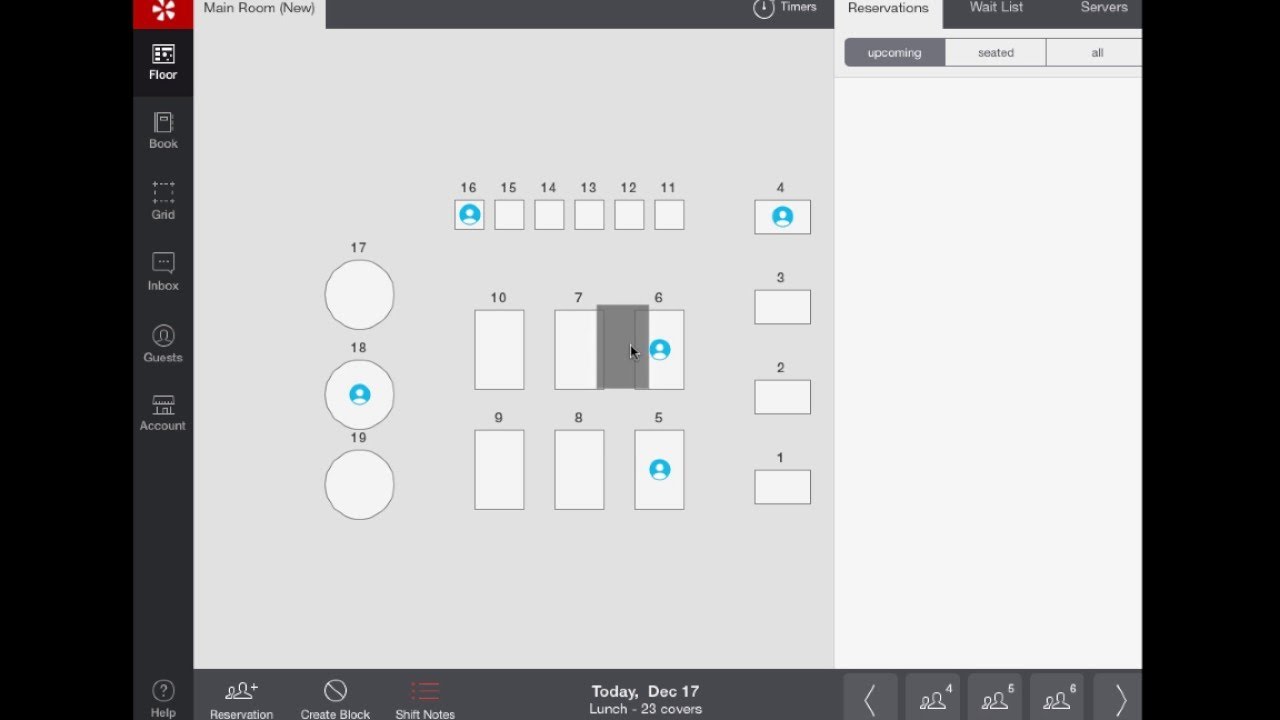
The “Floor” tab allows you to view what’s going on during the current day. You’ll see tabs for “Reservations,” “Wait List,” and “Servers.”
Reservations:
In the “Reservations” tab, tap an upcoming reservation to view and edit details.
When you’re ready to seat the party, drag the reservation to their assigned table.
Once you release, you’ll see the seated icon.
Tap once on the table to see the seated and upcoming reservations for that table. Update the table status with a double tap.
When the table is clear, tap the gray check mark at the top of the status list to finish and clear the table.
Seating Walk-In Parties:
In the bottom right corner of the screen, tap the size of the walk-in party.
Tap their table.
If a walk-in party requires more than one table, drag the additional tables on top of the seated party to combine them.
Wait List:
In the “Wait List” tab, tap “Add Party.”
Enter the name, phone number, number of guests, and quote time.
When you’re ready to page the guest, tap their name on the list.
Tap “Table Ready” or “See Host.”
A text will be sent to the guest.
Once the guest arrives, drag their name to a table.
Assign Servers to Sections:
In the “Servers” tab, tap “Add Server.”
Enter a name and choose a color.
Tap the “Assign Tables” button, then tap the name of the server you would like to assign. This will make the server active.
Tap the tables they’ll be serving.
Tap “Done.”
Don’t forget to subscribe.
Повторяем попытку...
Доступные форматы для скачивания:
Скачать видео
-
Информация по загрузке:








![How to Print in Microsoft Excel [Full Guide 2026]](https://image.4k-video.ru/id-video/1EmWR8ue_rw)




![How to Manage Files in Google Drive [Full Guide 2026]](https://image.4k-video.ru/id-video/brDeyHRVRns)

