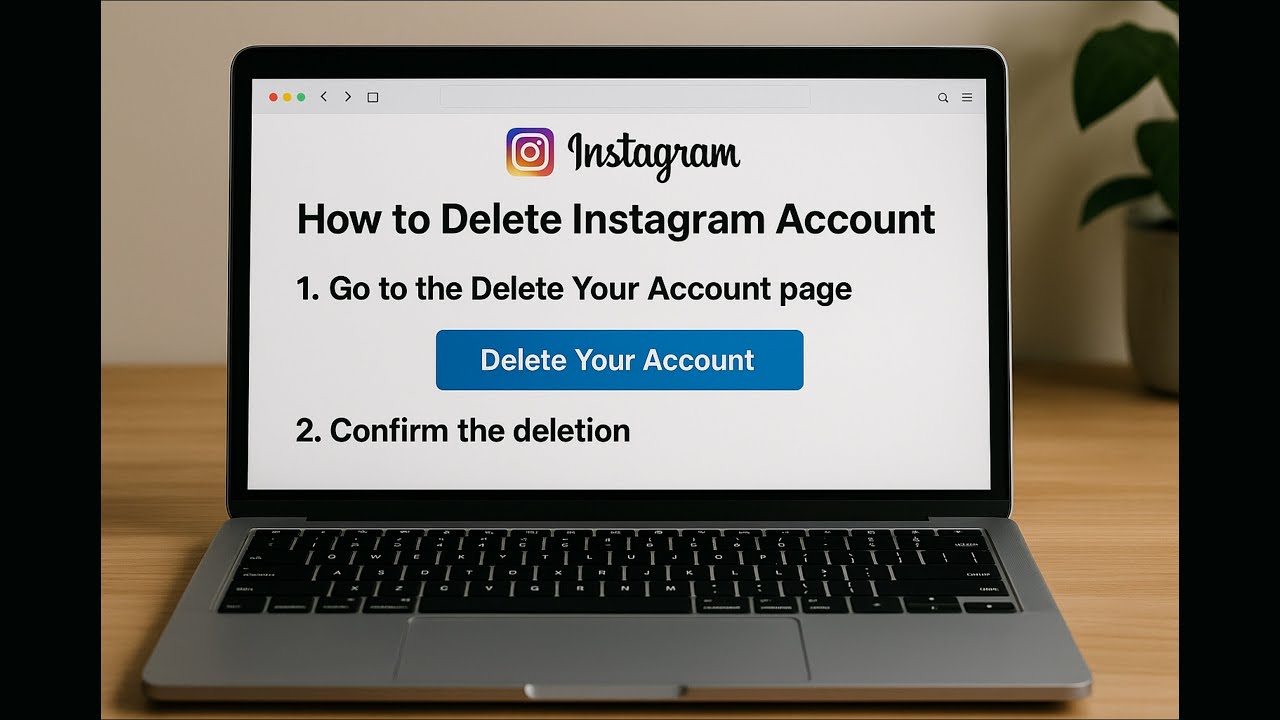
How to Delete Instagram Account on iPhone 2026 (Permanently)
Автор: Chillroot
Загружено: 2026-02-24
Просмотров: 4
Описание:
• How to Delete Instagram Account on iPhone ... https://www.webbyfan.com
Deleting your account will permanently remove your photos, videos, followers, messages, and data. This action cannot be undone.
https://blog.webbyfan.com/2026/02/How...
Step 1: Open the Instagram App
Open Instagram on your iPhone and make sure you're logged into the account you want to delete.
Step 2: Go to Your Profile
Tap your profile picture in the bottom-right corner.
Step 3: Open Settings
Tap the three horizontal lines (☰) in the top-right corner.
Then tap Settings and Privacy.
Step 4: Go to Accounts Center
Scroll down and tap Accounts Center (usually at the top).
Step 5: Select Personal Details
Inside Accounts Center, tap:
Personal Details → Account Ownership and Control
Step 6: Tap Deactivation or Deletion
Choose Deactivation or Deletion.
Step 7: Select the Account
If you have multiple accounts, select the Instagram account you want to delete.
Step 8: Choose Delete Account
Select Delete Account, then tap Continue.
Step 9: Choose a Reason
Select a reason for deleting your account from the list.
Step 10: Enter Your Password
Re-enter your Instagram password to confirm.
Step 11: Permanently Delete
Tap Delete Account to confirm.
⚠️ Important Things to Know
Instagram gives you 30 days to change your mind.
After 30 days, your account and all data will be permanently deleted.
You cannot recover your account after permanent deletion.
And that’s how you permanently delete your Instagram account on iPhone.
If this video helped you, make sure to like and subscribe for more simple tech tutorials.
Thanks for watching — and I’ll see you in the next video.
http://blog.webbyfan.com
Повторяем попытку...

Доступные форматы для скачивания:
Скачать видео
-
Информация по загрузке:

![🔴 EXPRESS BIEDRZYCKIEJ | MARCIN KIERWIŃSKI, DR ANNA MATERSKA-SOSNOWSKA [NA ŻYWO]](https://imager.clipsaver.ru/JNfjJa7I9sk/max.jpg)



![[ОБНОВЛЕНИЕ 2026] Удаление Apple ID с iPad без пароля за несколько минут (простой способ)](https://imager.clipsaver.ru/iBH_1gW4nM4/max.jpg)