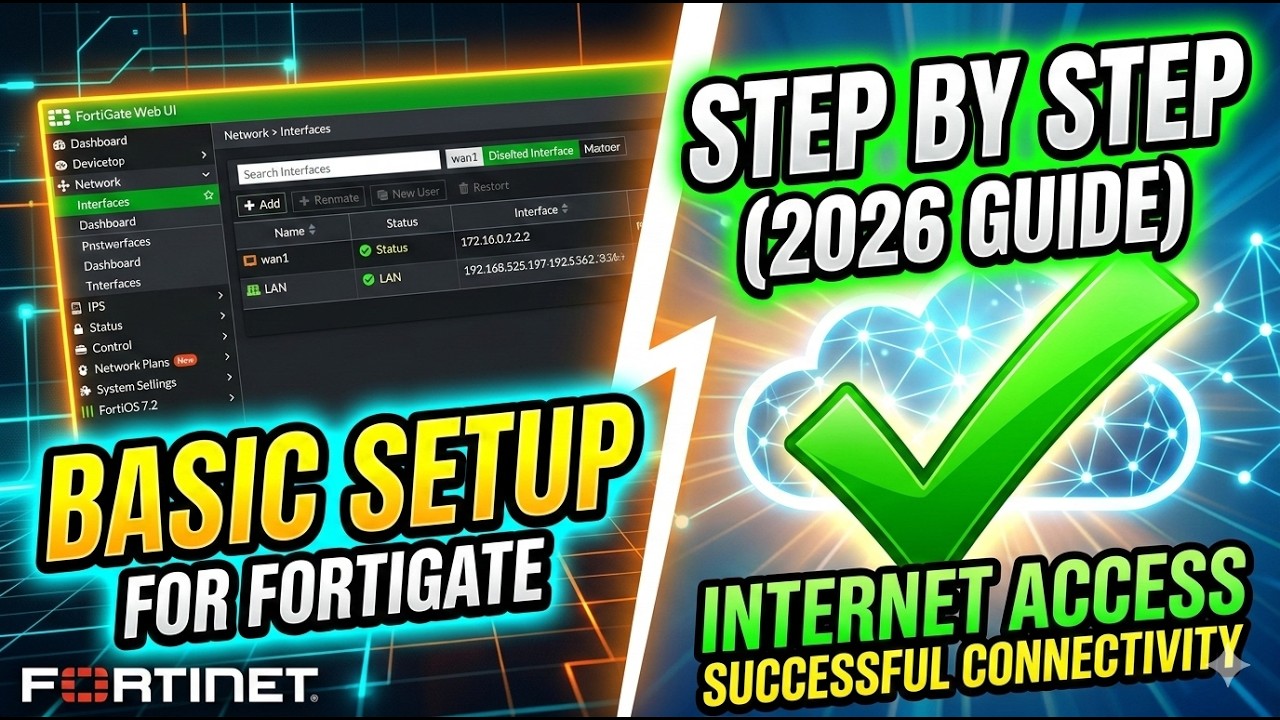
FortiGate Firewall Setup: How to Configure Internet Access Step-by-Step (2026) | Firewall Training
Автор: Explore IT Issues
Загружено: 2026-03-10
Просмотров: 39
Описание:
Explore IT Issues: Solutions For All
FortiGate Firewall Setup: How to Configure Internet Access Step-by-Step (2026) | Firewall Training
Phase 1: Interface Configuration
You must first define who is the "Outside" (ISP) and who is the "Inside" (Users).
WAN Setup: Go to Network -- Interfaces. Edit your wan1 (or equivalent) port.
Role: WAN.
Addressing Mode: Select DHCP (typical for home/small biz) or Manual (enter your Static IP/Subnet from your ISP).
LAN Setup: Edit your internal or lan port.
Role: LAN.
IP/Network Mask: Assign your local gateway (e.g., 192.168.1.1/24).
DHCP Server: Enable this so your computers get IPs automatically.
Phase 2: The Default Route (The Way Out)
Without a route, the firewall doesn't know where the "Internet" is.
Go to Network -- Static Routes.
Click Create New.
Destination: 0.0.0.0/0.0.0.0 (This means "Anywhere").
Gateway: Enter the IP of your ISP’s router.
Interface: Select your wan1 port.
Click OK.
Phase 3: The Firewall Policy (The Permission)
By default, FortiGate blocks everything. You must create an "Allow" rule.
Go to Policy & Objects -- Firewall Policy.
Click Create New and name it Internet_Access.
Incoming Interface: LAN (or your Internal port).
Outgoing Interface: WAN1.
Source / Destination / Service: Set all to all/ALL.
Action: ACCEPT.
NAT: Ensure the NAT toggle is ON (This is the most common reason internet fails if missed).
Phase 4: DNS (The Phonebook)
Ensure the firewall can resolve names like google.com.
Go to Network -- DNS.
Select Use FortiGuard Servers or specify Manual (e.g., 8.8.8.8).
Click Apply.
FortiOS 7.6, Fortinet Tutorial, Firewall Policy NAT, Static Route Setup, Initial Configuration
Повторяем попытку...
Доступные форматы для скачивания:
Скачать видео
-
Информация по загрузке: