Installing BIMserver.center Virtual Reality
Автор: BIMserver.center
Загружено: 2021-02-08
Просмотров: 348
Описание:
Let's start by installing all the resources necessary to use the BIMserver.center Virtual Reality application.
System requirements
Before installing, we start by checking if our computer meets the minimum system requirements to use Microsoft's mixed reality portal.
To check this, we will install the "Windows Mixed Reality PC Check" available in the Microsoft Store.
The application will carry out a series of diagnostic checks that will show us if our computer meets the requirements. There are 3 possible outcomes: the PC is fully compatible, the portal can be run although the computer is not 100% compatible or that the computer is incompatible due to a lack of resources.
Installing the Mixed Reality Portal
After checking that our device is compatible, we connect our headset to a USB 3.0 port and a HDMI port with direct connection to the computer's graphic card.
Windows will detect the headset connection and will automatically display the "Mixed Reality Portal" installation window, Microsoft's environment for virtual, augmented and mixed reality experiences
If the installation window does not appear, search directly for the "Mixed Reality Portal" application in the Microsoft Store and install it.
It first carries out a check to determine if our PC is compatible. If it gives us the same result as our first check, we can start configuring the space and layout of the environment to use our virtual reality headset.
There are two setup options, "Set me up for seated and standing", which allows us to use the device in static mode in front of the computer, using the headset controllers to move, or "Set me up for all experiences", which covers the previous option but additionally requires us to configure a space of 1.5x2 metres where we can move and reflect this movement in the virtual environment. In this example, we will set up the environment with the first option.
Following the indications shown in the image, we place the headset in front of us, centred and pointing at the screen, and press the "Centre" button. The camera angle of the device will correctly calibrate to the angle of the natural position of our head.
After completing the set up and installation of the remaining components, Microsoft's mixed reality environment will welcome us.
Pairing the controllers
Next we will pair the headset controllers with the computer.
From the "Mixed Reality Portal" application, we access the menu located in the bottom left and click on "Set up controllers", which redirects us to the Microsoft Store to download an application that will guide us through the set up.
The application will try to automatically pair the controllers once we have turned them on by pressing the Windows button for a few seconds.
If we are unable to pair them automatically, we have the "Pair manually" button, which will ask us to press and hold the "Bluetooth pairing" button, usually located next to the headset's batteries, until the light's on device begin to flash.
Once the controllers have been paired we will be able to view them in the mixed reality portal.
Installing BIMserver.center Virtual Reality
Now that the portal has been set up we will install the BIMserver.center Virtual Reality application.
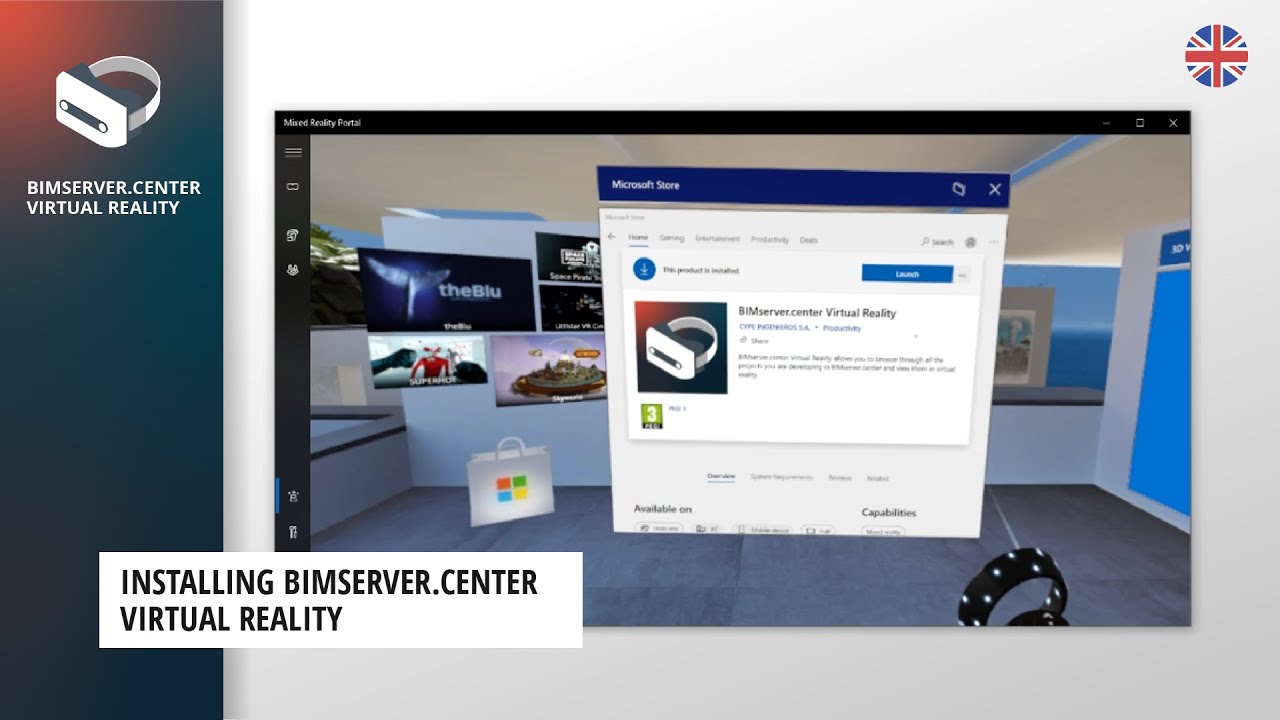
Click on the windows button on the controller to go to the application drawer. We search for the Microsoft Store.
Once inside the Store, using the search bar we go to the profile of BIMserver.center Virtual Reality and install it.
At the end of the process, we have a direct access to BIMserver.center Virtual Reality in the application drawer. We launch it and the login panel will appear to enter our BIMserver.center user data. Once we have logged in, we can start to view all the projects stored on the platform in virtual reality.
Повторяем попытку...
Доступные форматы для скачивания:
Скачать видео
-
Информация по загрузке: