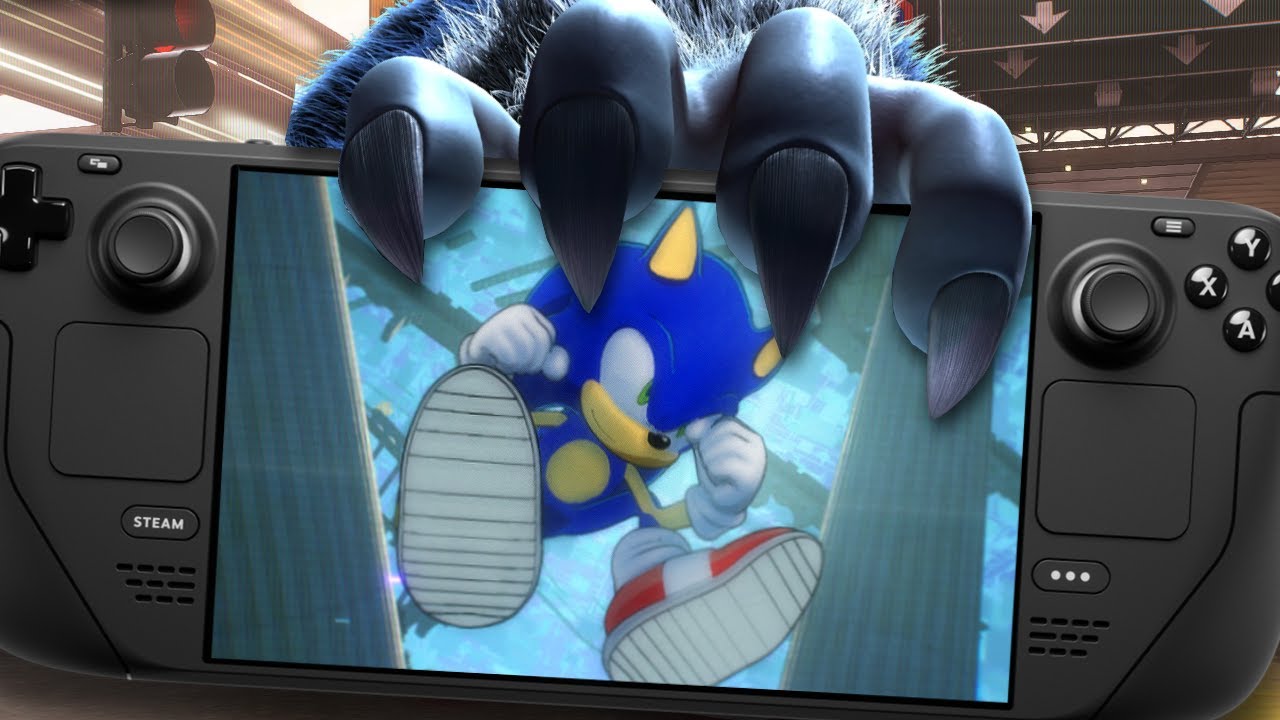
Sonic Frontiers Super Sonic Mod and Other Characters skin (Steam Deck)
Автор: wdnk23
Загружено: 2025-01-10
Просмотров: 991
Описание:
Demo:
0:39 Tutorial (read the instructions below for clear instructions)
3:14 using other character skin mod
4:33 Super Sonic
Instructions:
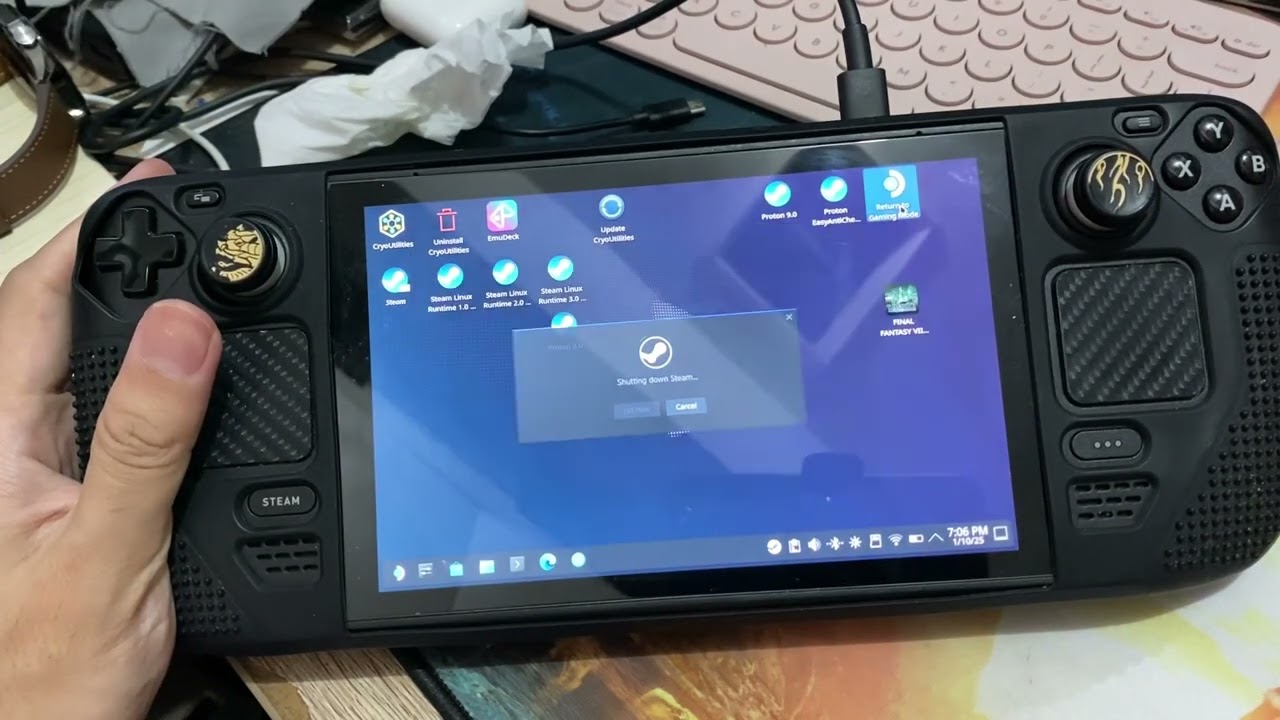
1. Download the *HedgeModManager* `.exe` file from [https://github.com/thesupersonic16/He.... Place the file in the *Sonic Frontiers* folder (using Desktop mode on your Steam Deck). Don’t forget to right-click the file and select **"Add to Steam"**.
2. Download the desired mods. For this example, we’ll use the *Super Sonic mod**, available for download here https://gamebanana.com/mods/download/.... Download the latest `.zip` file, extract it, and copy-paste the folder into the **"Downloads"* folder on your Steam Deck.
3. Open the *Steam* app, locate the *HedgeModManager.exe* you added to the Steam Library earlier. Open its *Properties**, and set the **Proton* compatibility tool to **"Proton Experimental"**.
4. Launch the *HedgeModManager.exe* from Steam. If it doesn’t run, ensure the *Proton Experimental* setting has been applied correctly.
5. Inside *HedgeModManager**, click **Add a game* and browse to the *Sonic Frontiers* folder at:
`Home/deck/.steam/steam/steamapps/common/SonicFrontiers`. Once selected, click *Add* to confirm.
6. If the steps above are successful, the *Sonic Frontiers* game will appear in the *HedgeModManager**. Next, go to the **Mod* tab, click the *Add Mod* button, and browse to `Home/Downloads`. Select and add the mod folder you copied earlier.
7. If successful, the mod will be displayed in the **HedgeModManager**. Check the mod to activate it, then click **Save**.
8. Exit the *HedgeModManager**, return to **Steam**, and launch **Sonic Frontiers* from there. Make sure *Proton Experimental* is still set, then play the game.
Повторяем попытку...
Доступные форматы для скачивания:
Скачать видео
-
Информация по загрузке:

![Sonic Frontiers - Cyberspace Challenge (All Islands) in 17:09.12 [World Record]](https://imager.clipsaver.ru/wItAaxHDRjY/max.jpg)











![Sonic Unleashed - All Main Day Stages (60 FPS Boost) [Xbox Series S]](https://imager.clipsaver.ru/aAOmfUnBP5A/max.jpg)