Complete Guide: Setting up Rain 5G Huawei Outdoor CPE Router for Lightning-Fast Internet
Автор: Bassonia Tv
Загружено: 2022-03-28
Просмотров: 526
Описание:
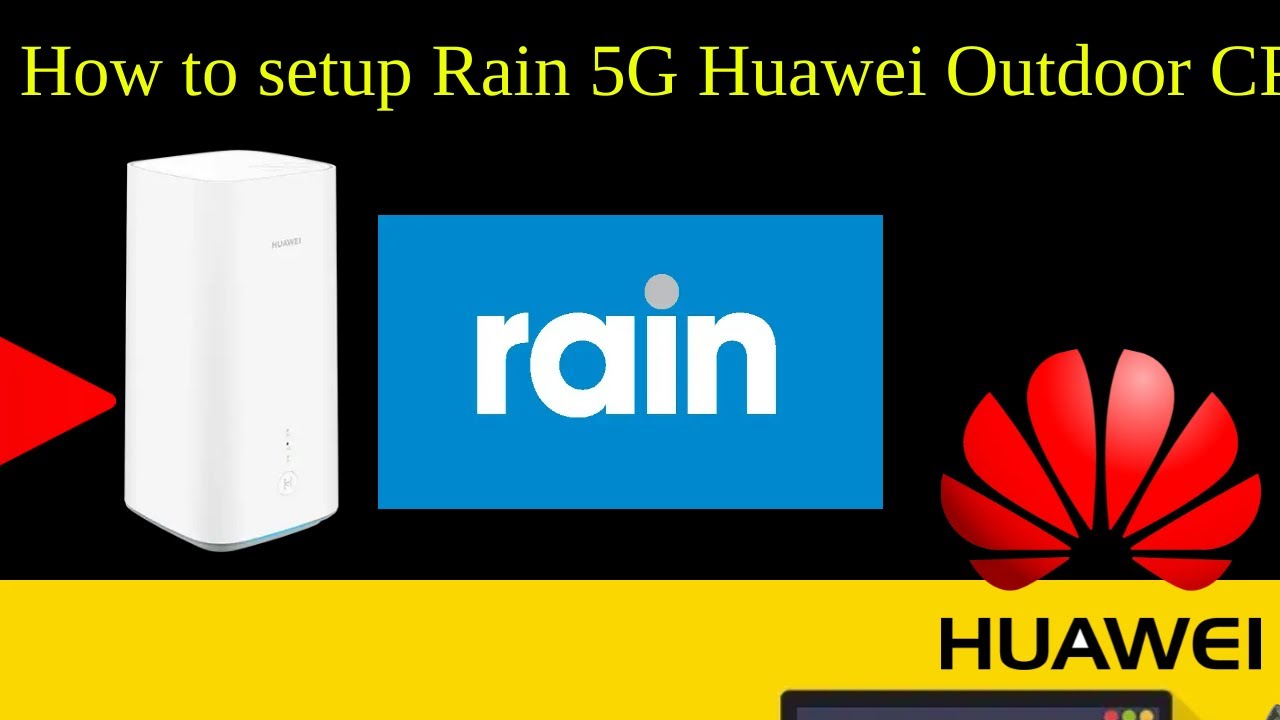
How to setup Rain 5G Huawei Outdoor CPE Router
Setting up the Rain 5G Huawei Outdoor CPE Router involves a series of steps. Please note that the exact process may vary slightly depending on the specific model and firmware version of your router. Here is a general guide to help you set up your Rain 5G Huawei Outdoor CPE Router:
Power on the router: Connect the power adapter to the router and plug it into a power outlet. Ensure that the router is getting power and turned on.
Connect to the router: Use a device (such as a smartphone, tablet, or computer) with Wi-Fi capability to connect to the router's default Wi-Fi network. Look for the network name (SSID) and password provided on the router label or in the documentation.
Access the router's web interface: Open a web browser on the connected device and enter the default gateway IP address of the router in the address bar. The default IP address is often 192.168.8.1, but it may vary depending on your router model. Press Enter to access the router's web interface.
Login to the router: You will be prompted to enter the login credentials. The default username and password are usually both "admin" unless you have changed them. Enter the credentials and click on the Login or Sign In button to access the router's settings.
Configure network settings: Once you are logged in to the router's web interface, navigate to the network settings section. Here, you will need to configure the appropriate settings for the Rain 5G network. This typically includes selecting the network mode (5G), APN settings, and other network-specific details. Consult the documentation or contact your service provider for the specific network settings required by Rain.
Save and apply settings: After configuring the network settings, click on the Save or Apply button to save the changes and apply the new settings to the router. Wait for the router to restart and apply the settings.
Verify the connection: Once the router restarts, it will attempt to connect to the Rain 5G network. Ensure that you have a stable 5G signal and that the router successfully establishes a connection.
Connect devices: With the router connected to the Rain 5G network, you can now connect your devices (computers, smartphones, etc.) to the router either via Wi-Fi or Ethernet. Follow the appropriate steps to connect devices and enjoy the 5G internet connection.
It's worth noting that specific router models and firmware versions may have additional settings or steps for customization. Refer to the user manual or documentation provided by Rain or Huawei for detailed instructions tailored to your specific router model.
Rain 5G router setup
Huawei Outdoor CPE Router tutorial
Rain 5G network configuration
Setting up Rain 5G internet
Rain 5G router installation
Huawei Outdoor CPE Router guide
Rain 5G connectivity tutorial
Rain 5G router settings
Huawei Outdoor CPE Router setup process
Rain 5G network setup tutorial
Rain 5G troubleshooting tips
Huawei Outdoor CPE Router connectivity
Rain 5G internet installation guide
Rain 5G router optimization
Huawei Outdoor CPE Router network settings
Rain 5G network coverage tips
Rain 5G router configuration steps
Huawei Outdoor CPE Router connectivity issues
Rain 5G speed optimization techniques
Rain 5G router troubleshooting
Huawei Outdoor CPE Router firmware update
Rain 5G network stability tips
Rain 5G router security settings
Huawei Outdoor CPE Router advanced setup
Rain 5G network reliability tips
Rain 5G router performance optimization
Huawei Outdoor CPE Router antenna placement
Rain 5G network signal strength tips
Rain 5G router firmware upgrade
Huawei Outdoor CPE Router user manual
Повторяем попытку...
Доступные форматы для скачивания:
Скачать видео
-
Информация по загрузке: